> For the complete documentation index, see [llms.txt](https://help.digits.com/llms.txt). Markdown versions of documentation pages are available by appending `.md` to page URLs; this page is available as [Markdown](https://help.digits.com/firms-connections/plaid.md).
# Digits Connections: Banks & Cards via Plaid
Sync your clients’ banks and cards with Digits in seconds. Enjoy real-time updates, smart categorization, and connections to 12,000+ financial institutions across the U.S.
***
### How to Connect a Client’s Bank
1. Log in to your client’s **dashboard**.
2. From the left navigation menu, click **Connections**.
3. Click **Banks and Cards**.
4. Choose a bank from the list, or use **Search** to find it.
5. Click **Connect**, then follow the prompts to finish linking the account.
{% hint style="info" %}
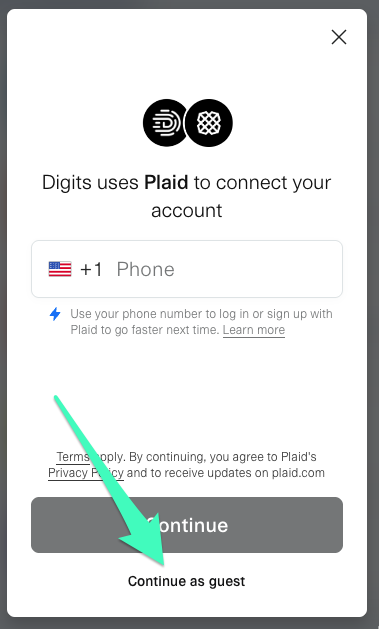
**Tip:** When managing multiple clients, log in to Plaid as a **Guest** to avoid confusion between accounts.
 {% endhint %}
***
### Supported Banks & Financial Institutions
Digits connects to banks and credit card issuers via **Plaid**. Most major **U.S. banks** and many **U.S.-based credit unions** are supported.
For more information on what banks are supported, see: [Digits Availability, Banks, and Currency Support](/firms-getting-started/digits-availability-banks-and-currency-support.md)
{% endhint %}
***
### Supported Banks & Financial Institutions
Digits connects to banks and credit card issuers via **Plaid**. Most major **U.S. banks** and many **U.S.-based credit unions** are supported.
For more information on what banks are supported, see: [Digits Availability, Banks, and Currency Support](/firms-getting-started/digits-availability-banks-and-currency-support.md)
What does "supported" mean?
Digits connects to banks and credit cards using **Plaid.**
A bank or financial institution is considered **supported** if:
* It’s available through Plaid, and
* It allows transaction data to be shared programmatically
Most major **U.S. banks** and many **U.S.-based credit unions** meet these requirements.
Does Digits support international banks?
No. Digits does **not** support:
* Non-U.S. banks
* International-only financial institutions
* Foreign bank feeds, even for U.S.-based users
Digits relies on U.S. banking infrastructure and USD-based accounting.
International support is on our radar and on our roadmap. We don’t have timelines to announce yet—but when support lands, you’ll see it in the [**Digits changelog**](https://updates.digits.com/changelog).
What if my client’s bank isn’t supported by Plaid?
As long as your client's transactions are in USD, you can import them using a .csv.
See: [Importing Transactions](/firms-agentic-general-ledger/importing-transactions.md)
***
### What Happens After Connection
Once a client’s bank is connected, **Digits automatically gets to work**:
* Imports available historical transactions from Plaid (up to 24 months, depending on your financial institution).
* Captures key transaction fields:
* Date
* Amount
* Description (including party info, where available)
* :sparkles: Categorizes transactions automatically and assigns parties intelligently.
* Starts a frequent sync to keep data continuously up to date.
***
### Can’t Connect to a Bank? Use CSV Import
If a client’s bank isn’t supported through Plaid, you can import transactions manually:
1. Export a **CSV file** from the client’s bank.
2. From your client’s dashboard, go to **Ledger → All Transactions**.
3. Click the dropdown next to **New Transaction → Import Bank Transactions**.
4. Download and fill out the CSV template.
5. Upload the file and map the fields.
6. Select the correct **bank or card category**, then click **Next**.
**See also:** [Importing Transactions](/firms-agentic-general-ledger/importing-transactions.md)
***
### Managing A Client's Bank Connection
* [Change the Start Date for a Connection](/firms-connections/start-date.md)
* [Delete or Remove Transactions in Digits](/firms-connections/remove-transactions.md)
* [Archive and Delete a Connection](/firms-connections/remove-connections.md)
* [Starting Over in Digits](/firms-connections/starting-over.md)
***
### Automatic Statement Fetching via Plaid
Digits automatically fetches official **bank statements** from supported institutions. They appear directly in the Vault, keeping everything centralized for audits and reporting.
**Currently supported banks include:**\
*Acorns, Altruist, American Bank (TX) - Business Banking, Aspire, Atlas, Bank of America, CCBank (Business & Personal), Chariot, Chase, Citibank Online, Cogent Bank - Cogent Connection, Columbia Bank (Commercial), Crew Finance, Dama Financial by LeafLink, Dappr, Double Finance, Dupaco Credit Union, Exponent, Fifth Third Bank, First Bank of Ironharbor, Gemini Credit Card, GuideStone Financial Resources, Huntington Bank, Karat Financial, Klutch, Loop Financial (US), Mass Finance Inc., Meow, Mercury, Navy Federal Credit Union, Parker, Percapita Group, Ramp, Regions Bank, Rent App, Safra National Bank, Slash, Spruce, Square, Truist, Upgrade, U.S. Bank, and Wells Fargo.*
***
### Troubleshooting & Reconnecting Banks
If data looks **stale or incomplete**:
* Reconnect the bank from the **Connections** page (using the same steps above).
* Ensure all accounts meant to sync are still selected during the Plaid flow.
***
### Frequently Asked Questions
Does Digits have a plan for global expansion?
International support is on our radar and on our roadmap. We don’t have timelines to announce yet—but when support lands, you’ll see it in the [Digits Changelog](/changelog/changleog.md)
Why can’t I see all activity for my Mercury Treasury or investment account?
Digits supports connecting investment accounts through Plaid, including Mercury Treasury accounts. However, Mercury Treasury accounts are currently missing some transaction types, specifically dividends, interest, and management fees.
You’ll still see large transfers in and out of your Treasury account, like auto-transfers, liquidations, and investments. But the monthly activity within the portfolio, such as dividend payments from money market funds and advisory fees, is not showing up.
This is a known issue on Plaid’s side. The data feed we receive for Mercury Treasury (investment or brokerage) accounts only includes cash transfers between your bank accounts and the Treasury portfolio. The dividend, interest, and fee activity that appears on your monthly Apex Clearing statement is not currently being pulled in.
We’re actively working with Plaid to improve this. In the meantime, refer to your statements for a complete view of activity.
What if I connected the wrong bank account, or want to remove one later?
You can archive or delete the existing connection and then add the new one—no need to start from scratch.
See [Archive and Delete a Connection](/firms-connections/remove-connections.md)
What if my bank doesn’t support Plaid?
No worries—you can still get clean books in Digits.\
You can still import transactions into Digits by uploading a bank statement (PDF/PNG/JPG/JPEG) or a CSV file.\
See: [Importing Transactions](/firms-agentic-general-ledger/importing-transactions.md)
How do I import bank data if the bank account is closed?
If you can’t connect to the bank via Plaid, import using CSV or PDF statements instead.\
See: [Importing Transactions](/firms-agentic-general-ledger/importing-transactions.md)
Can I remove sub-accounts from a connection?
Some financial institutions group multiple cards or sub-accounts under a single connection (for example, employee cards or personal cards issued under the same business account). Digits currently does not support removing or deselecting individual sub-accounts within a connection when they are grouped this way by your bank.
Can I use Digits without connecting a bank account?
No. Connecting at least one bank or financial account is currently required to set up a business in Digits.
At this time, you can't onboard by importing journal entries or uploading CSV files instead of connecting a bank account.
If you'd like to see support for CSV-only onboarding or manual journal entry imports, we'd love to hear your feedback. It helps us prioritize future improvements.
Can I connect a loan account?
Loan accounts aren't supported through bank connections and won't appear as an option when linking. Track a loan by creating a liability category and importing the loan statement manually.
I reconnected my bank, and now I have duplicate accounts. How do I avoid or fix that?
When reconnecting a bank you've linked before, reconnect through the existing connection and select **Add New Account(s)**. This updates the existing connection and won't create duplicate accounts.
Selecting **Connect with New Credentials** creates a new connection and duplicate accounts. Digits doesn't automatically merge duplicate connections.
If you've already created duplicate accounts, archive and delete the duplicate connection to remove the duplicate accounts and their synced transactions.
Why are all of my bank subaccounts grouped under one account?
This depends on how your bank shares account information through Plaid.
If your bank provides each account separately, you can select and reconcile each account on its own.
Some banks group subaccounts under a primary account instead. In those cases, the subaccounts can't be selected separately, and their transactions may appear under the primary account rather than in separate registers.
Why doesn't the Plaid sign-in window open when I click Continue to login?
Your browser may be blocking the Plaid sign-in pop-up.
Allow pop-ups for **Digits** and **Plaid**, temporarily disable any pop-up-blocking browser extensions, and try again in a supported browser.
***
{% columns %}
{% column width="66.66666666666666%" valign="middle" %}
Got a question or feedback? Our team is all ears—come say hello!
{% endcolumn %}
{% column width="33.33333333333334%" valign="middle" %}
Contact Digits Support
{% endcolumn %}
{% endcolumns %}
***
---
# Agent Instructions
This documentation is published with GitBook. GitBook is the documentation platform designed so that both humans and AI agents can read, navigate, and reason over technical content effectively. Learn more at gitbook.com.
## Querying This Documentation
If you need additional information that is not directly available in this page, you can query the documentation by asking a question.
Perform an HTTP GET request on the following URL with the `ask` and `goal` query parameters:
```
GET https://help.digits.com/firms-connections/plaid.md?ask=&goal=
```
`ask` is the immediate question: it should be specific, self-contained, and written in natural language.
`goal` is what the user is ultimately trying to achieve, the reason they need the answer. Sharing it helps GitBook give you a better, more relevant answer. A goal is most helpful when it describes the outcome the user wants rather than restating the question. For example, with `ask=how do I create an API token`, a goal like `automate deployments from our CI pipeline` lets GitBook tailor the answer to that use case.
The response will contain a direct answer to the question and relevant excerpts and sources from the documentation.
Use this mechanism when the answer is not explicitly present in the current page, you need clarification or additional context, or you want to retrieve related documentation sections.
