Digits Connections: BILL

Connect BILL to Digits for a secure, direct feed of payables and receivables. Transactions import automatically into the Ledger — categorized, synced, and ready for faster, more accurate bookkeeping.


How to Connect to BILL

To connect a client’s BILL account:

  1. Log in to the client’s dashboard.

  2. Click Connections in the left-hand menu.

  3. In the All Connections tab, locate BILL.

  4. Click Connect.

  5. Log in to the client’s BILL account to generate a Sync Token.


What is a Sync Token?

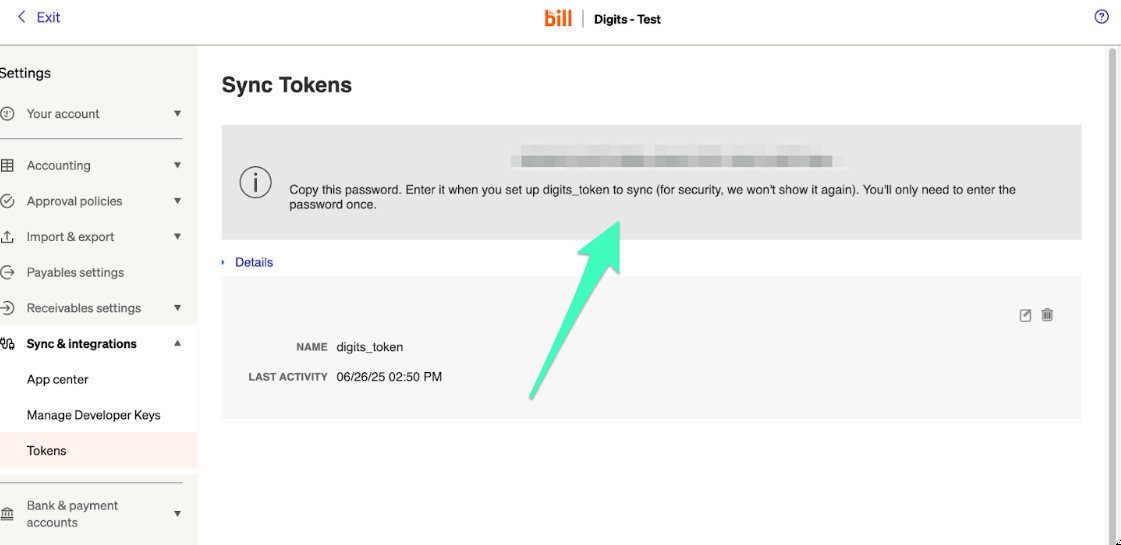
A Sync Token is a name and password pair used only for syncing BILL with other platforms—it can’t be used to log into your BILL or Digits account.

How to Generate a Sync Token in BILL

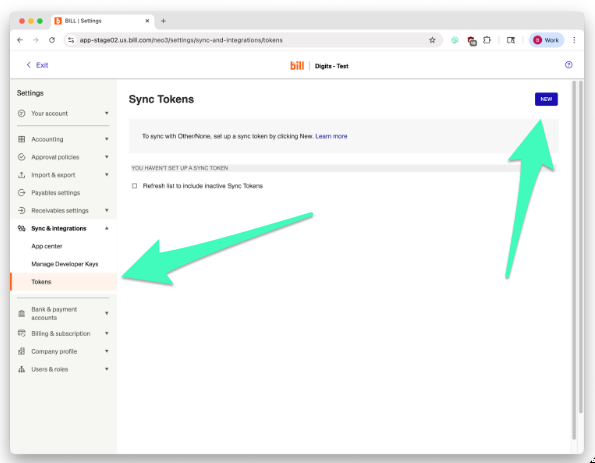
  1. In BILL, go to Settings → Sync & Integrations → Tokens.

  2. Click New.

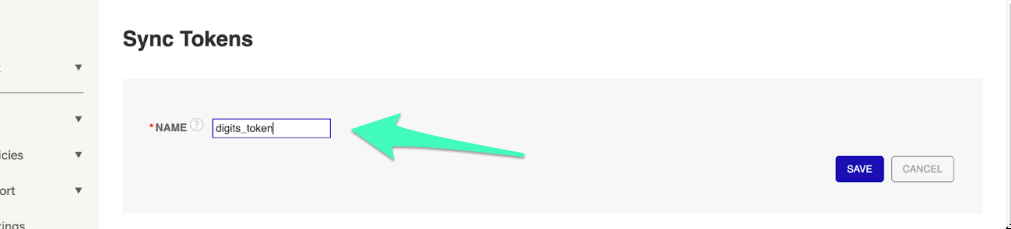
  1. Enter a Name for the Token, then click Save.

  1. Copy the Token Name and Token Password.

Then, back in Digits:

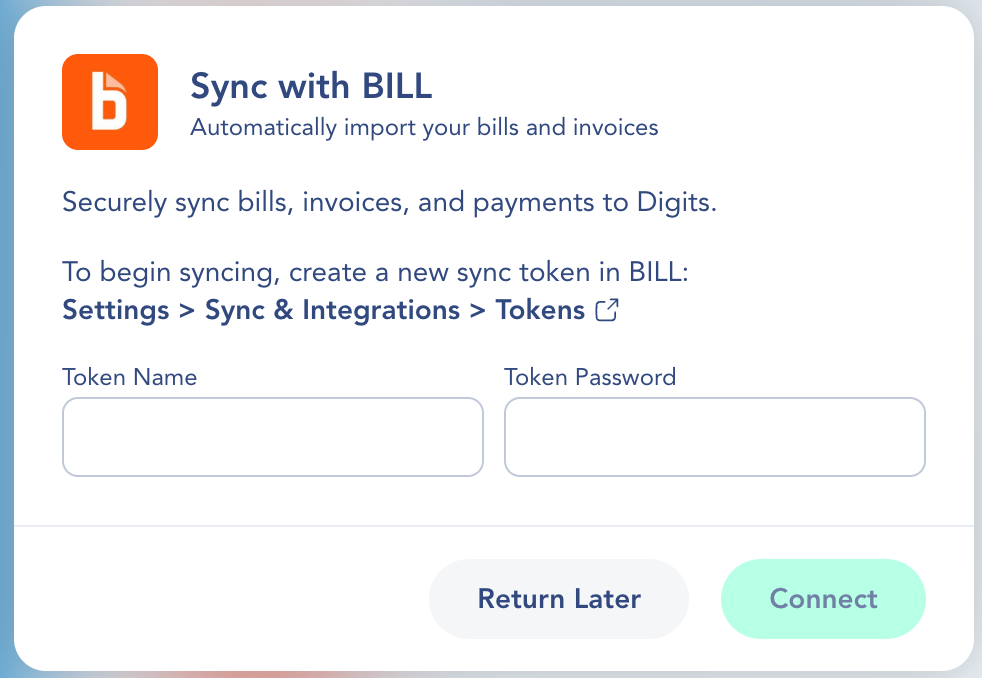
  1. Enter the Token Name and Token Password in Digits.

  1. Click Connect.

  2. Once connected, Digits begins syncing data automatically.


What Happens After Connection

Once connected, Digits will automatically:

  • Import the client’s full transaction history from BILL

  • Sync new bills, invoices, and payments automatically

  • Automatically categorize and assign parties

  • Start a sync to keep the Ledger updated

Note: Import time may vary based on the client’s data volume and activity in BILL.


Frequently Asked Questions

Why don’t I see older transactions in Digits?

Digits imports all historical transactions available through the BILL API. If data appears missing, verify that the transaction history is accessible in your BILL account or re-sync from your client’s dashboard.

What should I do if the BILL connection stops syncing?

Reconnect from the Connections tab in your client’s dashboard. If errors persist, contact Digits Support.


If something looks off — or your client’s BILL data isn’t syncing correctly — contact Digits Support at [email protected]