> For the complete documentation index, see [llms.txt](https://help.digits.com/llms.txt). Markdown versions of documentation pages are available by appending `.md` to page URLs; this page is available as [Markdown](https://help.digits.com/firms-connections/ramp.md).
# Digits Connections: Ramp
Connecting Ramp to Digits creates a streamlined, professional-grade workflow — eliminating manual data entry and syncing transactions directly into your client’s general ledger.
***
{% hint style="info" icon="lightbulb-exclamation-on" %}
**Note:** Ramp is the source of truth. Changes should be made in Ramp unless otherwise noted.
{% endhint %}
### Before You Connect
Before connecting Ramp to Digits:
* **Ensure you have admin access.** You’ll need this to log in and disconnect your client’s current accounting provider from Ramp.
* **Choose a transition date.** This marks the date you will stop using your client’s current system and start using Digits.
* **Pay off any approved bills in Ramp before your transition date.** Unpaid bills that cross systems can cause reconciliation issues. Hold off on creating new bills until your transition is complete.
* **Sync all card transactions** dated before the transition to your old accounting system. Wait a few days after the cutoff for any uncleared charges to clear, then sync. Leave anything dated after the cutoff unsynced.
* **Sync all approved reimbursements** to your old system up to the transition date.
* **Perform a final close** on your old system. Generate financials or trial balances.
* **Export and delete** any approved but unpaid bills in Ramp. You'll recreate them after connecting Digits.
***
### How to Connect to Ramp
{% hint style="warning" %}
**Note:** Ramp can only integrate with one ledger at a time. If your client is switching from another system (like Puzzle), follow step 1; otherwise, skip to step 2.
For detailed instructions, visit [**Ramp’s Migration Help Article**](https://support.ramp.com/hc/en-us/articles/9503285589267-Migrating-to-an-ERP-Without-a-Direct-Ramp-Integration#h_01GCVJSJ5ZH8N3F8JHTMCXAHX8)
{% endhint %}
{% stepper %}
{% step %}
#### Step 1: Disconnect Any Existing Integration in Ramp
1. Sign in to Ramp
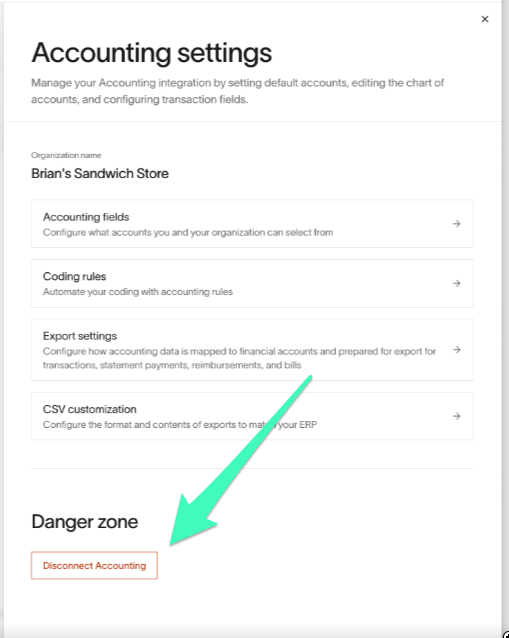
2. Go to [Ramp's Accounting settings](https://app.ramp.com/accounting/ramp-card/needs-review/manage)
3. Scroll to **Danger Zone**
4. Select **Disconnect Accounting**
{% hint style="warning" icon="lightbulb-exclamation-on" %}
If you're importing trial balances instead of historical transactions, reports won't span both systems. Import historical transactions if you need complete reporting.
{% endhint %}
{% endstep %}
{% step %}
#### Step 2: Connect Ramp in Digits
1. Sign in to Digits and go to your client's business dashboard.
2. From the left navigation menu, click **Connections**.
3. Go to the **Bills & Expenses** tab.
4. Find Ramp and click **Connect**.
5. Once Ramp is connected, you’ll be asked to **map categories** (i.e., choose where things go in your books) for:
1. **Cards & Reimbursements**
2. **Bills**
{% hint style="info" icon="sitemap" %}
**Tip:** These mappings ensure transactions land correctly in your chart of accounts.
{% endhint %}
{% endstep %}
{% step %}
#### Step 3: Post-Connection Cleanup in Ramp
After you've connected Ramp to Digits, there are a few final clean-up steps to ensure everything syncs properly:
1\. **Complete your accounting setup in Ramp.** Map the right A/P and Cash accounts for cards, reimbursements, and bills.
{% hint style="warning" %}
**Note:** Ramp may prompt you to enter a Cash Account Name (from your GL) and a Unique Account ID.\
These are only used for Ramp’s CSV exports and do not affect your Digits connection.\
If prompted:
* Enter n/a for both fields
* Continue with setup — your Digits sync will not be impacted
If you need help, your Ramp account manager can guide you.
{% endhint %}
2\. **Remap your vendors, rules, and card programs.** Once you switch providers, old mappings won’t carry over. You'll need to manually update these to match your Digits chart of accounts—but you’ll only have to do it once.
3\. **If you deleted any unpaid bills** earlier, now’s the time to recreate them in Ramp. Allocate them to your clearing account.
4\. **Post a manual journal entry** to clear out your suspense account once the recreated bills are synced:
* Dr Accounts Payable (no vendor)
* Cr Clearing Account
5\. **Start fresh!** You can now resume syncing card transactions and reimbursements and begin approving and paying bills as usual.
{% endstep %}
{% endstepper %}
***
### What Happens After Connection
#### How to Sync Ongoing Transactions from Ramp to Digits
{% hint style="danger" icon="siren-on" %}
Due to current Ramp limitations, transactions (including expenses and reimbursements) must be **manually marked as Ready to Export** within Ramp before Digits can sync them.
This step must be completed directly in Ramp.
{% endhint %}
#### For Credit Cards, Expenses, and Reimbursements
1. Go to Ramp’s **Accounting** tab.
2. Find the transactions (expenses or reimbursements) you want Digits to sync.
3. Select them individually or use **bulk select.**
4. Click **Mark Ready** — this moves them into the *Ready to Export* state.
{% hint style="warning" icon="triangle-exclamation" %}
Once marked, categories can’t be edited in Ramp, but they can still be changed in Digits.
{% endhint %}
{% hint style="info" %}
**Tip:** If a transaction is missing a category, set it to *Uncategorized Expense.* :sparkles:Digits will automatically categorize it after syncing.
**Pro Tip:** Use Ramp’s **bulk edit tools** to assign categories and mark transactions ready all at once.
{% endhint %}
#### If You Use Ramp for Bill Pay
No manual steps required!\
Ramp automatically syncs bills with Digits:
* When **approved**
* Again when **paid**
***
### Frequently Asked Questions
I disconnected Puzzle, but still can't connect Digits. What should I do?
Puzzle and other ledgers show up in Ramp as “Accounting.” Be sure you’ve clicked Disconnect Accounting from[ this Ramp page](https://app.ramp.com/accounting/manage).
If you still see a “PUZZLE\_FINANCIAL already connected” error, it means Ramp hasn’t fully released the previous connection. Try logging out, then logging back into Ramp and checking again—or contact Ramp support directly.
Is the Ramp integration a two-way sync with Digits?
No. Ramp → Digits is one-way. Mark transactions as “ready to sync” in Ramp, and Digits pulls them into the Ledger. Digits does not push data back to Ramp.
What should I do if the person who authorized Ramp leaves?
Have a current Ramp admin re-authorize the connection from **Digits**. Re-authorizing updates the existing connection in place, so your connection history is preserved. You don't need to archive, delete, or disconnect the existing connection first.
{% hint style="warning" icon="lightbulb-exclamation-on" %}
You must re-authorize using the same Ramp business. If you authorize with a different Ramp account, you'll receive an error indicating that a different Ramp account was used
{% endhint %}
Why doesn't my Ramp account appear after I connected it through Plaid?
Make sure you connected Ramp using the dedicated Ramp connection, not Banks & Cards through Plaid.
If you've already connected Ramp through Plaid, archive the Plaid connection to preserve its history, then create a new connection using the dedicated Ramp connector.
***
{% columns %}
{% column width="66.66666666666666%" valign="middle" %}
Got a question or feedback? Our team is all ears—come say hello!
{% endcolumn %}
{% column width="33.33333333333334%" valign="middle" %}
Contact Digits Support
{% endcolumn %}
{% endcolumns %}
***
---
# Agent Instructions
This documentation is published with GitBook. GitBook is the documentation platform designed so that both humans and AI agents can read, navigate, and reason over technical content effectively. Learn more at gitbook.com.
## Querying This Documentation
If you need additional information that is not directly available in this page, you can query the documentation by asking a question.
Perform an HTTP GET request on the following URL with the `ask` and `goal` query parameters:
```
GET https://help.digits.com/firms-connections/ramp.md?ask=&goal=
```
`ask` is the immediate question: it should be specific, self-contained, and written in natural language.
`goal` is what the user is ultimately trying to achieve, the reason they need the answer. Sharing it helps GitBook give you a better, more relevant answer. A goal is most helpful when it describes the outcome the user wants rather than restating the question. For example, with `ask=how do I create an API token`, a goal like `automate deployments from our CI pipeline` lets GitBook tailor the answer to that use case.
The response will contain a direct answer to the question and relevant excerpts and sources from the documentation.
Use this mechanism when the answer is not explicitly present in the current page, you need clarification or additional context, or you want to retrieve related documentation sections.