Journal Entries in Digits

Record and manage journal entries in Digits to capture multi-account activity, balance debits and credits, and maintain accurate financials for your clients—all in one place.


Creating a Journal Entry

  1. Go to Accounting → Ledger.

  2. Click New Transaction in the top-right corner.

  3. Choose Journal as the transaction type.

  4. Enter journal details:

Field
Description
Required/Optional

Reference Number

Tracking or reference number for the transaction (e.g., invoice or receipt number).

Optional

Date

Choose the transaction date.

Required

Memo

Internal note for context or reference.

Optional

Description

Short description of the transaction.

Optional

Category

Choose the correct ledger category for each line.

Required

Debit/Credit Amount

Amounts must balance.

Required

Party

Add the Party if the transaction relates to a specific vendor, customer, or employee. Leave blank for internal adjustments (e.g., depreciation, reclassifications, accruals).

Required

Department

Assign the transaction to a department, if applicable.

Optional

  1. Add additional lines if needed (minimum of two required).

  2. When finished entering your details, you can choose how to save:

    • Save & Close — Save and return to the Ledger.

    • Save — Save and stay on the current entry.

    • Save & New — Save and immediately start another transaction.


Importing Journal Entries

You can also import journals via CSV for faster onboarding or multi-line adjustments.

  1. Go to Accounting → Ledger.

  2. Click the dropdown next to New Transaction → Import Journal Entries.

  1. Download the CSV template.

  2. Fill in your entries using the template.

  3. Upload your completed file and review the mapping preview.

  4. Click Next to complete the import.

Tip: Each row in your file represents one line of a journal entry. Lines with the same Reference Number are grouped into a single entry.

Best for:

  • Opening balances

  • Multi-line adjustments

  • Catch-up entries during onboarding

Just make sure your debits and credits balance within each group — Digits handles the rest automatically.


Copying or Reversing a Journal Entry

Need to fix a mistake or repeat a recurring entry? Copying and reversing make it quick.

  1. Go to Accounting → Ledger.

  2. Locate the entry by category, party, or amount (or press Command + K to search).

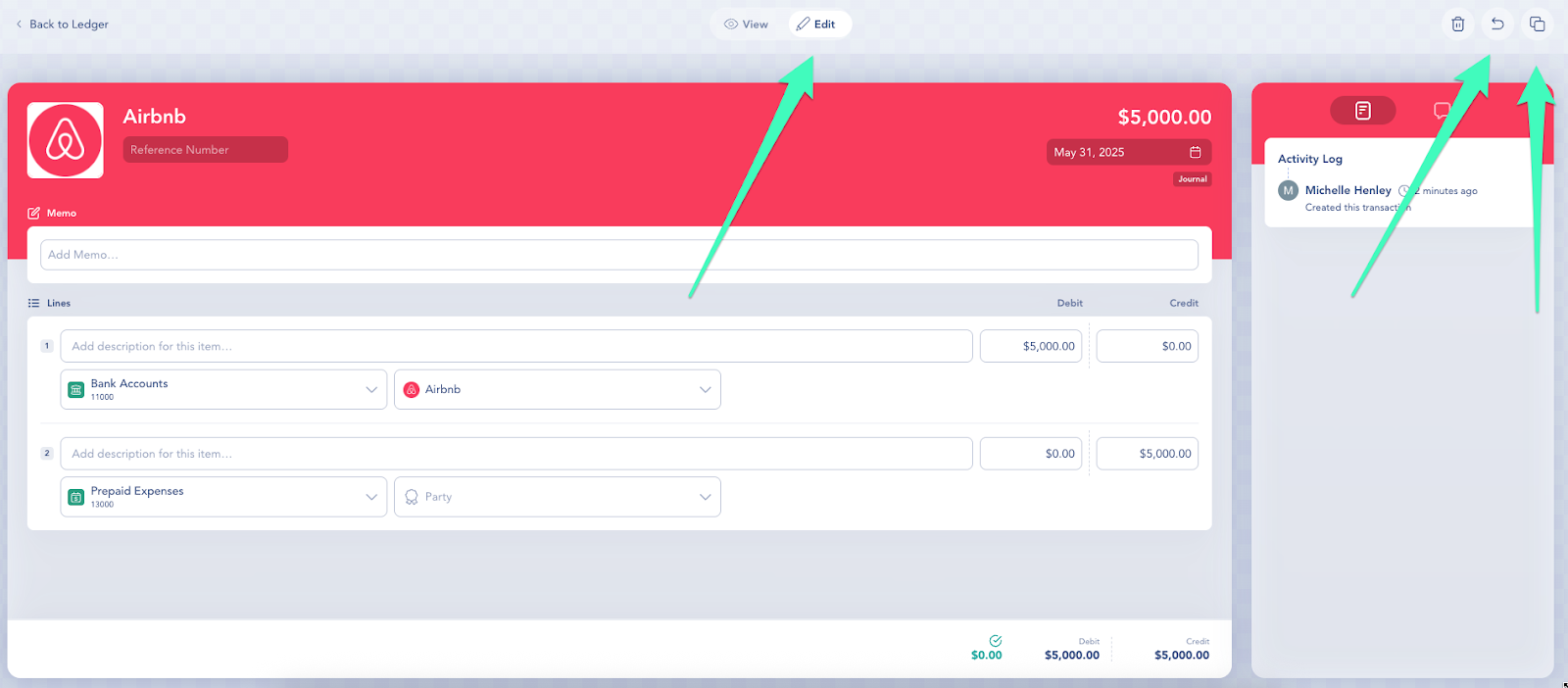
  3. Click the Edit icon at the top of the entry.

  4. Choose Copy to duplicate or Reverse to create an offsetting entry.

  5. Click Submit to save.


Editing Journal Entries

Need to make changes after posting? Journal entries can be edited just like any other transaction in Digits — update fields, add lines, or reverse entries as needed.

For step-by-step guidance, see: Editing Transactions


Frequently Asked Questions

What is a journal entry?

It’s the basic record of a financial transaction in double-entry accounting. Every entry has equal debits and credits, updating the general ledger.

  • Date

  • Affected Categories

  • Debit and Credit amounts

  • Optional details: memo, party, or reference number

Every line must include a selected category, and total debits must equal total credits.

Pro Tip: A journal entry is just one type of accounting entry. Other entries—like Pay In, Pay Out, or Transfer—capture simpler transactions affecting bank or credit card accounts.

Can I import journal entries from QuickBooks?

Not directly — journal imports are supported via CSV. For QuickBooks migrations, Digits automatically brings over the Chart of Accounts and transaction history up to your cutover date.

What happens if my debits and credits don’t balance?

Digits won’t let you save the entry until totals match. Check each line and ensure every debit has a corresponding credit.

Can I copy or reuse recurring journals?

Yes — use the Copy function in the Ledger to duplicate existing entries, then adjust details as needed.

How long does an import take?

Imports typically process within 1–10 minutes, depending on size. If it takes longer, reach out to [email protected].


Need help? Contact us at [email protected]