> For the complete documentation index, see [llms.txt](https://help.digits.com/llms.txt). Markdown versions of documentation pages are available by appending `.md` to page URLs; this page is available as [Markdown](https://help.digits.com/firms-connections/linking-multiple-chase-accounts.md).
# Linking Multiple Chase Accounts to Separate Legal Entities in Digits
If you have multiple Chase accounts under a single login and want to connect them to different legal entities in Digits, there’s a key limitation to be aware of: **Plaid and Chase do not support linking the same login to multiple connections.**
**The solution: Use separate Chase logins**
To ensure each account connects to the correct Digits legal entity:
* **Create authorized-user logins in Chase** for each account you want to connect.
* Use **each authorized user's login separately** when connecting Chase to Digits.
* **Follow these steps for each account** you want to connect in Digits.
***
{% stepper %}
{% step %}
### **Add an Authorized User on Chase**
1. Log in to your **Primary Chase** account.
2. Select **Account Management**, then **Access & Security Manager**.
3. Click **Add Authorized User.**
4. Next, add the authorized user’s information, such as name, email address, phone number, and username, and click **Next**.
5. On the next screen, select **Third-Party App Access**.
6. A pop-up will confirm if you want to enable Third-Party App Access. Click **Turn On.**
7. Select the account you want to create a login for.
{% hint style="warning" %}
**Important:** Only select one account per authorized login.
{% endhint %}
8. Review the information and click **Next.**
9. If your client is creating the authorized users, they will need to provide you with the username they created for each account. Chase will send a temporary password to the email address that was entered.
10. Once you receive the temporary password, you'll need to log in and finalize setting up the account.
11. Repeat these instructions for each business account you want to set up separately in Digits.
**Watch this video from Chase for a full walkthrough:** [How to Add Users in Chase Business Banking](https://www.chase.com/digital/customer-service/helpful-tips/business-banking/security/add-users)
{% endstep %}
{% step %}
### **Log in to Digits & Connect to Chase**
Once you’ve been added as an authorized user and can access the necessary Chase accounts:
1. Log in to your firm dashboard.
2. Click **Add Client** to begin setup.
3. Select your setup method:
* **Starting Fresh with Digits**
* **QuickBooks Migration**
* **Non-QuickBooks Migration**
4. Enter your client’s basic business details and click **Add Client**.
5. When the pop-up prompts you to connect bank and credit card accounts, choose:
* **Chase** (if it appears as an option), or
* **10,000+ Other Banks** if Chase is not listed.
6. Click **Continue as Guest.**
7. Select **Chase** as the banking institution.
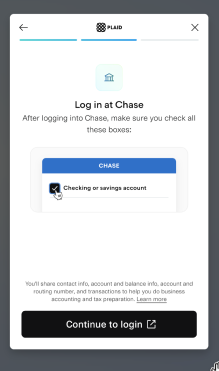
8. Use your authorized user name and password from Chase to link your authorized user account.
9. Follow the prompts to complete the connection.
{% hint style="info" %}
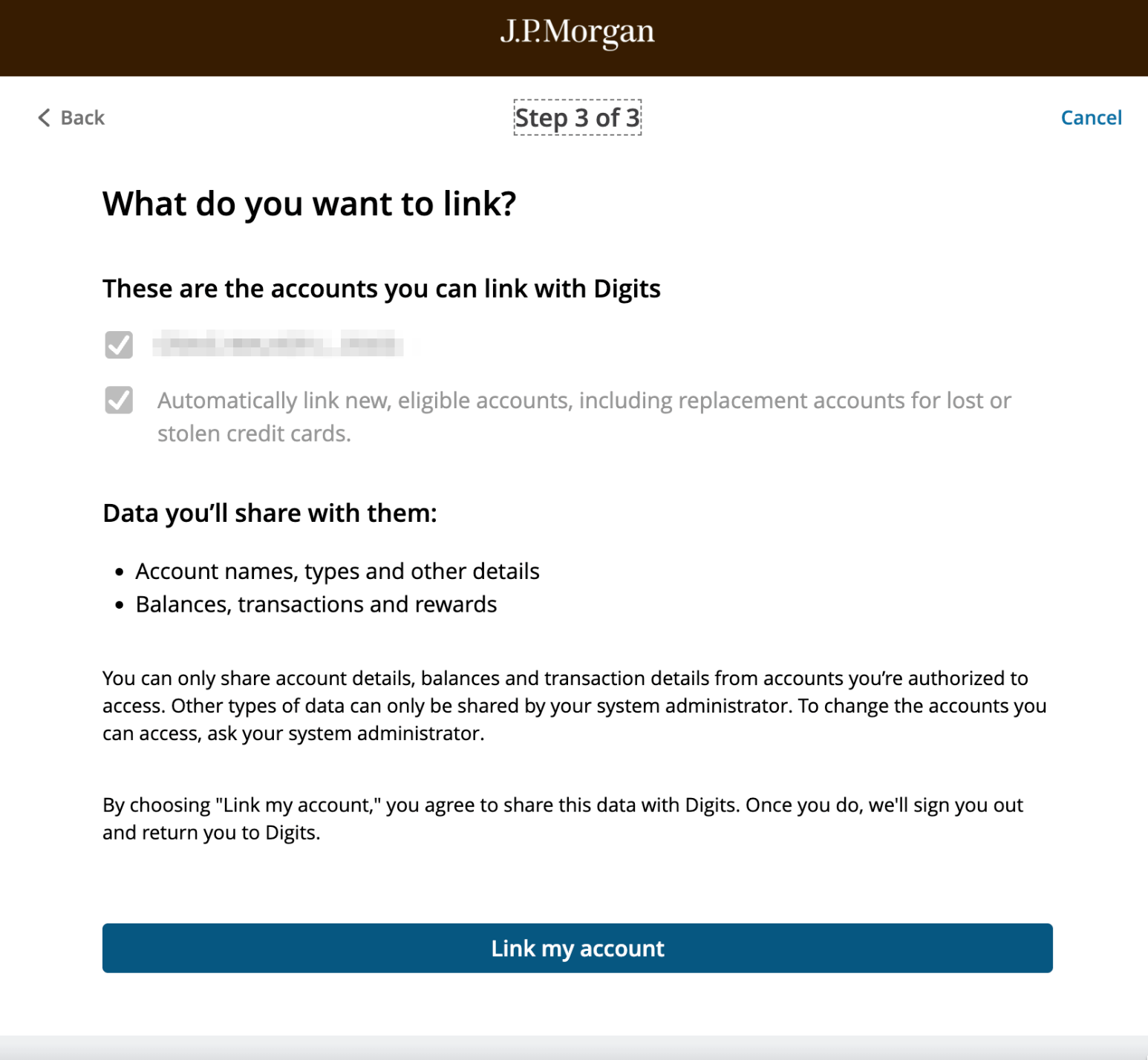
**Note:** You can only select the account that the authorized user is permitted to access. Each login should display and link to just one account.
{% endhint %}
{% hint style="info" %}
**Important:** To add the next authorized user as a separate client in Digits, you'll need to fully log out of Digits first. Then, log back in and repeat the process starting from Step One.
{% endhint %}
{% endstep %}
{% endstepper %}
***
{% columns %}
{% column width="66.66666666666666%" valign="middle" %}
Got a question or feedback? Our team is all ears—come say hello!
{% endcolumn %}
{% column width="33.33333333333334%" valign="middle" %}
Contact Digits Support
{% endcolumn %}
{% endcolumns %}
***
---
# Agent Instructions
This documentation is published with GitBook. GitBook is the documentation platform designed so that both humans and AI agents can read, navigate, and reason over technical content effectively. Learn more at gitbook.com.
## Querying This Documentation
If you need additional information that is not directly available in this page, you can query the documentation by asking a question.
Perform an HTTP GET request on the following URL with the `ask` and `goal` query parameters:
```
GET https://help.digits.com/firms-connections/linking-multiple-chase-accounts.md?ask=&goal=
```
`ask` is the immediate question: it should be specific, self-contained, and written in natural language.
`goal` is what the user is ultimately trying to achieve, the reason they need the answer. Sharing it helps GitBook give you a better, more relevant answer. A goal is most helpful when it describes the outcome the user wants rather than restating the question. For example, with `ask=how do I create an API token`, a goal like `automate deployments from our CI pipeline` lets GitBook tailor the answer to that use case.
The response will contain a direct answer to the question and relevant excerpts and sources from the documentation.
Use this mechanism when the answer is not explicitly present in the current page, you need clarification or additional context, or you want to retrieve related documentation sections.