> For the complete documentation index, see [llms.txt](https://help.digits.com/llms.txt). Markdown versions of documentation pages are available by appending `.md` to page URLs; this page is available as [Markdown](https://help.digits.com/firms-bills-and-invoices/invoices.md).
# Creating and Managing Invoices
Draft invoices for your clients, manage status from Draft to Paid, update customer details, and record external payments. Your client handles sending and collecting payments.
***
### Before You Start: Business Verification
{% hint style="danger" %}
**Note:** Invoices require [**business verification**](/firms-bills-and-invoices/business-verification.md). Your client can complete it, or you can complete verification on their behalf (with authorization). You can still upload and prepare bills while verification is pending.
You can draft and prepare invoices while verification is pending — ***only sending with a payment link is blocked until approval.*** (An invoice waiting on verification shows a Verification Required status — see below.)
{% endhint %}
***
### How to Create an Invoice
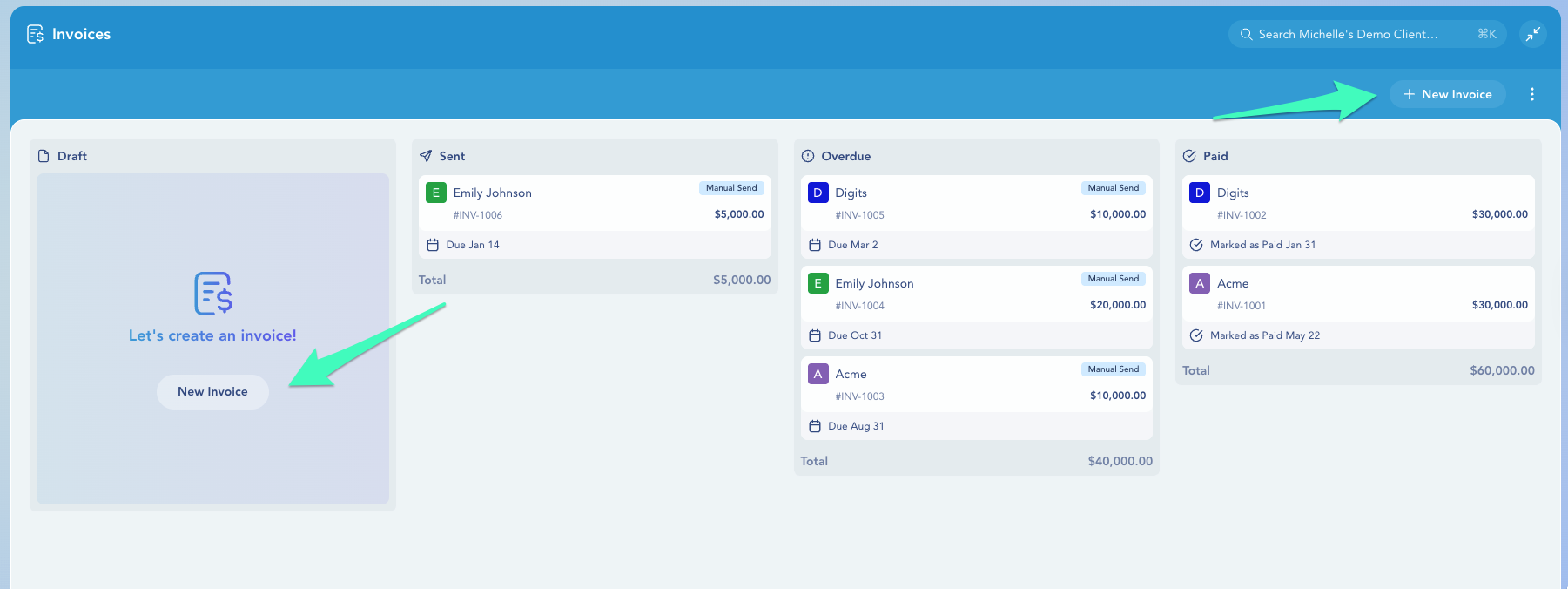
1. From your client's dashboard, click **Bills & Invoices** → **Invoices** in the left navigation menu.
2. Click **New Invoice** in the Draft column, or use the **New Invoice** button in the top-right corner.
3. Add invoice details:
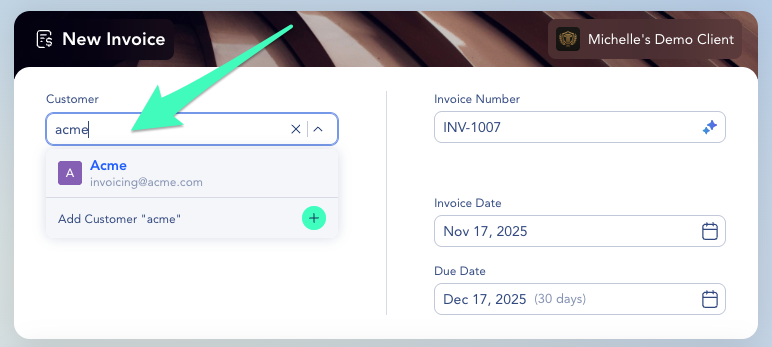
| Customers
Start typing to find an existing customer. If the customer doesn’t exist yet, click + Add Customer in the dropdown to create a new one.
|
| -------------------------------------------------------------------------------------------------------------------------------------------------------------------------------------------------------------------------------------------------------------------------------------------------------------------------------------------------------------------------------------------------------------------------------------------------------------------------------------------------------------------------------------------------------------------------------------------------------------------------------------------------------------- |
| Line Items
Each line item requires a product. You can search your existing products or create a new one in line. For each line item, you can set:
- Name, description, quantity, and unit price
- A revenue category (defaults to the one set on the product, or your global default if none is set)
- Department and location (if your organization uses them)
- A fixed or percentage-based discount
Line items can be reordered by dragging them.
Invoice-Level Discounts
You can apply a discount to the entire invoice (fixed amount or percentage), separate from any line-item discounts.
|
| Dates
Invoice date defaults to today; due date options: Upon Receipt, Net 15, Net 30 (default), Net 45, Net 60, Net 90, or custom.
|
| Reference number
An optional field for tracking purchase orders, project names, or any external reference.
|
| Invoice Memo
An internal or customer-facing note attached to the invoice.
|
4. Click **Review** to open the send flow.
{% hint style="info" %}
**Tip:** :sparkles: Digits automatically generates invoice numbers, but you can set your own custom numbering format in **Settings → Invoices**.
{% endhint %}
***
### Review & Send
On the **Review** screen, you can:
**Branding**\
Customize the invoice appearance with a background color, cover image, and layout style. These are saved to your invoice profile. See [Customizing Invoice Branding](/firms-bills-and-invoices/invoice-branding.md)
**Email**
* Customize the email subject line and message body (separate from the invoice memo)
* Add multiple recipients, CC, and BCC
Click **Send** to deliver the invoice. Customers receive an email with a payment link.
{% hint style="warning" %}
Sending invoices with a payment link requires completed business verification. You can still draft invoices and send them manually (share the PDF) without verification.
{% endhint %}
***
### Invoice Statuses
Every invoice moves through statuses like **Draft**, **Sent**, **Paid**, and **VOID**, and once a customer pays you, you can track the payment all the way to your bank. For the full list of statuses and how to follow a payment's delivery, see [Viewing Invoice Status & Payment Progress](/firms-bills-and-invoices/invoice-status.md)
***
### Editing invoices by status
What you can do with an invoice depends on its status.
#### **Draft invoices**
Draft invoices can be fully edited. You can update line items, amounts, customer details, dates, discounts, categories, and branding before sending.
#### **Sent or overdue invoices**
You can edit a sent or overdue invoice at any time.
You can:
* Add, edit, or remove line items
* Add or remove discounts
* Edit customer info.
* Edit the due date
* Update the invoice branding, memo, and email settings
* Resend the invoice
* Mark the invoice as paid (for offline payments)
* Void the invoice
* Duplicate the invoice to create a new draft
#### **Paid or settled invoices**
Paid invoices are view-only and cannot be edited.
To make changes, duplicate the invoice and issue a corrected version.
#### **Voided invoices**
Voided invoices are also view-only. They are hidden by default.
To view them, open the menu in the top-right corner and select **Show Voided Invoices**.
***
### Resending an Invoice
Need to send an invoice again, a payment reminder for an overdue invoice, or the customer misplaced the original? You can resend any sent invoice without editing it.
1. Open the invoice.
2. Click the **⋯ action menu** in the top-right corner and select **Resend**.
3. Digits opens the **email preview** — review the recipient and message, and adjust if needed.
4. Click **Send** to deliver the invoice again.
Resending doesn't change the invoice — the amount, due date, and payment link stay the same, and it won't duplicate the invoice in your books. It simply sends the email again.
{% hint style="info" %}
**Tip:** Resend is available for invoices that have already been sent, including **Overdue** invoices — it's the built-in wa
{% endhint %}
***
### Viewing invoices in the Ledger
Because invoices are native ledger items, drilling into an AR entry in the Ledger takes you directly to the invoice rather than a journal entry. From the invoice, you can open a journal view to see the underlying accounting — but edits must be made on the invoice itself, not the journal.
***
### How Customers Pay
Customers receive an email with a payment link and do not need a Digits account to pay. Supported payment methods:
* **Credit card** — the processing fee is paid by the business sending the invoice
* **ACH / bank transfer** — available for authenticated payers via Plaid
A shareable payment link is also available on any sent invoice for direct sharing outside of email.
***
### Connected Invoices
If you use a Connect integration, such as Bill.com, or sync invoices through the Open API, those invoices appear on the **Invoicing** board alongside invoices created in Digits.
This gives you a single view of all outstanding accounts receivable without switching between systems.
#### **Identify Connected Invoices**
Connected invoices display the logo of the integration they came from, such as Bill.com.
This makes it easy to distinguish invoices created in Digits from invoices synced from an external system.
| What You Can't Do | What You Can Do |
| ------------------------------------------------------------------------------------------------------------------------------------------------------------------------------------------------------------------------------------------------------------------------------------------------------------------------------------------------------------------------------------------------------------------------------------------------------------------------------------------------------------------------------------------------------------------------------------------- | -------------------------------------------------------------------------------------------------------------------------------------------------------------------------------------------------------------------------------------------------------------------------------------------- |
| Connected invoices are read-only in Digits. To make changes, update the invoice in the source system.
You cannot:
:x: Edit invoices
:x: Send invoices
:x: Void invoices
:x: Delete invoices
:x: Mark invoices as paid
When you click a connected invoice, Digits opens the transaction details view instead of the invoice editor.
| You can:
:check: View connected invoices in the Invoicing board
:check: Track invoice status
:check: Open invoice details
|
#### **Connected Invoice Status**
Connected invoices use a simplified status flow:
* **Created** — The invoice is open and has an outstanding balance.
* **Paid** — The amount due is zero.
Unlike invoices created in Digits, connected invoices do not use the full **Draft** → **Sent** → **Paid/Voided** lifecycle.
#### **Sync Behavior**
Invoice updates flow one way—from the source system into Digits.
When an invoice is updated in the source system, the changes appear in Digits after the next sync. Changes made in Digits are not written back to the source system.
***
### Frequently Asked Questions
Can I assign invoice line items to different revenue categories?
Yes. Each product can have a default revenue category set — when that product is added to a line item, its category is used automatically. You can also override the category (and department/location) on any individual line item directly while drafting. If neither the product nor the line item has a category set, it falls back to the global default in Settings → Invoices → Ledger Integration Settings.
Can I set departments and locations on line items?
Yes, if your organization uses departments or locations. These can be set per product as defaults and overridden per line item on any invoice.
Can I edit an invoice after it's been sent?
Line items, amounts, and the customer cannot be changed after sending. You can still update the branding, memo, and email content and resend the invoice. To change amounts or line items, void the invoice and duplicate it to create a corrected draft.
Can I send an invoice to multiple people?
Yes. When sending, you can add multiple recipients and include CC and BCC addresses.
What payment terms are available?
Upon Receipt, Net 15, Net 30, Net 45, Net 60, Net 90, or a custom due date. The default is Net 30.
How do I record a payment that happened outside of Digits?
See: [Marking a Bill or Invoice as Paid (External Payments)](/firms-bills-and-invoices/external-payments.md)
Can I download a PDF of an invoice?
Yes. Open any Sent, Overdue, or Paid invoice and use the **Download** button in the right sidebar.
Can I change the invoice number?
Digits automatically generates invoice numbers, but you can edit invoices individually or set your own custom numbering format in **Settings → Invoices**.
How do I void an invoice?
Open the invoice and select **Void Invoice**. This permanently cancels it. Use **Duplicate** to create a corrected version if needed.
Can I create an estimate and then convert it to an invoice?
Not yet. Digits doesn’t currently support creating an estimate and converting it into an invoice. For now, you’ll need to create the invoice directly (or draft it and send it when ready).
Does Digits support automatic sales tax calculation?
Not currently. Add sales tax as a manual line item on invoices, and track it using a sales tax payable category in your chart of accounts.
Who pays the processing fee when a customer pays an invoice by credit card?
The business that sends the invoice pays the processing fee. Your customer is not charged any additional fees.
Do I need to complete business verification if I only accept offline payments?
No. You can create invoices and use the Mark as Paid flow to record payments received outside of Digits without completing business verification. Verification is only required if you want to send invoices with a payment link or collect payments directly through Digits.
Can I link multiple payments (or split deposits) to one invoice?
Not yet. Each invoice can only match one transaction in Digits today. If a customer pays in split/partial transfers, you’ll need to track that mapping outside Digits for now.
Can I create recurring invoices?
Not currently. Recurring invoices are on the roadmap.
How do I view voided invoices?
From the Invoices page, click the **menu** in the top-right corner and select **Show Voided Invoices**. This will display all invoices that have been voided for reference or review.
Payments Pricing FAQ
See: [Digits Pay Pricing](/firms-bills-and-invoices/digits-pay-pricing.md)
How long do invoice payments take to arrive?
Most ACH payments settle within a few business days. Exact timing depends on your account's settlement schedule and on when the payment is submitted relative to bank business days, weekends, and federal holidays—payments submitted on a weekend or holiday begin processing the next business day.
The most accurate estimate is always the estimated delivery date shown on the payment itself in Digits. If a payment is taking longer than expected, [contact support](mailto:help@digits.com)—settlement timing can vary by account, and we can review your account's configuration.
Can I match one deposit to several invoices?
Not today — each invoice matches a single transaction, and there's no partial-payment tracking. If a single deposit covers multiple invoices, track the split outside Digits
Can I add custom fields to an invoice?
Custom fields aren't currently available;, however, if you need to include customer-specific reference information—such as an NPI, tax ID, diagnosis reference, or purchase order (PO) number—you can add it to the invoice in one of two places:
* **For the entire invoice:** Enter the information in the **Invoice Memo**.
* **For a specific line item:** Click the **Expand** (>) button next to the line item, then enter the information in the **Description** field.
Are invoice payment reminders sent automatically?
No. Digits doesn't currently send automatic payment reminders for overdue invoices.\
If you need to remind a customer about an invoice, open the invoice and select Resend to send it again manually.
***
{% columns %}
{% column width="66.66666666666666%" valign="middle" %}
Got a question or feedback? Our team is all ears—come say hello!
{% endcolumn %}
{% column width="33.33333333333334%" valign="middle" %}
Contact Digits Support
{% endcolumn %}
{% endcolumns %}
***
---
# Agent Instructions
This documentation is published with GitBook. GitBook is the documentation platform designed so that both humans and AI agents can read, navigate, and reason over technical content effectively. Learn more at gitbook.com.
## Querying This Documentation
If you need additional information that is not directly available in this page, you can query the documentation by asking a question.
Perform an HTTP GET request on the following URL with the `ask` and `goal` query parameters:
```
GET https://help.digits.com/firms-bills-and-invoices/invoices.md?ask=&goal=
```
`ask` is the immediate question: it should be specific, self-contained, and written in natural language.
`goal` is what the user is ultimately trying to achieve, the reason they need the answer. Sharing it helps GitBook give you a better, more relevant answer. A goal is most helpful when it describes the outcome the user wants rather than restating the question. For example, with `ask=how do I create an API token`, a goal like `automate deployments from our CI pipeline` lets GitBook tailor the answer to that use case.
The response will contain a direct answer to the question and relevant excerpts and sources from the documentation.
Use this mechanism when the answer is not explicitly present in the current page, you need clarification or additional context, or you want to retrieve related documentation sections.