> For the complete documentation index, see [llms.txt](https://help.digits.com/llms.txt). Markdown versions of documentation pages are available by appending `.md` to page URLs; this page is available as [Markdown](https://help.digits.com/firms-bills-and-invoices/bills.md).
# Managing Bills for Your Client
Digits makes it easy to manage bill pay on behalf of your client. While you can't approve or pay bills directly, you can upload, prep, & assign them, keeping your client’s AP process running smoothly.
### First-Time Setup Note
{% hint style="danger" %}
**Note:** Payments require [**business verification**](/firms-bills-and-invoices/business-verification.md). Your client can complete it, or you can complete verification on their behalf (with authorization). You can still upload and prepare bills while verification is pending.
You can still upload and manage bills while verification is in progress. Once approved, any ready bills will process automatically—no re-entry needed.
{% endhint %}
***
{% stepper %}
{% step %}
### Upload and Prep a Bill
From your client's dashboard, click **Bills & Invoices** → **Bills** in the left navigation.
The Bills dashboard displays bills in a Kanban-style layout:
* **In Review** – Drafts that need additional information, approval, or scheduling.
* **Pending Approval** – Sent to your client for approval.
* **Awaiting Payment** – Approved by your client and ready for payment.
* **Scheduled & Paid** – Payment has been scheduled or completed.
To create a bill, choose one of the following:
* Click **Upload Bill** or drag an invoice file into Digits to create a bill with the vendor, amount, dates, and line items pre-filled.
* Click **Create Bill** to start a blank bill and enter the vendor, amount, bill and due dates, and line items manually.
{% hint style="info" %}
**Tip**: :sparkles:Digits scans the file and pre-fills details. The bill appears in **In Review**.
{% endhint %}
{% endstep %}
{% step %}
### Review and Complete Details
1. Click the bill to confirm or update the details (d*ate, amount, vendor, memo*).
2. If it’s a **new vendor**, complete the profile by following the prompts to:
* **Review** detected vendor info
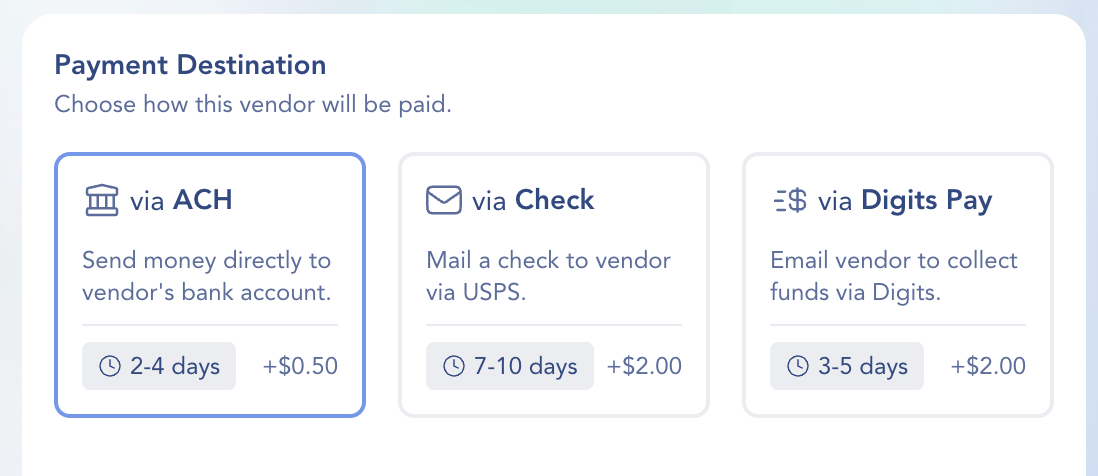
* **Choose** a preferred payment method (*ACH, Check, Digits Pay*)
{% endstep %}
{% step %}
### Send for Approval
{% hint style="warning" %}
Only clients can approve and pay bills, but you can prep everything for a smooth handoff.
{% endhint %}
1. Click the bill to confirm or update
2. Select an **Approver** (required for sending to Checklist)
3. Click **Send for Approval**
{% hint style="info" icon="user-check" %}
**Note:** When you select an Approver, Digits uses it as the default for all future bills. You can update the approver on each new bill or change the default anytime in **Settings → Bills**.
{% endhint %}
{% endstep %}
{% step %}
### Client Approves & Releases Payment
1. **Your client receives the bill in their Checklist** with all the details you prepared.
2. The client can **review, edit, or approve** the bill.
3. Digits moves the bill to **Awaiting Payment**, then to **Scheduled** or **Paid** once the client completes payment.
{% endstep %}
{% endstepper %}
***
### Frequently Asked Questions
How does my client get notified about a bill?
Once you click Send for Approval, the bill appears in your client’s Checklist under Bills & Invoices. They’ll receive a notification prompting them to review and approve.
What if my client pays the bill outside Digits?
You can update the status by opening the bill, clicking the menu in the top right, and selecting Mark as Paid.
What if a bill is flagged as a duplicate?
Digits compares the vendor name + invoice number. Review the draft and remove duplicates if needed.
Payments Pricing FAQ
See: [Digits Pay Pricing](/firms-bills-and-invoices/digits-pay-pricing.md)
Can I delete or cancel a bill payment?
Once a bill payment has been submitted, it can't be deleted or canceled in Digits because the funds are already in flight. If you need to stop a payment, contact Digits Support at , and we'll help resolve it.
How long does it take for a bill payment to be delivered?
Processing times depend on the payment method you choose:
* **ACH** — 2–4 business days
* **Check** (printed & mailed via USPS) — 7–10 business days
* **Digits Pay** (email vendor to collect funds via Digits) — 3–5 [business days](#user-content-fn-1)[^1]
Does a bill get booked to one category or split by line item?
Bills in Digits support multiple line items, and each line item can be assigned its own category. If a line item doesn't have a category assigned, it falls back to the bill-level category. This means your bookkeeping stays accurate at the line-item level, even if the bill covers multiple expense types.
To split a bill across categories, click **Split Line Items** when viewing the bill and assign a category to each line.
How do I reassign a bill to a different vendor?
If the bill was linked to the wrong vendor or created a duplicate:
1. Open the bill.
2. In the **Pay To** section, click **Edit** (pencil icon).
3. Search for and select the correct vendor.
4. Click **Save**.
The bill and its associated transaction will be reassigned to the selected vendor.
{% hint style="info" %}
**Note:** You can reassign the vendor any time before the bill is approved (New, Scheduled, Pending Approval, or Rejected). Once approved or paid, the vendor is locked.
{% endhint %}
Can I upload multiple bills at once?
Yes. You can upload up to 10 bills at a time by selecting multiple files or dragging and dropping them into the Bills dashboard.
Why was my ACH payment blocked?
Some banks use **ACH debit blocks** to prevent unauthorized withdrawals. If your bank has one enabled, it may reject ACH payments from Digits even if you've authorized the payment.
To allow ACH payments, contact your bank and ask them to **whitelist** the following **ACH Company IDs (Originator IDs)**:
| Originator ID |
|---|
| 2638633811 |
| 9263863381 |
| 8263863381 |
| 4263863381 |
| 3263863381 |
| 2263863380 |
{% hint style="info" icon="lightbulb" %}
**Tip:** Ask your bank to whitelist **all six IDs** to prevent future ACH payments from being blocked.
{% endhint %}
After your bank confirms the IDs are authorized, retry the payment. If it's still blocked, contact [help@digits.com](mailto:@help@digits.com).
***
{% columns %}
{% column width="66.66666666666666%" valign="middle" %}
Got a question or feedback? Our team is all ears—come say hello!
{% endcolumn %}
{% column width="33.33333333333334%" valign="middle" %}
Contact Digits Support
{% endcolumn %}
{% endcolumns %}
***
[^1]:
---
# Agent Instructions
This documentation is published with GitBook. GitBook is the documentation platform designed so that both humans and AI agents can read, navigate, and reason over technical content effectively. Learn more at gitbook.com.
## Querying This Documentation
If you need additional information that is not directly available in this page, you can query the documentation by asking a question.
Perform an HTTP GET request on the following URL with the `ask` and `goal` query parameters:
```
GET https://help.digits.com/firms-bills-and-invoices/bills.md?ask=&goal=
```
`ask` is the immediate question: it should be specific, self-contained, and written in natural language.
`goal` is what the user is ultimately trying to achieve, the reason they need the answer. Sharing it helps GitBook give you a better, more relevant answer. A goal is most helpful when it describes the outcome the user wants rather than restating the question. For example, with `ask=how do I create an API token`, a goal like `automate deployments from our CI pipeline` lets GitBook tailor the answer to that use case.
The response will contain a direct answer to the question and relevant excerpts and sources from the documentation.
Use this mechanism when the answer is not explicitly present in the current page, you need clarification or additional context, or you want to retrieve related documentation sections.