Creating a Manual Reconciliation
✨In most cases, you don’t need to create reconciliations manually — Digits starts them automatically whenever a statement is uploaded.
Manual reconciliations are an additional option for situations where:
An account isn’t automatically matched to a statement, or
You’re setting up historical periods for the first time.
Note on Auto-Reconciled Transactions
All automated transactions — including those from your connected banks — are automatically marked as settled by default.
Manually created or CSV-uploaded transactions must be manually marked as reconciled within the reconciliation view.
Starting a Manual Reconciliation
You can start a reconciliation directly from the Reconciliations Dashboard in two ways:
Click + New Reconciliation at the top of the screen. (Use this if you don’t see the bank or credit card listed below.)
Click on a month in the timeline, then choose Start Manually from the dropdown.
Then enter your reconciliation details:

Statement Date
Ending Balance
(Optional) Deposits/Withdrawals or Charges/Payments (for liability accounts)
Use the Category dropdown at the top of the setup screen to change the account. When ready, click Build Reconciliation. Digits will generate your reconciliation view.

Reconciling a Category
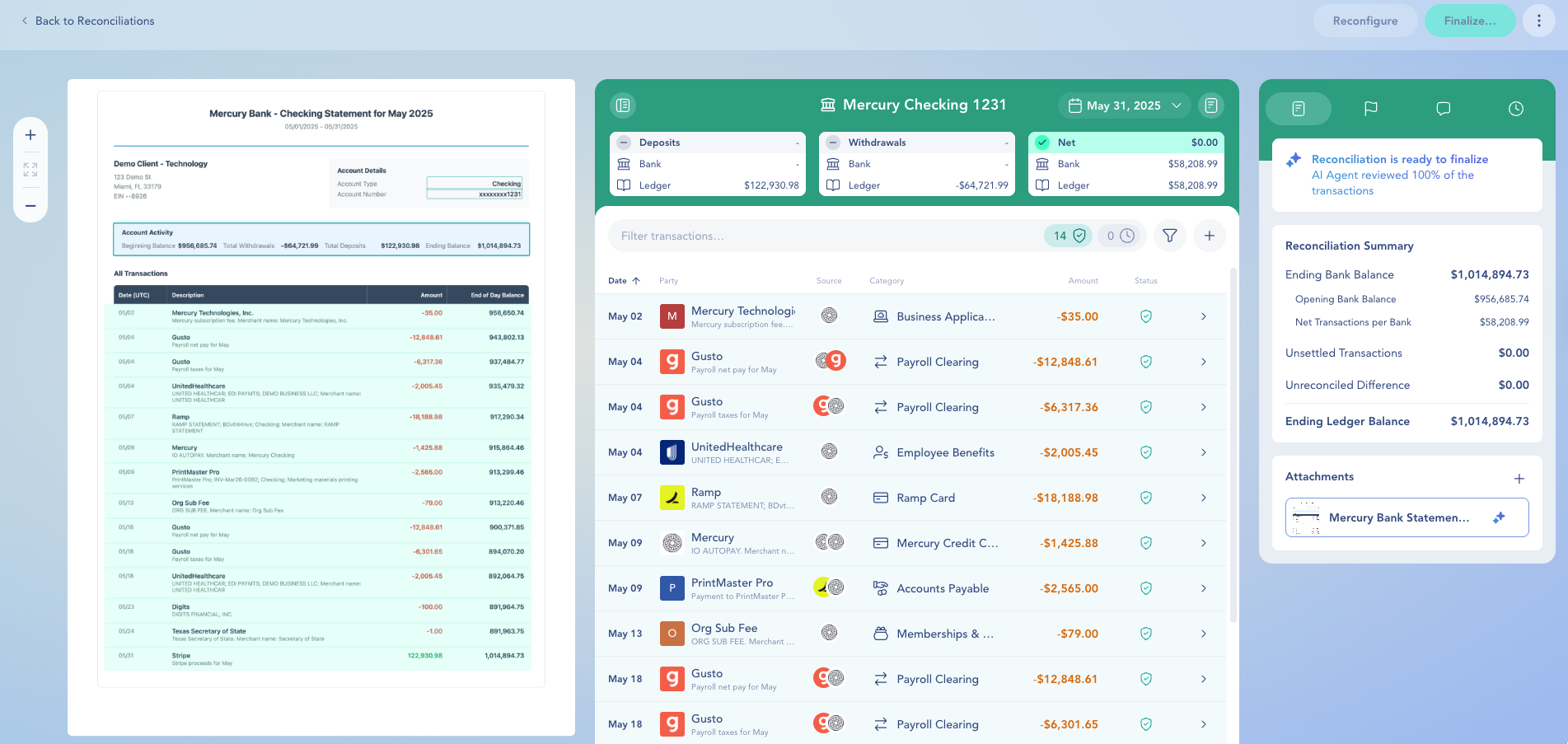
Once you’ve started a reconciliation, you’ll land on a detailed view like the one below:

What You’ll See
All transactions from the last finalized reconciliation up to your selected end date.
Unsettled transactions carried forward from earlier periods.
Available Features
Filters for narrowing results by amount, date, or status.
Checkboxes for bulk or individual reconciliation.
Counts for reconciled and unsettled transactions.
Manual Transaction button to add missing entries.
Status icons show which transactions are complete and which need review.
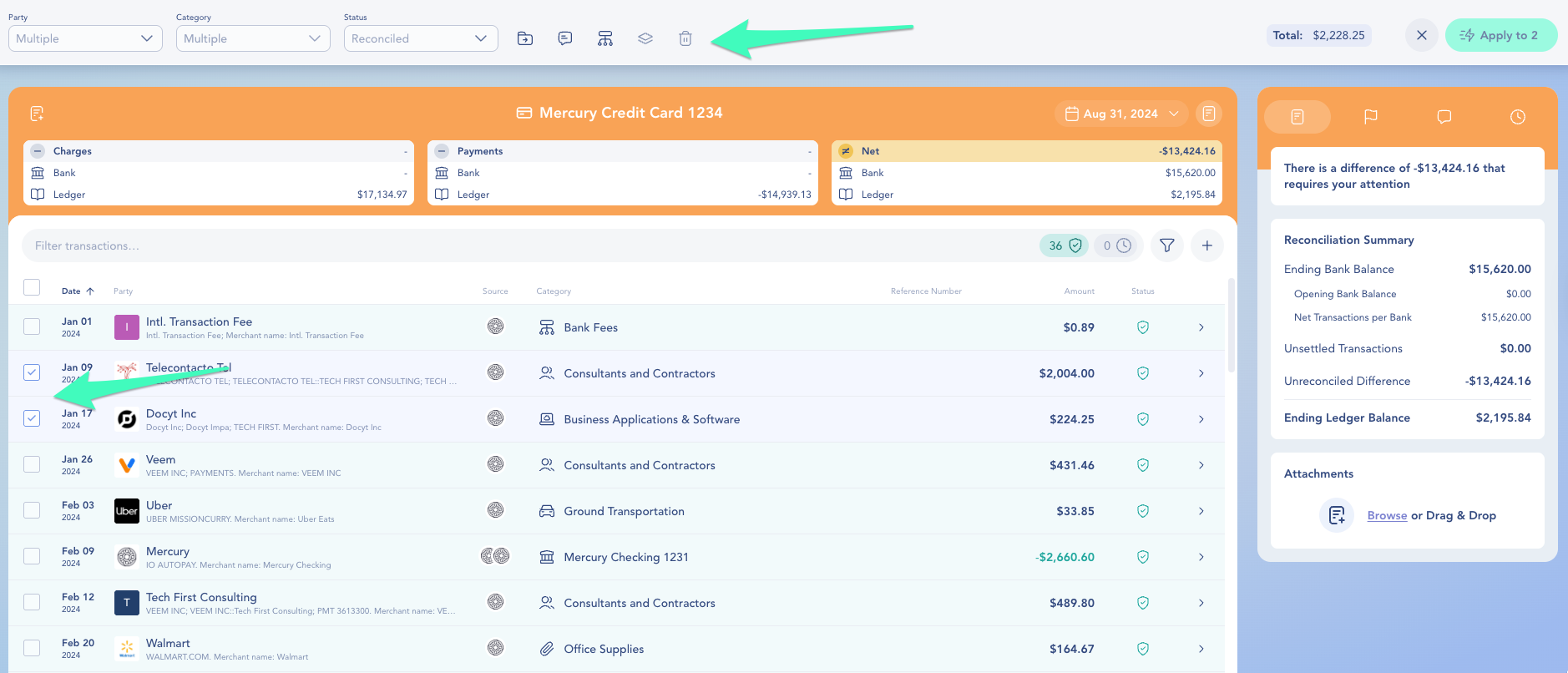
Bulk Editing Transactions
You can adjust multiple transactions at once to save time and ensure accuracy.
Select the checkboxes next to the entries you want to update. Then choose one of the following actions:
Update the party name or related category
Edit departments (
Match or unmatch transactions
Mark as Reconciled or Unsettled
View the total sum of selected items to confirm your reconciliation balances correctly

Finalize, Reconfigure, or Delete
In the top right corner, you have the following options:

Finalize
When all transactions are matched and the balance is correct.
Locks the period to prevent accidental edits.
Reconfigure
If you need to change a draft reconciliation.
Reopens the setup screen to adjust the ending date, ending balance, or deposits/withdrawals. Note: You can’t change the date if it overlaps with another reconciliation for the same category.
Delete
If the reconciliation was started by mistake or needs to be redone.
Removes the reconciliation completely so you can start fresh.
After you finalize all accounts for the month, close the month to lock changes → Close a month (Set or change Close Date)
Frequently Asked Questions
Have questions? Contact us at [email protected]. Our support team is here to help keep your reconciliations on track.
