> For the complete documentation index, see [llms.txt](https://help.digits.com/llms.txt). Markdown versions of documentation pages are available by appending `.md` to page URLs; this page is available as [Markdown](https://help.digits.com/firms-agentic-general-ledger/category-manager.md).

# Categories (Chart of Accounts)

***

### What are categories in Digits?

Categories (your client’s Chart of Accounts) organize every account, category, and connection in Digits.\
From here, you can:

* Create and edit categories
* Import or bulk update accounts
* Add subcategories for detailed reporting
* Review which categories are linked to synced banks or tools

***

### How to Access Categories

From your client’s home dashboard:

1. Click **Accounting** in the left-hand menu.
2. Select **Categories.**

***

### Creating a New Category

1. Click **+ New Category** in the top right corner.
2. Fill in the details:
   * Name
   * Parent Category (e.g., Assets, Revenue)
   * Subtype
   * Icon (optional)
   * Category Number (optional)
   * Description (optional)
3. Click **Create**.

***

### Editing or Deactivating a Category

To edit a category:

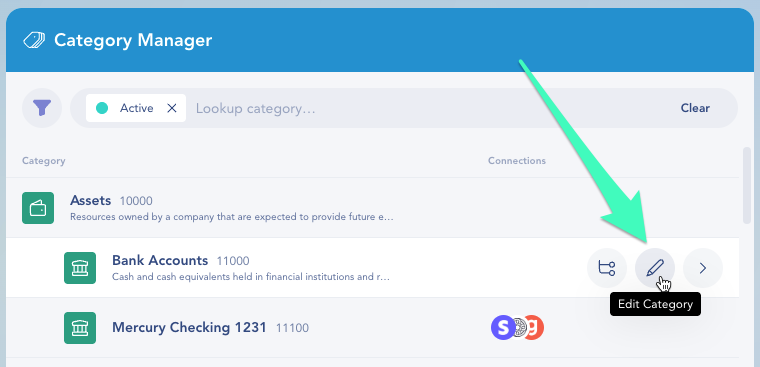
1. Hover over any category and click the **Edit** icon.

<div align="left"><figure><img src="/files/yY2kDjCt1SMBVqMZ8gIa" alt="" width="563"><figcaption></figcaption></figure></div>

2. Make updates — rename, reassign parent, or change icons/numbers. You can also deactivate the category if it's no longer needed.
3. Click **Save** when done.

{% hint style="warning" %}
**Note:** If the category is linked to a connected account (like a bank or app), you must first remap it to another active category before deactivating.
{% endhint %}

***

### Adding Child Categories

To create a subcategory:

1. Hover over the parent category.
2. Click the **Add Child** icon.

<div align="left"><figure><img src="/files/5ltUMyftk2mQPYSyAR99" alt="" width="375"><figcaption></figcaption></figure></div>

You can add multiple layers of hierarchy — ideal for firms that use detailed reporting structures.

***

### Viewing Connections

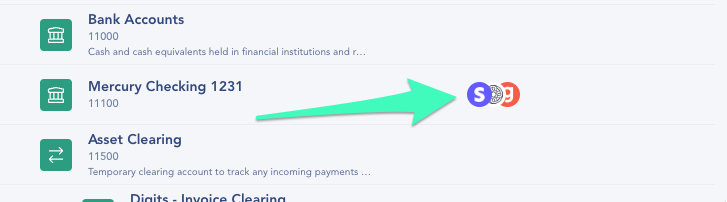
If a category is linked to a synced account (like a bank, card, or app), you’ll see a connection icon next to it.

<div align="left"><figure><img src="/files/CnLPNLO7HcNCVXmB7MdU" alt="" width="364"><figcaption></figcaption></figure></div>

Click the icon → **View Details** → click **Connections** to jump to the main connection page.

{% hint style="info" %}
You can also filter by **Connections** to quickly see how each synced account maps to your chart of accounts.
{% endhint %}

***

### Bulk Importing Categories

If you’re onboarding a new client, the fastest way is to import their Chart of Accounts via CSV during setup, but you can also bulk import or update it anytime.

**Use bulk import when:**

* You’re restructuring categories after onboarding
* Your client’s Chart of Accounts needs cleanup or standardization
* You want to make large updates without editing manually

**How to bulk import:**

1. From Categories, click the down arrow next to **+ New Category** → **Import Categories.**

<figure><img src="/files/hIvgLwyIEGsJmUVW3T7p" alt="" width="563"><figcaption></figcaption></figure>

2. Download the CSV template.
3. Add your data (names, types, optional parents).
4. Upload and click **Next.**
5. Review column mappings.
6. Click **Submit** to complete the upload.

See also [Import Your Chart of Accounts](/firms-agentic-general-ledger/import-coa.md)

***

### How to Export Your Chart of Accounts from Categories

1. In the left navigation menu, go to **Accounting** → **Categories**.&#x20;
2. Click the **menu** in the top right corner, next to New Category.&#x20;
3. Select either **Download CSV** or **Export CSV to Vault**.

<div align="left"><figure><img src="/files/DrzjeKNJNLkpMg1hdMwK" alt="" width="563"><figcaption></figcaption></figure></div>

{% hint style="success" %}
The export matches the import template, so you can make changes in a spreadsheet and import them back into Digits without any reformatting.
{% endhint %}

***

### Frequently Asked Questions

<details>

<summary>Can I deactivate a category that’s linked to a connection?</summary>

Only after remapping. Move the connection to another active category first, then deactivate.

</details>

<details>

<summary>What happens if I import duplicate categories?</summary>

Digits will alert you before submission and ask which to keep or merge.

</details>

<details>

<summary>Can I use the same category name more than once?</summary>

Yes — as long as it’s under a different parent category.\
For example, you can have a child category called **“Gas”** under both **“Plane”** and **“Boat.”**\
Digits prevents duplicates only within the same parent, not across the entire Chart of Accounts.

</details>

<details>

<summary>Why isn't a category showing up when I create a transaction?</summary>

If a category doesn't appear when creating a journal entry or transaction, it may not exist in your Chart of Accounts yet. If you're using a custom Chart of Accounts, add any missing categories manually in Categories under the correct parent. If you're using the Digits template Chart of Accounts, some categories may be inactive by default — check the inactive list and enable them. Once a category is active, it's available everywhere in the Ledger.

</details>

<details>

<summary>Do you have a list of the complete gifted COA?</summary>

Yes! Below is the full list. Keep in mind that while this is the full list, Digits will only show categories that have been used for a transaction.

<table><thead><tr><th width="141.38775634765625" align="right">Number</th><th width="312.08319091796875">Category</th></tr></thead><tbody><tr><td align="right">10000</td><td>Assets</td></tr><tr><td align="right">11000</td><td>Bank Accounts</td></tr><tr><td align="right">11500</td><td>Asset Clearing</td></tr><tr><td align="right">11510</td><td>Invoice Clearing</td></tr><tr><td align="right">11520</td><td>Digits - Invoice Clearing</td></tr><tr><td align="right">12000</td><td>Accounts Receivable</td></tr><tr><td align="right">12010</td><td>Accounts Receivable - Gross</td></tr><tr><td align="right">12020</td><td>Allowance for Doubtful Accounts</td></tr><tr><td align="right">12500</td><td>Accrued Revenue</td></tr><tr><td align="right">13000</td><td>Prepaid Expenses</td></tr><tr><td align="right">13010</td><td>Prepaid Benefits</td></tr><tr><td align="right">13020</td><td>Prepaid Rent</td></tr><tr><td align="right">13030</td><td>Prepaid Insurance</td></tr><tr><td align="right">13040</td><td>Other Prepaid Expenses</td></tr><tr><td align="right">13500</td><td>Inventory</td></tr><tr><td align="right">13510</td><td>Raw Materials</td></tr><tr><td align="right">13520</td><td>Work in Progress</td></tr><tr><td align="right">13530</td><td>Finished Goods</td></tr><tr><td align="right">14000</td><td>Investments</td></tr><tr><td align="right">14500</td><td>Shareholder Loans</td></tr><tr><td align="right">15000</td><td>Other Current Assets</td></tr><tr><td align="right">15010</td><td>Security Deposits</td></tr><tr><td align="right">15020</td><td>Current Tax Assets</td></tr><tr><td align="right">15030</td><td>Other Current Assets</td></tr><tr><td align="right">15999</td><td>Uncategorized Assets</td></tr><tr><td align="right">16000</td><td>Fixed Assets</td></tr><tr><td align="right">16100</td><td>Computer Assets</td></tr><tr><td align="right">16150</td><td>Accumulated Depreciation - Computer Assets</td></tr><tr><td align="right">16200</td><td>Furniture &#x26; Fixtures</td></tr><tr><td align="right">16250</td><td>Accumulated Depreciation - Furniture &#x26; Fixtures</td></tr><tr><td align="right">16300</td><td>Other Fixed Assets</td></tr><tr><td align="right">16350</td><td>Accumulated Depreciation - Other Fixed Assets</td></tr><tr><td align="right">17000</td><td>Intangible Assets</td></tr><tr><td align="right">17100</td><td>Domain Names</td></tr><tr><td align="right">17150</td><td>Accumulated Amortization - Domain Names</td></tr><tr><td align="right">17200</td><td>Patents &#x26; Trademarks</td></tr><tr><td align="right">17250</td><td>Accumulated Amortization - Patents &#x26; Trademarks</td></tr><tr><td align="right">17300</td><td>Research &#x26; Development</td></tr><tr><td align="right">17350</td><td>Accumulated Amortization - Research &#x26; Development</td></tr><tr><td align="right">17400</td><td>Leasehold Improvements</td></tr><tr><td align="right">17450</td><td>Accumulated Amortization - Leasehold Improvements</td></tr><tr><td align="right">17500</td><td>Other Intangible Assets</td></tr><tr><td align="right">17550</td><td>Accumulated Amortization - Other Intangible Assets</td></tr><tr><td align="right">18000</td><td>Goodwill</td></tr><tr><td align="right">19999</td><td>Other Long-term Assets</td></tr><tr><td align="right">20000</td><td>Liabilities</td></tr><tr><td align="right">21000</td><td>Accounts Payable</td></tr><tr><td align="right">22000</td><td>Credit Cards</td></tr><tr><td align="right">23000</td><td>Liability Clearing</td></tr><tr><td align="right">23100</td><td>Employee Reimbursements Clearing</td></tr><tr><td align="right">23200</td><td>Payroll Clearing</td></tr><tr><td align="right">23300</td><td>Bill Pay Clearing</td></tr><tr><td align="right">23400</td><td>Digits - Bill Pay Clearing</td></tr><tr><td align="right">24000</td><td>Accrued Expenses</td></tr><tr><td align="right">24500</td><td>Deferred Revenue</td></tr><tr><td align="right">25000</td><td>Other Current Liabilities</td></tr><tr><td align="right">25010</td><td>Benefits Payable</td></tr><tr><td align="right">25020</td><td>Income Taxes Payable</td></tr><tr><td align="right">25030</td><td>Sales Tax Payable</td></tr><tr><td align="right">25040</td><td>Payroll Tax Payable</td></tr><tr><td align="right">25050</td><td>Payroll Deductions Liability</td></tr><tr><td align="right">25060</td><td>Uncategorized Liabilities</td></tr><tr><td align="right">25500</td><td>Short-term Debt</td></tr><tr><td align="right">26000</td><td>Convertible Notes</td></tr><tr><td align="right">26100</td><td>Convertible Notes - Principal</td></tr><tr><td align="right">26200</td><td>Convertible Notes - Accrued Interest</td></tr><tr><td align="right">27000</td><td>Long-term Debt</td></tr><tr><td align="right">28000</td><td>Other Long-term Liabilities</td></tr><tr><td align="right">30000</td><td>Equity</td></tr><tr><td align="right">31000</td><td>Common Stock</td></tr><tr><td align="right">32000</td><td>Preferred Stock</td></tr><tr><td align="right">33000</td><td>SAFE</td></tr><tr><td align="right">34000</td><td>Owner's Equity</td></tr><tr><td align="right">34100</td><td>Owner's Contributions</td></tr><tr><td align="right">34200</td><td>Owner's Draws</td></tr><tr><td align="right">35000</td><td>Treasury Stock</td></tr><tr><td align="right">36000</td><td>Additional Paid In Capital</td></tr><tr><td align="right">37000</td><td>Other Comprehensive Income</td></tr><tr><td align="right">38000</td><td>Retained Earnings</td></tr><tr><td align="right">39999</td><td>Uncategorized Equity</td></tr><tr><td align="right">40000</td><td>Revenue</td></tr><tr><td align="right">41000</td><td>Sales Revenue</td></tr><tr><td align="right">42000</td><td>Subscription Revenue</td></tr><tr><td align="right">43000</td><td>Transaction Revenue</td></tr><tr><td align="right">44000</td><td>Partner Revenue</td></tr><tr><td align="right">45000</td><td>Refunds and Discounts</td></tr><tr><td align="right">49999</td><td>Uncategorized Income</td></tr><tr><td align="right">50000</td><td>Cost of Revenue</td></tr><tr><td align="right">51000</td><td>Cost of Labor</td></tr><tr><td align="right">52000</td><td>Cost of Goods</td></tr><tr><td align="right">53000</td><td>Payment Processing Fees</td></tr><tr><td align="right">54000</td><td>Hosting Fees</td></tr><tr><td align="right">55000</td><td>Other Cost of Revenue</td></tr><tr><td align="right">60000</td><td>Operating Expenses</td></tr><tr><td align="right">61000</td><td>Payroll Expenses</td></tr><tr><td align="right">61100</td><td>Salaries</td></tr><tr><td align="right">61200</td><td>Bonuses</td></tr><tr><td align="right">61300</td><td>Commissions</td></tr><tr><td align="right">61400</td><td>Employee Benefits</td></tr><tr><td align="right">61410</td><td>Health Insurance</td></tr><tr><td align="right">61420</td><td>Retirement Contributions</td></tr><tr><td align="right">61500</td><td>Employer Payroll Taxes</td></tr><tr><td align="right">61600</td><td>Payroll Processing Fees</td></tr><tr><td align="right">61700</td><td>Recruiting Costs</td></tr><tr><td align="right">61800</td><td>Other Employee Costs</td></tr><tr><td align="right">62000</td><td>Travel &#x26; Entertainment</td></tr><tr><td align="right">62100</td><td>Airfare</td></tr><tr><td align="right">62200</td><td>Ground Transportation</td></tr><tr><td align="right">62300</td><td>Lodging</td></tr><tr><td align="right">62400</td><td>Meals</td></tr><tr><td align="right">62500</td><td>Entertainment</td></tr><tr><td align="right">62600</td><td>Other Travel &#x26; Entertainment</td></tr><tr><td align="right">63000</td><td>Professional Fees</td></tr><tr><td align="right">63100</td><td>Consultants and Contractors</td></tr><tr><td align="right">63200</td><td>Legal</td></tr><tr><td align="right">63300</td><td>Tax &#x26; Accounting</td></tr><tr><td align="right">63400</td><td>Other Professional Fees</td></tr><tr><td align="right">64000</td><td>Sales and Marketing</td></tr><tr><td align="right">64100</td><td>Advertising</td></tr><tr><td align="right">64200</td><td>Conference and Trade Shows</td></tr><tr><td align="right">64300</td><td>Promotional Items and Gifts</td></tr><tr><td align="right">64400</td><td>Other Sales &#x26; Marketing</td></tr><tr><td align="right">65000</td><td>Business Applications &#x26; Software</td></tr><tr><td align="right">66000</td><td>Facilities</td></tr><tr><td align="right">66100</td><td>Rent</td></tr><tr><td align="right">66200</td><td>Utilities</td></tr><tr><td align="right">66300</td><td>Repairs and Maintenance</td></tr><tr><td align="right">66400</td><td>Other Facilities Expenses</td></tr><tr><td align="right">67000</td><td>Supplies &#x26; Materials</td></tr><tr><td align="right">67100</td><td>Computers Expense</td></tr><tr><td align="right">67200</td><td>Office Supplies</td></tr><tr><td align="right">67300</td><td>Other Supplies &#x26; Materials</td></tr><tr><td align="right">68000</td><td>General Operations</td></tr><tr><td align="right">68100</td><td>Memberships &#x26; Dues</td></tr><tr><td align="right">68200</td><td>Insurance</td></tr><tr><td align="right">68300</td><td>Bank Fees</td></tr><tr><td align="right">68400</td><td>Other General Operations</td></tr><tr><td align="right">69000</td><td>Bad Debt Expense</td></tr><tr><td align="right">69999</td><td>Uncategorized Expense</td></tr><tr><td align="right">80000</td><td>Other Income</td></tr><tr><td align="right">81000</td><td>Interest and Dividends</td></tr><tr><td align="right">82000</td><td>Credit Card Rewards</td></tr><tr><td align="right">83000</td><td>Other Miscellaneous Income</td></tr><tr><td align="right">90000</td><td>Other Expenses</td></tr><tr><td align="right">91000</td><td>Depreciation &#x26; Amortization</td></tr><tr><td align="right">91100</td><td>Fixed Assets Depreciation</td></tr><tr><td align="right">91200</td><td>Intangibles Amortization</td></tr><tr><td align="right">93000</td><td>Interest Expense</td></tr><tr><td align="right">94000</td><td>Taxes</td></tr><tr><td align="right">95000</td><td>Other Miscellaneous Expenses</td></tr></tbody></table>

</details>

<details>

<summary>Why can't I change a category's type (e.g., from Liabilities to Expenses)?</summary>

Digits restricts which category types can be reassigned to one another. The allowed moves are:

* **Income ↔ Other Income**
* **Expenses ↔ Other Expenses ↔ Cost of Goods Sold**

All other type changes — for example, moving a category from Liabilities to Expenses — are not permitted.

</details>

<details>

<summary>Can I change a category's type (for example, from Asset to Liability)?</summary>

No. A category's type (Asset, Liability, Equity, Income, or Expense) is set when the category is created and can't be changed later. When you edit a category, you can update its name, parent, subtype, number, icon, and description — but not its type. This commonly comes up after importing a chart of accounts (for example, a credit card that imported as an Asset but should be a Liability).\
To move an account to a different type, create a replacement of the correct type and move its activity over:<br>

1. Create a new category with the correct type. In Category Manager, add a new category and choose a parent that's under the correct type(e.g., a Liability parent for a credit card). The new category takes its parent's type.
2. Move the transactions. In the transaction list, select the transactions booked to the old category and useMove toto reassign them to the new category. You can move up to200 transactions at a time, so large accounts may take a few passes.
3. Deactivate the old category. Open the old category and click Deactivate Category.

</details>

<details>

<summary>How do I set up an accumulated depreciation account?</summary>

Digits doesn't have a dedicated **Accumulated Depreciation** subtype. Because child categories inherit the subtype of their parent account, create your accumulated depreciation category under the appropriate fixed asset account using the **Fixed Asset** subtype.

You can name the category **Accumulated Depreciation** so it appears correctly in your chart of accounts. The **Fixed Asset** subtype is used only behind the scenes to support the account structure.

</details>

<details>

<summary>Can I change a category's type (for example, from Asset to Liability)?</summary>

No. A category's type (Asset, Liability, Equity, Income, or Expense) is set when the category is created and can't be changed later. When you edit a category, you can update its name, parent, subtype, number, icon, and description — but not its type. This commonly comes up after importing a chart of accounts (for example, a credit card that imported as an Asset but should be a Liability).\
To move an account to a different type, create a replacement of the correct type and move its activity over:<br>

1. Create a new category with the correct type. In Category Manager, add a new category and choose a parent that's under the correct type(e.g., a Liability parent for a credit card). The new category takes its parent's type.
2. Move the transactions. In the transaction list, select the transactions booked to the old category and use Move to reassign them to the new category. You can move up to200 transactions at a time, so large accounts may take a few passes.
3. Deactivate the old category. Open the old category and click Deactivate Category.

</details>

<details>

<summary>Can I export my Chart of Accounts?</summary>

Yes. You can export it from **Categories** (not from the ledger export menu):

1. Open **Categories**.
2. Click the **⋯ menu** in the top-right.
3. Choose **Download CSV** to save it to your computer, or **Export CSV to Vault** to save it to your Vault.

The file uses the same format as Digits' Chart of Accounts import template, so you can make changes in a spreadsheet and import them back into Digits without reformatting.

</details>

<details>

<summary>Does Digits track inventory items?</summary>

Not yet. Digits helps you account for inventory, but it doesn't track item-level quantities or stock on hand.

Use your Inventory, Raw Materials, Work in Progress, and Finished Goods categories to record inventory purchases and adjustments. The [Products & Services Catalog](/firms-bills-and-invoices/products-and-services-catalog.md) is designed to speed up invoicing by saving reusable items—it isn't an inventory management system.

</details>

***

{% columns %}
{% column width="66.66666666666666%" valign="middle" %}
Got a question or feedback? Our team is all ears—come say hello!
{% endcolumn %}

{% column width="33.33333333333334%" valign="middle" %}

<p align="center"><a href="https://portal.usepylon.com/digits/forms/get-in-touch-with-digits-support" class="button primary" data-icon="envelope-open-text">Contact Digits Support</a></p>
{% endcolumn %}
{% endcolumns %}

***


---

# Agent Instructions
This documentation is published with GitBook. GitBook is the documentation platform designed so that both humans and AI agents can read, navigate, and reason over technical content effectively. Learn more at gitbook.com.

## Querying This Documentation
If you need additional information that is not directly available in this page, you can query the documentation dynamically by asking a question.

Perform an HTTP GET request on the current page URL with the `ask` query parameter, and the optional `goal` query parameter:

```
GET https://help.digits.com/firms-agentic-general-ledger/category-manager.md?ask=<question>&goal=<endgoal>
```

`ask` is the immediate question: it should be specific, self-contained, and written in natural language.
`goal` is optional and describes the broader end goal you are ultimately trying to accomplish on behalf of the user. GitBook uses it to tailor the answer towards what is most useful for that goal.

The response will contain a direct answer to the question and relevant excerpts and sources from the documentation.

Use this mechanism when the answer is not explicitly present in the current page, you need clarification or additional context, or you want to retrieve related documentation sections.