> For the complete documentation index, see [llms.txt](https://help.digits.com/llms.txt). Markdown versions of documentation pages are available by appending `.md` to page URLs; this page is available as [Markdown](https://help.digits.com/firms-agentic-general-ledger/bank-rec-dashboard.md).

# Reconciliation Dashboard

***

### How to Access Reconciliations

1. In the left navigation, click **Accounting**.
2. Select **Reconciliations.**

<div align="left"><figure><img src="/files/RWMqjsEBLh9tAhnxx6Gr" alt="" width="563"><figcaption></figcaption></figure></div>

### Reconciliation Overview

At the top of the screen, you’ll see summary tiles for:

* No Activity
* Not Started
* Drafts
* Finalized

Use the **← / → arrows** beside the month name to navigate between periods. The summary tiles update automatically, and you can **click any tile** to filter the list based on status.

<div align="left"><figure><img src="/files/PmzNf6hbjRF9JeAmc504" alt="" width="563"><figcaption></figcaption></figure></div>

***

### Account List

Below the summary cards, you’ll see a list of all accounts organized by category:

* Assets (e.g., Bank Accounts, Checking, Savings)
* Liabilities (e.g., Credit Cards, Ramp Card, Mercury Card)

<table data-header-hidden><thead><tr><th width="199.4190673828125">Element</th><th>Description</th></tr></thead><tbody><tr><td><strong>Account Name + Number</strong></td><td>The name and last four digits of the account (e.g., <em>Mercury Checking 1231</em>).</td></tr><tr><td><strong>Timeline</strong></td><td>Displays each month in sequence. Filled or colored icons indicate reconciliation activity for that period.</td></tr><tr><td><strong>Month Status Icons</strong></td><td><p>• <strong>Empty circle</strong> – No reconciliation created</p><p>• <strong>Circle with Pencil</strong> – Manually created draft<br>• <strong>Green/black sparkle icon</strong> - AI-created draft<br>• <strong>Yellow Exclamation icon</strong> –  Reopened (manually or automatically due to a balance mismatch)  </p><p>• <strong>Green Checkmark</strong> – AI drafted and/or finalized reconciliation<br>• <strong>Purple checkmark</strong> – Finalized manually started reconciliation<br>• <strong>No icon</strong> – Reconciliation spans multiple months</p></td></tr><tr><td><strong>Action Button (right-hand side)</strong></td><td><p>Shows the current action available for that period:</p><p>• Add Statement — Upload or start a new reconciliation.</p><p>• Finalize — Reconciliation is ready to finalize.</p><p>• Finalize Again — Re-finalize if changes were made.</p></td></tr></tbody></table>

✨ Digits will automatically reopen a reconciliation (and any following months) if the statement balance no longer matches the ledger balance.

***

### Sorting the Reconciliation List

Click the **Sort icon** in the top-right corner of the Reconciliations dashboard to open sorting options.

You can sort accounts by **category name**, **category number,** **category subtype,** or **last reconciliation** to quickly find what you need.

<div align="left"><figure><img src="/files/b7iWsfyxXdsxuR1Cxf9Z" alt="" width="563"><figcaption></figcaption></figure></div>

***

### Download Reconciliations

To download a reconciliation, click the menu in the top right of the page, then select **Download PDF**.

<div align="left"><figure><img src="/files/hhn27ErcDmly4Cwf6Cbz" alt="" width="563"><figcaption></figcaption></figure></div>

***

### Key Actions

* **Add Statemen**t → Upload a statement and :sparkles: Digits will automatically begin reconciling — no manual setup needed.&#x20;
* **Finalize Again** → Reopen a previously finalized month if adjustments are needed.
* **New Reconciliation** → Start a manual reconciliation for an account with no activity.

***

### Hover for Quick Insights

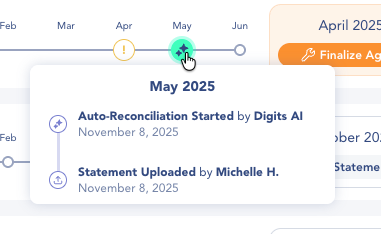
Hover over any **month icon** on an account timeline to see a quick activity summary — such as when a statement was uploaded or when an **auto-reconciliation started**.

<div align="left"><figure><img src="/files/fVS8ciQjFS79PyDnr4xO" alt="" width="286"><figcaption></figcaption></figure></div>

If **multiple reconciliations** occurred in the same month, **dots will stack vertically** to represent each event. Hover over the stack to view the full list.

{% hint style="info" icon="calendar-days" %}
Can't find a reconciliation? Check the month containing the statement's **end date**. Even if a statement starts in one month and ends in the next, it appears under the month where the statement ends. For example, a **May 4–June 4** statement is shown under **June**.
{% endhint %}

***

### Frequently Asked Questions

<details>

<summary>Why is a previously finalized month showing a yellow exclamation icon?</summary>

Digits automatically reopens a reconciliation (and any subsequent months) if transactions have been edited in a way that affects the reconciliation.

Once you’ve reviewed and re-finalized the period, the icon will return to a checkmark.

</details>

<details>

<summary>Can I change the order of accounts on the dashboard?</summary>

Yes. Click the Sort icon in the top-right corner to organize by name, type, or reconciliation status.

</details>

<details>

<summary>Can I filter by reconciliation status?</summary>

Yes. Click any of the summary tiles (No Activity, Not Started, Drafts, Finalized) to filter the account list by that status.

</details>

<details>

<summary>What does “Finalize Again” mean?</summary>

“Finalize Again” appears when a previously finalized month has been reopened — for example, if a balance changed or transactions were edited after finalization.

</details>

<details>

<summary>Can I hover over a stacked set of dots?</summary>

Yes! Stacked dots represent multiple reconciliation events for the same month (e.g., a statement upload and an auto-reconciliation start). Hover to see a summary of all related actions.

</details>

<details>

<summary>Why can't I find my reconciliation for a statement that spans two months?</summary>

Reconciliations are organized by the **statement end date**, not the start date.

For example, a statement covering **May 4–June 4** appears under **June**, because the statement ends in June.

If you're looking for a reconciliation, check the month containing the statement's end date. You can also open the reconciliation or uploaded statement to confirm the full statement period.

</details>

<details>

<summary>Why does Digits say "Resolve prior period" when I try to reconcile?</summary>

Reconciliations must be finalized in order, oldest first. This message means an earlier period still has an open (unfinalized) reconciliation, so you can't finalize — or keep editing — the current one until that earlier period is done. It also appears if a period you'd already finalized was reopened.

</details>

<details>

<summary>Why doesn't my bank or credit card account appear in Reconciliations?</summary>

Only bank and credit card categories with the correct subtype appear in Reconciliations.

In Category Manager, make sure the account is set up with the appropriate subtype:

* Bank accounts should use a Bank subtype.
* Credit card accounts should use the Credit Cards subtype under Liabilities.

For example, if a Ramp, Brex, or American Express card is categorized as Other Current Liabilities instead of Credit Cards, it won't appear in Reconciliations.

</details>

***

{% columns %}
{% column width="66.66666666666666%" valign="middle" %}
Got a question or feedback? Our team is all ears—come say hello!
{% endcolumn %}

{% column width="33.33333333333334%" valign="middle" %}

<p align="center"><a href="https://portal.usepylon.com/digits/forms/get-in-touch-with-digits-support" class="button primary" data-icon="envelope-open-text">Contact Digits Support</a></p>
{% endcolumn %}
{% endcolumns %}

***


---

# Agent Instructions
This documentation is published with GitBook. GitBook is the documentation platform designed so that both humans and AI agents can read, navigate, and reason over technical content effectively. Learn more at gitbook.com.

## Querying This Documentation
If you need additional information that is not directly available in this page, you can query the documentation dynamically by asking a question.

Perform an HTTP GET request on the current page URL with the `ask` query parameter, and the optional `goal` query parameter:

```
GET https://help.digits.com/firms-agentic-general-ledger/bank-rec-dashboard.md?ask=<question>&goal=<endgoal>
```

`ask` is the immediate question: it should be specific, self-contained, and written in natural language.
`goal` is optional and describes the broader end goal you are ultimately trying to accomplish on behalf of the user. GitBook uses it to tailor the answer towards what is most useful for that goal.

The response will contain a direct answer to the question and relevant excerpts and sources from the documentation.

Use this mechanism when the answer is not explicitly present in the current page, you need clarification or additional context, or you want to retrieve related documentation sections.