> For the complete documentation index, see [llms.txt](https://help.digits.com/llms.txt). Markdown versions of documentation pages are available by appending `.md` to page URLs; this page is available as [Markdown](https://help.digits.com/firms-agentic-general-ledger/departments.md).
# Departments
Departments allow you to segment your client's books to track performance across teams, service lines, or business units.
***
{% stepper %}
{% step %}
### Step 1: Set up your Departments
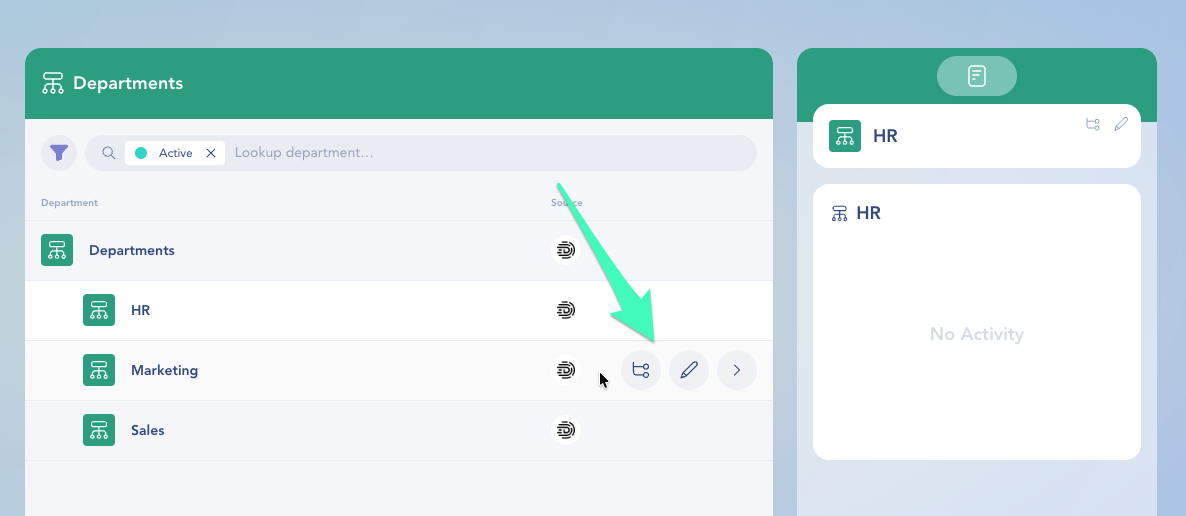
1. Go to **Accounting** → **Departments** in the left-hand menu.
2. Click **New Department** to create one manually.
3. (Optional) If your client is connected to QuickBooks Online (QBO), click **Import Departments** to bring in your existing structure.
4. Organize departments into a hierarchy as needed (for example: Sales → East Coast)
{% hint style="warning" %}
You won’t see the import option unless your firm is connected to QBO.
{% endhint %}
To make changes, hover over a department name to:
* Click the **Pencil** to rename or modify the department. (Note: editing is not available for departments imported from QBO or Gusto.)
* Click the **Hierarchy** icon to add a child department.
{% endstep %}
{% step %}
### Step 2: Tag transactions with a Department
Once your departments are set up, you can start tagging transactions.
**To tag one transaction:**
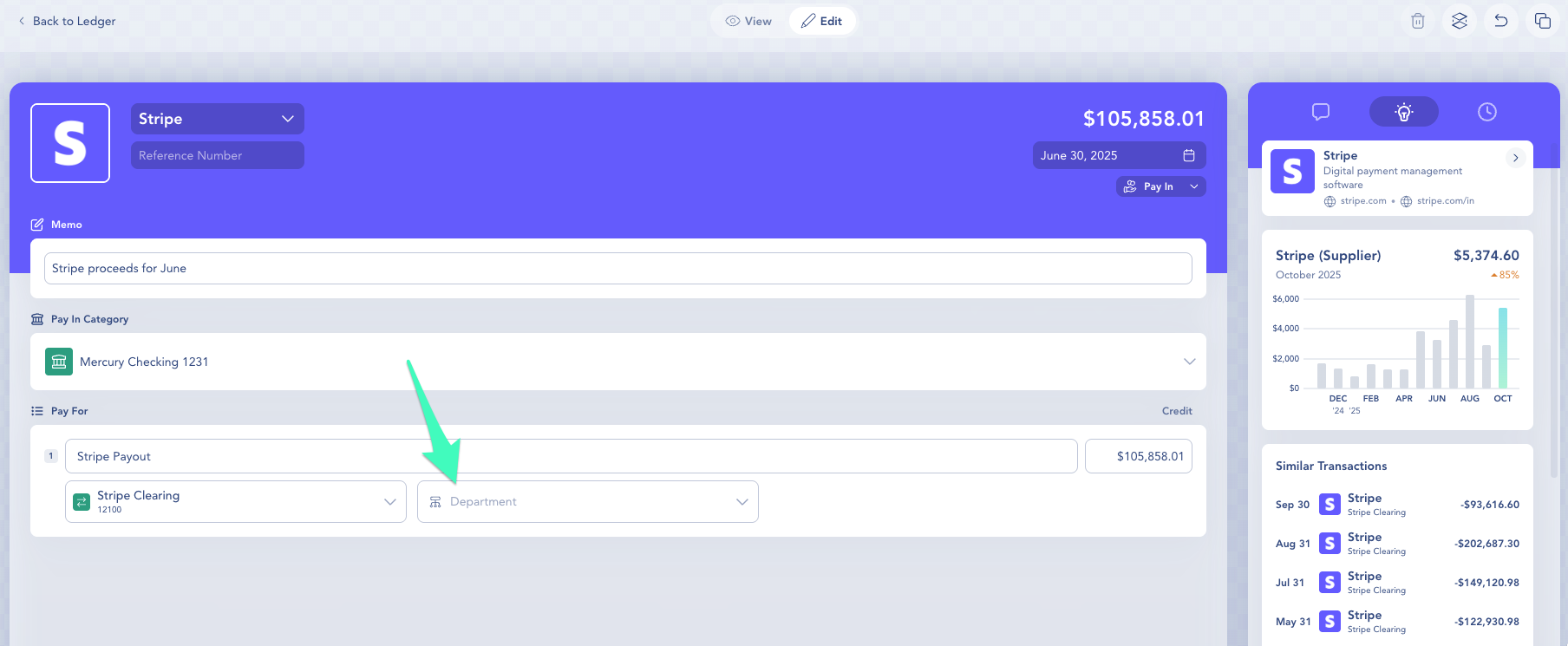
1. Go to **Accounting** → **Ledger**.
2. Click into a transaction.
3. Click **Edit** at the top of the screen.
4. Use the **Department** field to assign a tag.
**To tag one or more transactions at once (Bulk Tagging):**
1. From the **Ledger**, click **Edit** at the top
2. Check the boxes next to the transactions you want to tag
3. Click the **Department** icon in the toolbar at the top
4. Select the department from the dropdown
5. Click **Apply** to save your changes
{% hint style="info" icon="lightbulb-on" %}
✨ Once you've set up your Departments, Digits will auto-assign Departments to transactions based on learned patterns. Anything Digits isn't sure about is surfaced in your Checklist for review, so you stay in control.
{% endhint %}
{% hint style="info" %}
**Tip:** Unsure about the right department? You can leave a comment or question on any transaction to confirm with a teammate or client.
{% endhint %}
{% endstep %}
{% step %}
### Step 3: Report by Department
After transactions are tagged, you can view department-level reporting.
**To view Profit & Loss by Department:**
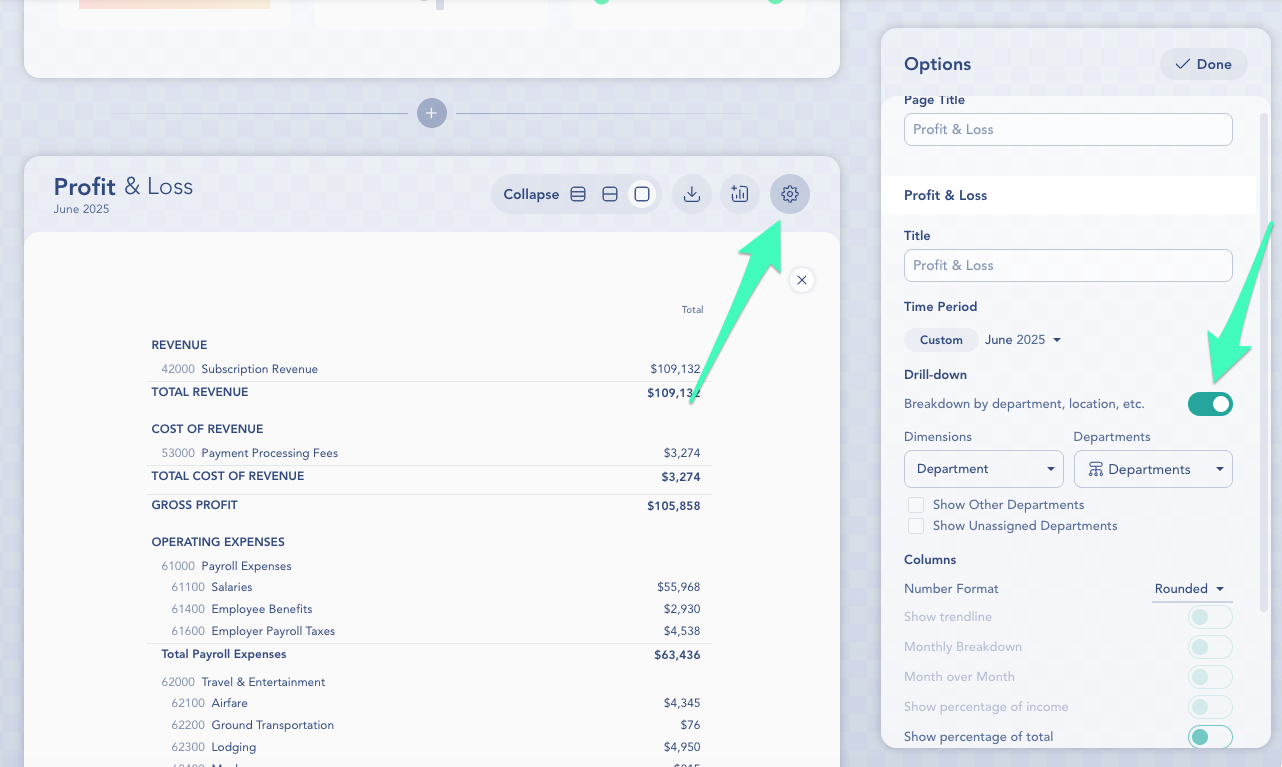
1. Go to Custom **Reports** → **Profit & Loss**.
2. Click the **gear icon** in the upper right of the report.
3. Toggle on Drill-down to enable department (and location) breakdown.
4. Under Dimensions, select **Department**, then choose one or more from the dropdown.
This lets you filter and break down P\&L reports to compare revenue and expenses across departments.
**You can also add department-specific widgets to Reports:**
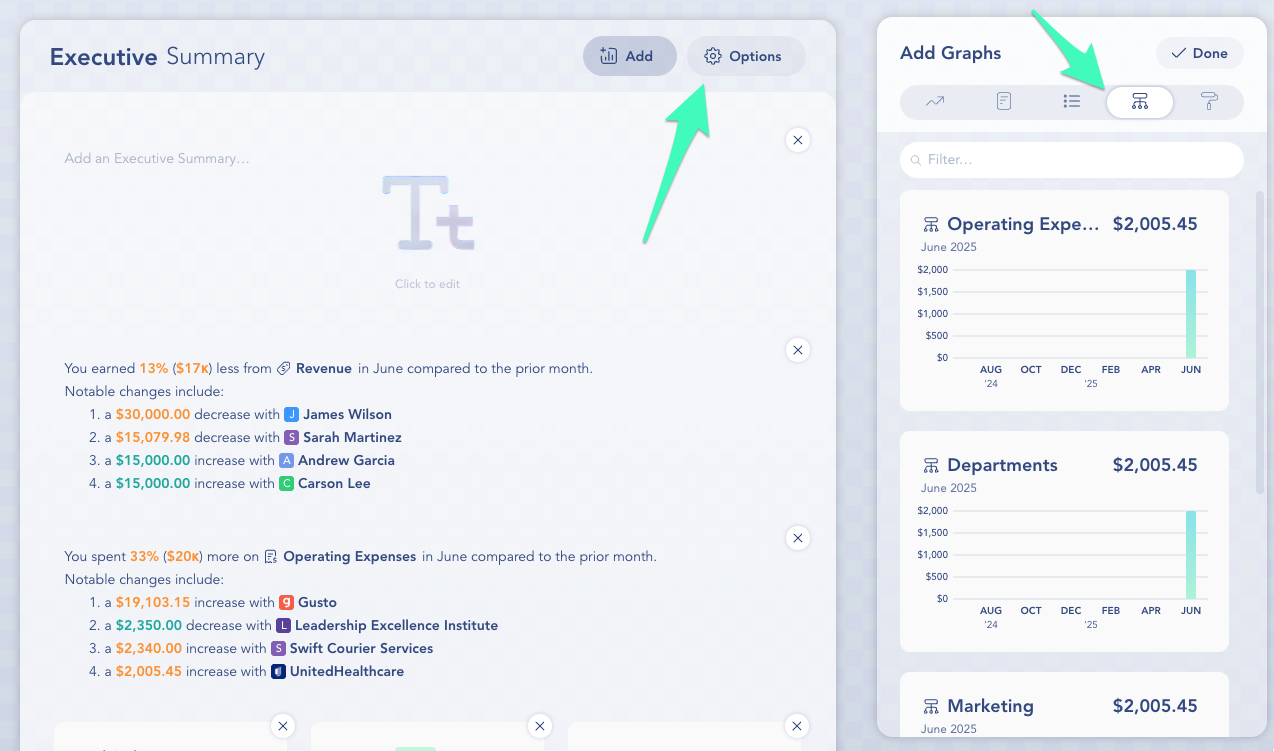
1. Go to any Custom Report (like Executive Summary).
2. Click **Options** at the top of the report.
3. Select the Department tab in the Add Graphs panel.
4. Choose from available department-based graphs — including category-level breakdowns.
5. Add your desired widget(s), then click **Done**.
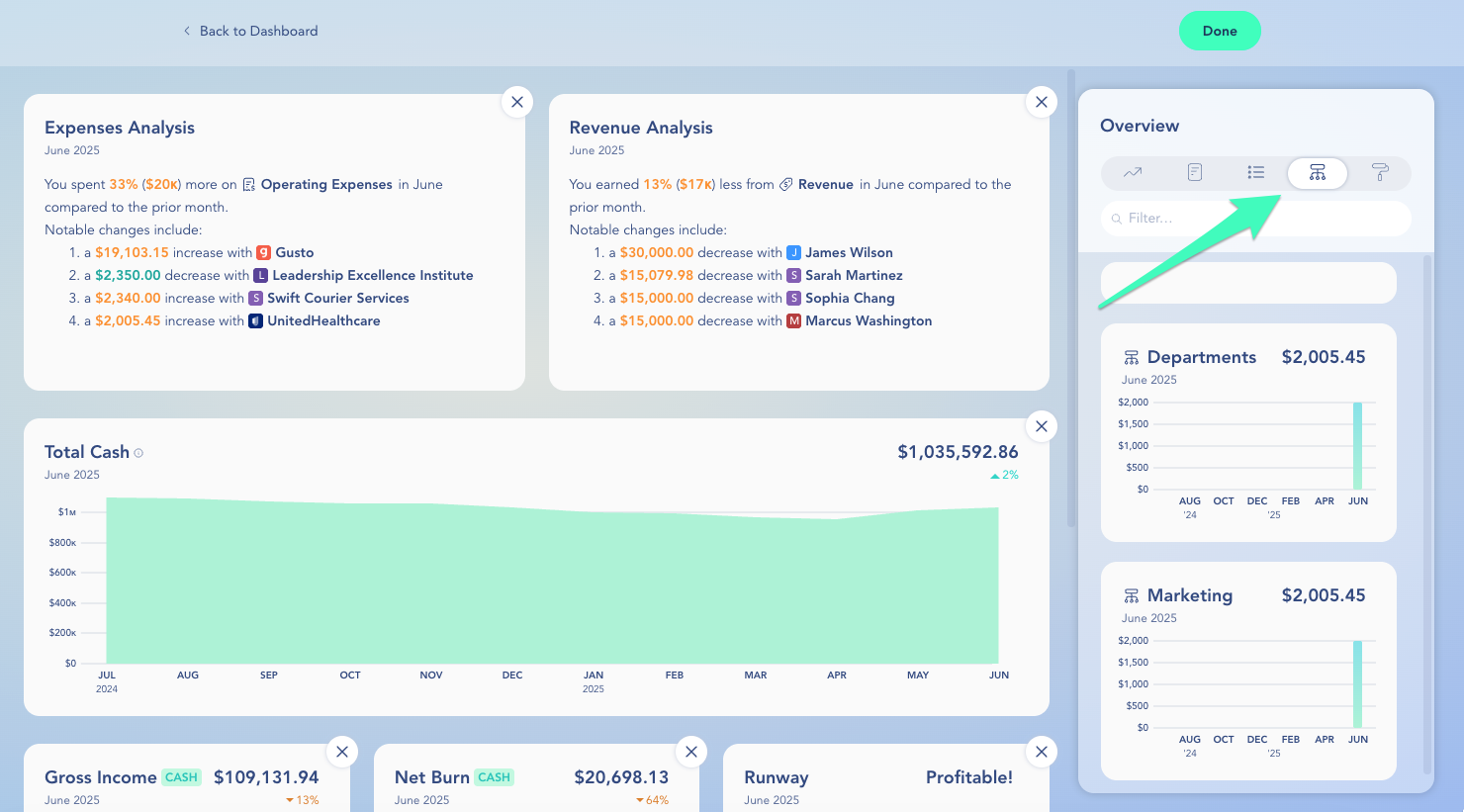
**To add department charts to your client's Dashboard:**
1. Go to **Home.**
2. Click **Edit** in the top-right corner.
3. Click the **Department** icon in the chart selector panel.
4. You’ll see available charts for each department.
5. Drag and drop the ones you want onto your dashboard.
6. Click **Done** to save your changes.
{% endstep %}
{% step %}
### Step 1: Set up your Departments
1. Go to **Accounting** → **Departments** in the left-hand menu.
2. Click **Add Department** to create one manually.
3. (Optional) If the account is connected to QuickBooks Online (QBO), click **Import Departments** to bring in your existing structure.
4. Organize departments into a hierarchy as needed — *for example: Sales **→** East Coast.*
{% hint style="warning" %}
You won’t see the import option unless your firm is connected to QBO.
{% endhint %}
To make changes, hover over a department name to:
* Click the **Pencil** to rename or modify the department.
* Click the **Hierarchy** icon to add a child department.
{% endstep %}
{% step %}
### Step 2: Tag transactions with a Department
Once your departments are set up, you can start tagging transactions.
**To tag one transaction:**
1. Go to **Accounting** → **Ledger**.
2. Click into a transaction.
3. Click **Edit** at the top of the screen.
4. Use the **Department** field to assign a tag.
**To tag one or more transactions at once (Bulk Tagging):**
1. From the **Ledger**, click **Edit** at the top.
2. Check the boxes next to the transactions you want to tag.
3. Click the **Department** icon in the toolbar at the top.
4. Select the **department** from the dropdown.
5. Click **Apply** to save your changes.
{% hint style="info" %}
**Unsure about the right department?** You can leave a comment or question on any transaction to confirm with a teammate, accountant, or client.
{% endhint %}
{% endstep %}
{% step %}
### Step 3: Report by Department
After transactions are tagged, you can view department-level reporting.
**To view Profit & Loss by Department:**
1. Go to **Custom Reports** → **Profit & Loss.**
2. Click the **Options** at the top of the report.
3. In the Options panel, find **Drill down by**.
4. Open the dropdown and choose **Department**.
5. Under **Multiple**, select the departments you want to include—or choose **all**.
6. (Optional) Use:
* **Hide Other Departments** to show only the departments you selected
* **Hide Unassigned Departments** to exclude anything not tied to a department
This lets you break down your Profit & Loss by department so you can compare revenue and expenses across teams.
**You can also add department-specific widgets to Reports:**
1. Go to any **Custom Report** (like Executive Summary).
2. Click **Options** at the top of the report.
3. Select the **Department** tab in the **Add Graphs** panel.
4. Choose from available department-based graphs — including category-level breakdowns.
5. Add your desired widget(s), then click **Done**.
**To add department charts to your Dashboard:**
1. Go to **Home.**
2. Click **Edit** in the top-right corner.
3. Click the **Department** icon in the chart selector panel.
4. You’ll see available charts for each department.
5. Drag and drop the ones you want onto your dashboard.
6. Click **Done** to save your changes.
{% endstep %}
{% endstepper %}
***
### **Frequently Asked Questions**
Can I report by both Location and Department at the same time?
Not yet. Today, you can drill down by either Location *or* Department per report. Multi-dimensional P\&Ls (using both) are on the roadmap.
Can I import transactions with Departments and Locations?
**Yes!** You can import transactions with **Departments** and/or **Locations**. Here’s how it works, depending on how you import:
#### CSV import
If you use the Digits CSV template, include a **Department** and/or **Location** column.
* **If the Department/Location already exists in Digits:** Digits applies it during import.
* **If it doesn’t exist:** Digits creates a **new Department or Location** in your **Dimensions** list and tags the transaction.
* **If Digits can’t create or apply it:** The transaction imports **without a tag** (and it won’t go to the Checklist). No stress — you can tag it later in the Ledger, either one at a time or in bulk.
#### Statement import (PDF/PNG/JPG/JPEG)
Transactions imported from a bank statement also go through Digits’ AI categorization flow.
* If Digits has seen **past Department/Location patterns** on similar transactions, it will try to apply them during import.
* If Digits can’t create or apply a dimension, the transaction imports **without a tag** (and it won’t go to the Checklist). You can tag it later in the Ledger — individually or with bulk edit.
Can I report by both Location and Department at the same time?
Not yet. Today, you can drill down by either Location *or* Department per report. Multi-dimensional P\&Ls (using both) are on the roadmap.
Will departments import automatically from QuickBooks Online, or do I have to create them manually?
If your Digits account is connected to QBO, you can import Locations just like Departments. Digits can pull from QBO’s Location or Line Class fields, depending on how your file is set up. You can also choose to skip import and build your Locations structure manually in Digits.
Will Departments/Locations sync automatically from connected tools like Ramp or Gusto?
**Ramp:** No — Departments/Locations do **not** sync from Ramp into Digits automatically.\
**Gusto:** **Departments do sync from Gusto** (Departments only — **not** Locations).
Can I view Departments and Locations on Balance Sheet reports?
Not yet. Department and Location breakdowns are currently available on Profit & Loss reports only.
Can I rename the Departments dimension to "Projects"?
No. The dimension names (Departments and Locations) are fixed. You can name the individual entries inside a dimension anything you like, but you can't relabel the dimension itself.
Why don't I see Departments?
Departments are available on select plans (part of Digits' Dimensions feature, along with Locations). If you don't see Departments, Dimensions isn't included in the current plan. To add it, upgrade the client's plan — see [Upgrade or downgrade a client plan](https://help.digits.com/client-management/upgrade-downgrade-a-client-plan). For the plans that include Dimensions, see [Digits pricing](https://digits.com/pricing/#firms).
*If Dimensions is included but you don't see any departments yet, you may just need to create them first.*
***
{% columns %}
{% column width="66.66666666666666%" valign="middle" %}
Got a question or feedback? Our team is all ears—come say hello!
{% endcolumn %}
{% column width="33.33333333333334%" valign="middle" %}
{% endcolumn %}
{% endcolumns %}
***
---
# Agent Instructions
This documentation is published with GitBook. GitBook is the documentation platform designed so that both humans and AI agents can read, navigate, and reason over technical content effectively. Learn more at gitbook.com.
## Querying This Documentation
If you need additional information that is not directly available in this page, you can query the documentation by asking a question.
Perform an HTTP GET request on the following URL with the `ask` and `goal` query parameters:
```
GET https://help.digits.com/firms-agentic-general-ledger/departments.md?ask=&goal=
```
`ask` is the immediate question: it should be specific, self-contained, and written in natural language.
`goal` is what the user is ultimately trying to achieve, the reason they need the answer. Sharing it helps GitBook give you a better, more relevant answer. A goal is most helpful when it describes the outcome the user wants rather than restating the question. For example, with `ask=how do I create an API token`, a goal like `automate deployments from our CI pipeline` lets GitBook tailor the answer to that use case.
The response will contain a direct answer to the question and relevant excerpts and sources from the documentation.
Use this mechanism when the answer is not explicitly present in the current page, you need clarification or additional context, or you want to retrieve related documentation sections.