Import Your Chart of Accounts
Import your Chart of Accounts into Digits using a CSV file.
When to Use a CSV Import
If your client’s books were previously managed outside of Digits — for example, in Xero, Puzzle, or a custom spreadsheet — you can import their Chart of Accounts (COA) manually using a CSV file.
The CSV import adds your Chart of Accounts only. It does not import transactions or opening balances.
You can add opening balances later by importing or manually creating journal entries in the Ledger.
If you’re uploading a CSV manually, follow these steps:
Click your firm name in the top left corner to open the dropdown.
Click, + Add Client.
Choose Start Fresh or Migrate from another platform (e.g., Xero, Puzzle).
Select Manual Upload, click Next.
Complete the company profile and click Next.
Click Download Template.

Fill in the following fields for each category:
Category Name
Category Number
Category Type (Income, Expense, Asset, etc.)
Save your completed CSV.
Click Upload CSV to bring it back into Digits.
Review the preview screen.
If everything looks good, click Submit to import.
Filling Out the Template CSV
Category Name
The account or category name.
Any text. This field can’t be blank. Avoid using commas or extra spaces. ✅ Example: Prepayments
Category Number
An optional account number.
Use your firm’s standard numbering system (if applicable). ✅ Example: 11110
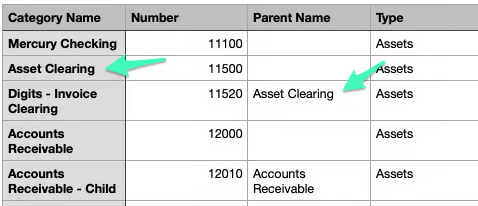
Parent Name
Indicates if a category should be nested under another in the Category Manager (your chart of accounts). • Use only for subcategories. • Leave blank for top-level categories like Assets, Liabilities, or Revenue.
This field is optional, but if used, keep in mind:
• First-time uploads: The parent must appear in Column 1 (Category Name). Placement in the file doesn’t matter.
• Use the exact name of the parent as listed in Column 1.
• If the parent already exists in Digits, don’t include it again — doing so may trigger a duplicate name error.
✅ Example: 
Type
The category’s financial type.
Must match one of the following exactly: Bank, Credit Card, Assets, Liabilities, Equity, Revenue, Cost of Revenue, Operating Expenses, Other Income, or Other Expenses. ✅ Example: Assets
Status
Active or inactive.
Optional — defaults to Active if left blank. ✅ Example: Active
Description
Optional short description.
Helps your team understand the purpose of the category. ✅ Example: Monthly rent and utilities
Review and Adjust Categories
Once your import is complete:
From your client’s Dashboard, go to Accounting → Category Manager.
Review all categories for accuracy and completeness.
Merge, rename, or deactivate categories to align with your firm’s standard structure.
Add subcategories for improved organization and reporting.
For more details, see: Category Manager (Chart of Accounts)
My Client is Already Set Up — How Do I Bulk Import Categories?
The steps above apply when importing a Chart of Accounts during initial client setup.
If you need to upload or modify categories later — for example, to restructure an existing client’s accounts — use Bulk Importing Categories from the Category Manager instead.
See: Bulk Importing Categories
Frequently Asked Questions
Need help? Contact support at [email protected]
Last updated
Was this helpful?
