> For the complete documentation index, see [llms.txt](https://help.digits.com/llms.txt). Markdown versions of documentation pages are available by appending `.md` to page URLs; this page is available as [Markdown](https://help.digits.com/firms-documents/attaching-documents.md).
# Attach Documents to Transactions
Attach receipts, invoices, or other supporting files directly to transactions in Digits — across Ledger, Banks & Cards, Vendors, and Customers. Everything stays linked, searchable, and organized.
***
### How to Manually Attach a Document to a Transaction
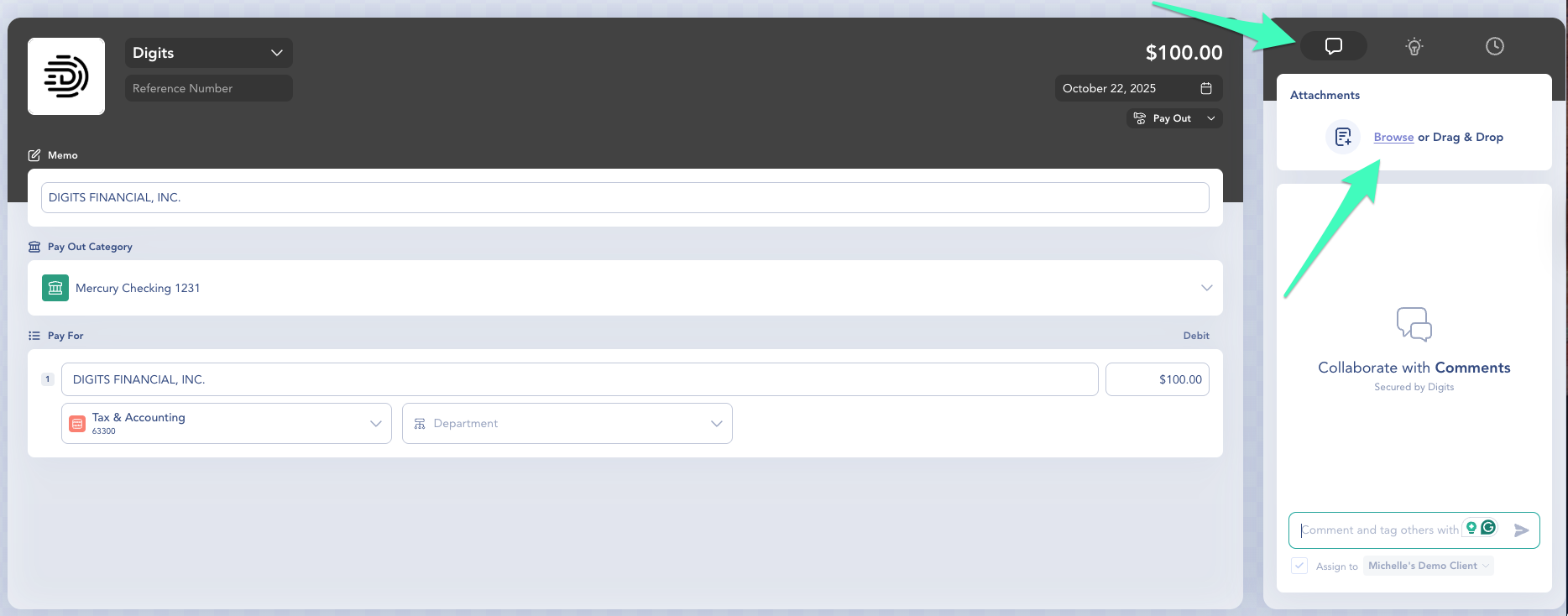
1. Open a transaction from **Ledger, Banks & Cards**, **Vendors**, or **Customers.**
2. Click the **Comments** icon in the upper-right corner.
3. **Browse** or **drag & drop** your file into the attachments box.
* Supported file types: PDF, PNG, JPG/JPEG, TIFF, GIF, BMP, WEBP, XLSX, XLS, DOCX, DOC, PPTX, PPT, ODT, ODS, ODP, RTF, CSV, TXT.
* You can upload multiple files per transaction.
{% hint style="info" %}
**Tip:** Upload contracts, receipts, or bills here instead of keeping them in email threads — everything stays connected and searchable.
{% endhint %}
***
### Viewing Linked Transactions
Once a document is uploaded, it automatically appears in the **Vault**.\
When you open it, you’ll see a **Linked Transactions** panel on the right showing:
* Transaction date
* Transaction amount
* Linked account or category
Click the linked transaction to jump directly to its details view.
***
### Other Ways to Attach or Link Documents
In addition to manually attaching files directly to a transaction, you can also add documents to Digits in other ways. When possible, :sparkles: Digits will automatically link them to the correct transaction.
#### Upload or Drag & Drop
You can upload or drag & drop documents (like receipts, bills, or statements) into:
* **Vault**
* **Reconciliations**
* **Checklist**
* **Bills or Expenses workflows**
Digits will scan the document and attempt to match it to the correct transaction based on details like vendor, date, and amount.
#### Email Documents to Digits
Each business or client in Digits has a **unique email address**.
You can forward or email documents (receipts, bills, statements) to that address, and Digits will:
* Store the file in **Vault**
* Identify the document type
* Route it into the correct workflow
* Attempt to link it to a transaction when possible
#### Important to Know
* Automatic matching is **not guaranteed**
* If Digits can’t confidently match a document, it will remain in Vault
* You can always manually attach the document to the correct transaction
***
### Frequently Asked Questions
Do all uploaded documents go into Vault?
Yes — all attachments are stored in your **Vault** for easy access.
Can I upload documents from my phone?
Yes. You can upload documents directly from the Digits mobile app on iOS.
Use the app to capture or upload receipts, statements, and other files on the go. Once uploaded, they’ll appear in Digits and be available for processing and reconciliation.
Download for iOS
Will historical attachments from QuickBooks import automatically?
That’s our goal. We’re exploring large-scale QBO document imports to bring over historical attachments.
***
{% columns %}
{% column width="66.66666666666666%" valign="middle" %}
Got a question or feedback? Our team is all ears—come say hello!
{% endcolumn %}
{% column width="33.33333333333334%" valign="middle" %}
Contact Digits Support
{% endcolumn %}
{% endcolumns %}
***
---
# Agent Instructions
This documentation is published with GitBook. GitBook is the documentation platform designed so that both humans and AI agents can read, navigate, and reason over technical content effectively. Learn more at gitbook.com.
## Querying This Documentation
If you need additional information that is not directly available in this page, you can query the documentation by asking a question.
Perform an HTTP GET request on the following URL with the `ask` and `goal` query parameters:
```
GET https://help.digits.com/firms-documents/attaching-documents.md?ask=&goal=
```
`ask` is the immediate question: it should be specific, self-contained, and written in natural language.
`goal` is what the user is ultimately trying to achieve, the reason they need the answer. Sharing it helps GitBook give you a better, more relevant answer. A goal is most helpful when it describes the outcome the user wants rather than restating the question. For example, with `ask=how do I create an API token`, a goal like `automate deployments from our CI pipeline` lets GitBook tailor the answer to that use case.
The response will contain a direct answer to the question and relevant excerpts and sources from the documentation.
Use this mechanism when the answer is not explicitly present in the current page, you need clarification or additional context, or you want to retrieve related documentation sections.