> For the complete documentation index, see [llms.txt](https://help.digits.com/llms.txt). Markdown versions of documentation pages are available by appending `.md` to page URLs; this page is available as [Markdown](https://help.digits.com/firms-getting-started/migrate-from-quickbooks.md).
# Migrate Data from QuickBooks Online (QBO)
When setting up a new client in Digits, you can import their financial data directly from QuickBooks Online to keep historical records and categories intact.
{% hint style="danger" %}
QuickBooks migration is only available during initial client setup. If you picked the wrong cutover date or migrated before posting everything, you can [**Start Over**](/firms-connections/starting-over.md) to reset onboarding and try again without affecting billing. Once onboarding is complete, QuickBooks migration can't be added without starting over.
{% endhint %}
### Before you migrate
Your migration brings over transactions that are **posted to your QuickBooks ledger**. Items still sitting in your QuickBooks **bank feed** ("For Review") aren't posted yet, so they won't come across. That's fine if it's intentional — for example, if you plan to start doing a given month's work in Digits, it's okay to leave that month's bank-feed items in QuickBooks. Just make sure that **anything you want to bring into Digits is fully posted from the bank feed before you migrate:**
:square-check: In QuickBooks, **categorize and post any bank-feed items you want migrated** so they're recorded in the ledger. Anything left in "For Review" stays behind.
:square-check: **Reconcile through your last completed period** so your migrated balances are clean.
:square-check: **Set your cutover date to the day after your last fully posted and reconciled period.** Your cutover date tells Digits when to take over as your system of record — it's the point from which your Digits activity begins, so pick it once your QuickBooks books are clean through the prior period.
***
### How to Migrate a Client from QuickBooks Online
{% hint style="info" %}
**Tip:** If your client’s QuickBooks file hasn’t been reconciled recently, complete that step before migrating. This ensures clean data and accurate cutover balances.
{% endhint %}
Follow these steps during your client’s initial setup:
1. From your **Firm Dashboard**, click **+ Add Client** and enter their basic information.
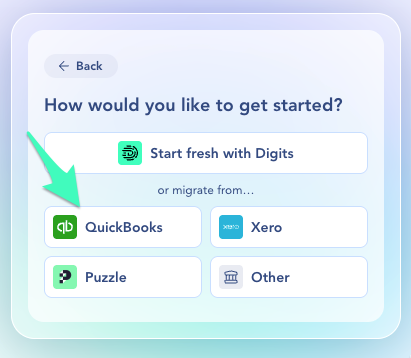
2. When prompted to choose a setup option, select **QuickBooks**.
3. Log in to your client’s **QuickBooks Online** account and authorize the connection.
4. **Set a cutover date**—this tells Digits when to take over as the system of record.
{% hint style="info" %}
We recommend the day after your client’s last fully reconciled period. See: [Cutover Date](/firms-getting-started/firms-quickbook-cutover-date.md) for more information.
{% endhint %}
3. Digits automatically imports your client's:
* Transactions
* Balances
* Chart of Accounts
All data prior to the cutover date is pulled in for historical reference. Afterward, the QuickBooks connection is archived and no longer syncs. From that day forward, **Digits** becomes your system of record.
{% hint style="warning" %}
Once the import is complete, review in [**Categories**](/firms-agentic-general-ledger/category-manager.md) to confirm your Chart of Accounts has been imported correctly.
{% endhint %}
**Next Step:** \
Once your client’s data has been imported and reviewed, continue setting up their workspace:
* [**Connect Banks & Apps** ](/firms-connections/firms-connections.md)
* **Confirm Billing** for your firm
* [**Invite Client Team Members**](/client-management/roles-and-permissions.md) to collaborate in Digits
***
### What Migrates to Digits from QBO and What Doesn't?
:white\_check\_mark: **Migrates:**
* **Chart of Accounts (COA)** (includes active and inactive accounts; maps to the Categories in Digits)
* **Transactions** (your historical activity)
* **Journal Entries (JEs)** (included in your transaction history)
* **Classes and Locations from QBO** (you'll map these during setup so you can use them in Digits.)
* **Invoices & bills** — brought over for their accounting impact (A/R, A/P, and revenue are booked into your ledger), not as standalone invoice or bill documents
* **Customers** — Name, Website, Phone, Email, Billing Address, Shipping Address
* **Vendors** — Name
* **Products** (Includes inactive; imported and surfaced during Invoice creation)
* Products with a unit price of $0 or greater appear in the Product selection dropdown
* Products with a unit price less than $0 appear as Discount options when creating an invoice
:no\_entry\_sign: **Does NOT Migrate:**
* **Reconciliation status** (whether a transaction was previously marked reconciled in QBO)
* **Reconciliation history** (past statement periods and reconciliation reports)
* **Invoice, bill, and other document records and attachments** — the accounting impact is migrated, but the original documents, attachments, and payment status are not
* **A/R and A/P aging history** — your account balances migrate, but aging reports and open item aging do not.
* **Customers** — Website, phone, email, billing address, shipping address, payment terms, opening/current balance, notes/ memos, attachments, tax-exempt status/ resale number, preferred payment & delivery method, sub-customers/ jobs (parent-child relationships), custom fields, currency.
* **Vendors** — Website, phone, email, Address, tax ID/ 1099 setup, payment terms, account number, opening/ current balance, notes/ memos, attachments, tax settings, custom fields, currency.
{% hint style="info" %}
**Good to know:** Your QuickBooks invoices and bills migrate as ledger transactions, so your historical accounting data—including A/R and A/P balances—is preserved. The original documents, attachments, payment status, and aging history don't migrate, so recreate any open invoices or bills you still need to track in Digits.
{% endhint %}
***
### What Happens After Migration?
* Your client’s QuickBooks categories and balances are now live in Digits.
* :sparkles: Digits will begin categorizing new transactions automatically based on your imported data.
* The QuickBooks connection remains archived for reference, but won’t update.
{% hint style="info" %}
**Tip:** After migration, check that your client’s **opening balances** match the final reconciled figures from QuickBooks. Adjust as needed using **Journal Entries** in the **Ledger.**
{% endhint %}
***
### Running a Parallel Close
If you’d like to test **Digits** while still closing your books in **QuickBooks**, you can run a **parallel close** for your first month.
This lets you compare results between both systems before fully switching to Digits.
See: [Running a Parallel Close](/firms-getting-started/parallel-close.md)
### Frequently Asked Questions
Can I migrate a client after setup?
No. QuickBooks migration is only available during the **initial setup** of a new client in Digits.
Do Departments and Locations (Classes) import from QuickBooks?
Yes. When you migrate from QBO, you can import both Locations and Line Classes — but you'll need to map them during the import setup, since QBO and Digits use different terminology.
QBO uses a generic structure for these fields, while Digits defines them more specifically as Departments and Locations. During setup, you'll select which QBO field maps to which Digits dimension.
Common mapping:
* QBO Location (or custom name like "Business") → Digits **Departments**
* QBO Line Class → Digits **Locations**
Do products import from QuickBooks?
Yes, products are imported from QBO — but they only apply if you're using Digits Invoicing to create and manage invoices. If you're not using Invoicing, imported products won't affect your setup.
Why aren't my transactions tagged with Departments or Locations after migration?
Transaction tags won't appear until you've mapped your Departments and Locations. Here's how to do it:
1. In the left navigation, go to **Accounting → Departments** (or **Locations**).
2. Click **Import Departments** (or **Import Locations**) and follow the steps to map your QBO fields to the correct Digits dimension.
Once saved, Digits retroactively applies the tags to all matching historical transactions.
See: [Departments](/firms-agentic-general-ledger/departments.md) | [Locations](/firms-agentic-general-ledger/locations.md)
Does Digits overwrite QuickBooks data?
No. Digits reads data from QuickBooks (up to the cutover date) but never pushes updates back.
Are QuickBooks transactions editable after migration?
Yes. All data imported up to your **cutover date** is editable in Digits. Any changes made in QuickBooks after that date will not sync.
What if I choose the wrong cutover date?
You can delete the client and restart setup with the correct date, or manually adjust opening balances in the Ledger.
Why am I seeing “The app you’ve selected isn’t available for use in your country”?
This occurs when your **QuickBooks Online** account was created outside the U.S. Digits’ QuickBooks integration currently supports **U.S.-based accounts only.**\
If you have a U.S.-based QuickBooks account, connect that one instead.\
For non-U.S. accounts, you can still use Digits by importing transactions via CSV.
We know international support is important, and expanding availability is on our roadmap. If you have questions, contact .
Why Migrate from QuickBooks to Digits?
Many accounting firms start on **QuickBooks**, but as their client base and complexity grow, they quickly feel its limits. QuickBooks was built for small business owners — not for firms managing many clients, staff, and data sources at scale.
As your workload expands, QuickBooks often creates bottlenecks with:
* Rule-based categorization that requires constant maintenance
* Manual reconciliations that slow down month-end closes
* Static reports that need exporting or refreshing
* Limited visibility across multiple clients
✨ **Digits removes those limits.**
Firms switch to Digits for automation, scalability, and real-time insights — all powered by Digits’ AI-native ledger. Here’s what that brings to the table:
* **Automated Categorization:** Transactions classify themselves intelligently with accuracy that improves over time.
* **Continuous Reconciliation:** Bank and credit card reconciliations run automatically in the background, catching issues early.
* **Live, Connected Reporting:** Reports update instantly across every client without exports or delays.
* **Firm-Level Efficiency:** Manage every client from one dashboard.
* **Client Collaboration:** Comment, share, and review directly inside Digits — no email threads or version confusion.
In short, firms migrate from **QuickBooks to Digits** to gain automation, accuracy, and modern scalability through an AI-native accounting platform that truly keeps up with their growth.
Is it safe to run Digits alongside QuickBooks Online?
Yes. Digits' QuickBooks migration is a **one-time data pull** — it copies your client's data without modifying or syncing back to your QBO file. Your QuickBooks data remains fully intact.
You can continue using QBO as your primary system while testing Digits in parallel, comparing reports, and verifying accuracy before fully committing. Once you're confident everything aligns, you can transition to Digits and cancel your QBO subscription. See: [Running a Parallel Close](/firms-getting-started/parallel-close.md)
How do I migrate data from QuickBooks Desktop 10?
See: [Migrate to Digits from Xero, Puzzle, or Another Platform](/firms-getting-started/migrate-to-digits.md)
Do inactive chart of accounts categories import from QuickBooks?
Yes. Digits imports your entire chart of accounts, including inactive accounts, and brings them over marked as inactive ("Deactivated"). This keeps your historical transactions correctly tied to the categories they were originally posted to. Imported inactive categories still appear in your Categories (shown as Deactivated), so nothing is lost—they're just visually set aside from your active categories.
Viewing migrated Accounts Receivable balances after a QuickBooks migration
When you migrate from QuickBooks Online, Digits brings over your full history—customer information, customer balances, and transaction-level detail. However, AR balances carried over at your cutover won't appear in the AR Aging report. That report is built from invoices created in Digits, and migrated receivables come over as ledger balances rather than individual invoice documents.\
\
You can still see the same information from the Accounts Receivable category. Here's how:
1. Open the Accounts Receivable category detail page. You can get there by finding Accounts Receivable in the Ledger, or by using Ask Digits/search and typing "accounts receivable."
2. Use the date picker to set the time frame you want. To see balances as of your cutover, select the full range up to that date (e.g., all of 2024–2025 for a January 1, 2026 cutover).
3. Open the Unpaid Customers view to see the total owed by each customer for that time frame.
4. Click into any customer to see the underlying transactions that make up their balance.
***
{% columns %}
{% column width="66.66666666666666%" valign="middle" %}
Got a question or feedback? Our team is all ears—come say hello!
{% endcolumn %}
{% column width="33.33333333333334%" valign="middle" %}
Contact Digits Support
{% endcolumn %}
{% endcolumns %}
***
---
# Agent Instructions
This documentation is published with GitBook. GitBook is the documentation platform designed so that both humans and AI agents can read, navigate, and reason over technical content effectively. Learn more at gitbook.com.
## Querying This Documentation
If you need additional information that is not directly available in this page, you can query the documentation by asking a question.
Perform an HTTP GET request on the following URL with the `ask` and `goal` query parameters:
```
GET https://help.digits.com/firms-getting-started/migrate-from-quickbooks.md?ask=&goal=
```
`ask` is the immediate question: it should be specific, self-contained, and written in natural language.
`goal` is what the user is ultimately trying to achieve, the reason they need the answer. Sharing it helps GitBook give you a better, more relevant answer. A goal is most helpful when it describes the outcome the user wants rather than restating the question. For example, with `ask=how do I create an API token`, a goal like `automate deployments from our CI pipeline` lets GitBook tailor the answer to that use case.
The response will contain a direct answer to the question and relevant excerpts and sources from the documentation.
Use this mechanism when the answer is not explicitly present in the current page, you need clarification or additional context, or you want to retrieve related documentation sections.