> For the complete documentation index, see [llms.txt](https://help.digits.com/llms.txt). Markdown versions of documentation pages are available by appending `.md` to page URLs; this page is available as [Markdown](https://help.digits.com/firms-getting-started/migrate-to-digits.md).
# Migrate to Digits from Xero, Puzzle, or Another Platform
Moving a client from Xero, Puzzle, or another platform? Digits does not have a direct sync, but your client's existing data can be brought over in a few easy steps.
***
{% hint style="success" %}
**Migrating from QuickBooks Desktop 2010?** These steps apply to you, too. However, if you want detailed historical transaction data, you also have the option of using Intuit's migration tool to move from QuickBooks Desktop to QuickBooks Online first, and then using the [QBO-to-Digits ](/firms-getting-started/migrate-from-quickbooks.md)sync. If you'd prefer not to go that route, just follow the steps below.
{% endhint %}
***
{% stepper %}
{% step %}
### Step 1: Add a Client and Import Your Client's Chart of Accounts
You can add a client directly from your **Firm Dashboard**. There are three ways to start:
1. Click **+ Add Client** at the top right of your dashboard (next to “Send Feedback”).
2. Or, click your **firm name** in the top-left corner and select **+ Add Client** from the dropdown.
3. If this is your first client, you can click **Add First Client** in the middle of the dashboard.

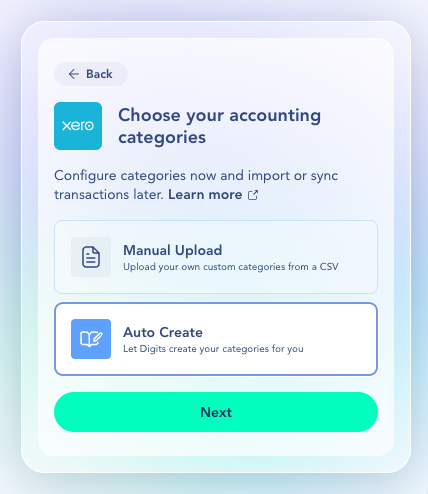
4. Follow the prompts until you see **"How would you like to get started?"**, then select your previous platform (**Xero**, **Puzzle**, or **Other**).
5. If you wish to retain your client's existing account structure from their previous platform, select **Manual Upload** and click **Next**.
{% hint style="info" icon="book-open" %}
If you'd prefer not to import your client's Chart of Accounts, you can select **Auto Create** and skip to step 2. Digits includes a default Chart of Accounts and will auto-categorize transactions as they come in.
 {% endhint %}
#### **Fill Out and Upload Your CSV**
In the downloaded template, fill in these fields for each category:
* **Category Name**
* **Category Number** (optional, only if applicable)
* **Category Type** (Income, Expense, Asset, etc.)
Then:
1. Save your completed CSV.
2. Back in Digits, click **Upload CSV**.
3. Review the preview screen.
4. If everything looks correct, click **Submit** to import your chart of accounts.
Also see: [Import Your Chart of Accounts](/firms-agentic-general-ledger/import-coa.md)
{% endstep %}
{% step %}
### Step 2: Connect Your Client's Banks & Integrations
Once the Chart of Accounts is in place, connect the client's bank accounts, credit cards, and any integrations to Digits.
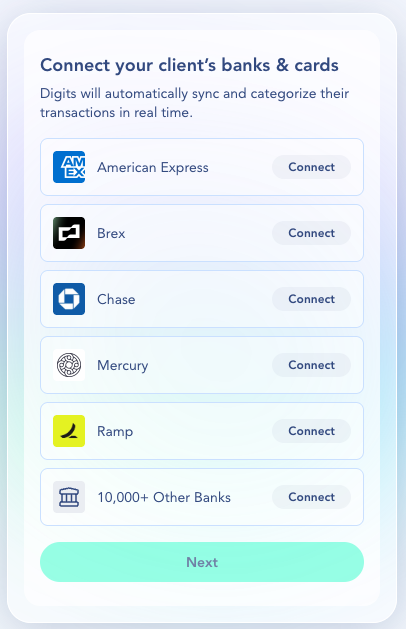
1. Follow the prompts to connect bank accounts and credit cards.
2. On the next screen, you'll be asked if you'd like to add any additional integrations (e.g., Gusto, Stripe, Ramp). You can connect these now or skip and add them later from the **Connections** tab.
3. After completing this step, Digits will provision the account — this takes a few minutes. Once ready, you'll be directed to your client's new **Home** dashboard.
{% endstep %}
{% step %}
### Step 3: Enter the Client's Opening Balances
To ensure the client's accounts reflect accurate beginning totals in Digits, you'll need to enter their opening balances via a journal entry in the Ledger.
The date you use for your opening balances depends on how much historical detail you want in Digits.
**Option A: Start Fresh from Your Last Close**
*Example: If the client's books were last closed on 12/31/2025, enter those ending balances in Digits as opening balances dated 1/1/2026.* In Step 4, you will set the integration start dates to match this date.
{% hint style="info" icon="person-running-fast" %}
*This is the fastest way to get started. The opening balances will be accurate, and you'll set Digits to take over as of 1/1/2026; however, detailed transaction history from the previous platform will not be available prior to that date.*
{% endhint %}
**Option B: Include Historical Transaction Detail**
If detailed historical data is required in Digits, you will need to set the opening balances further back.
*For example, if your client's books were last closed on 12/31/2025 and you want two years of prior history, enter your ending balances as of 12/31/2023 as opening balances dated 1/1/2024. Then, in Step 5, you'll import your detailed transactions from 1/1/2024 through 12/31/2025.*
**To enter the opening balances:**
1. In the left navigation menu, go to **Accounting → Ledger**.
2. In the top right corner, click **+ Add Transaction**.
3. Create a journal entry with your opening balance for each account.
See: [Journal Entries in Digits](/firms-agentic-general-ledger/journal-entries.md)
{% endstep %}
{% step %}
### Step 4: Set Integration Start Dates
Once the opening balances are entered, configure the start date for each of the client's integrations. This ensures Digits only pulls transactions from the chosen start date forward. This applies to all connections — banks, credit cards, payroll, and any other integrated tools.
{% hint style="info" %}
The start date you set here should match the opening balance date you chose in Step 3 (e.g., 1/1/2026 for Option A, or 1/1/2024 for Option B).
{% endhint %}
1. From the left navigation menu, go to **Connections** → **My Connections**.
2. Click **Manage** next to each account you've connected.
3. Next, click on each individual account (e.g., *Checking Account, Credit Card*).
4. Make sure the **Import all historical transactions** toggle is to the left.
{% hint style="info" icon="toggle-large-on" %}
Toggle **left** = set a custom start date for how far back to import transactions.
Toggle **right** = import all available data, up to 2 years back.
{% endhint %}
5. Click **Select date** and choose your start date from the calendar.
{% hint style="danger" icon="calendar-days" %}
**Note:** Plaid can only pull up to 2 years of transaction history for connected bank and credit card accounts.
{% endhint %}
6. Click **Save.**
7. Repeat this for all of the client's integrations: banks, credit cards, payroll, etc. Digits will take a few minutes to process once start dates have been set.
{% endstep %}
{% step %}
### Step 5: (Optional) Import Historical Transactions
If you selected Option B in Step 3, you will need to import the client's historical transactions from their previous platform for the period between the opening balance date and the date they joined Digits (e.g., 1/1/2024–12/31/2025). If you selected Option A, you can skip this step.
1. From the left navigation menu, go to **Accounting → Ledger**.
2. Click the dropdown next to **+ Add Transaction → Import Journal Entries**.
3. Download the Digits CSV template.
4. Format your transaction data from your previous platform to match the template.
5. Upload the file, review the column mappings, and click **Next** to complete the import.
6. See also: [Journal Entries in Digits](/firms-agentic-general-ledger/journal-entries.md)
{% endstep %}
{% endstepper %}
***
### Frequently Asked Questions
{% endhint %}
#### **Fill Out and Upload Your CSV**
In the downloaded template, fill in these fields for each category:
* **Category Name**
* **Category Number** (optional, only if applicable)
* **Category Type** (Income, Expense, Asset, etc.)
Then:
1. Save your completed CSV.
2. Back in Digits, click **Upload CSV**.
3. Review the preview screen.
4. If everything looks correct, click **Submit** to import your chart of accounts.
Also see: [Import Your Chart of Accounts](/firms-agentic-general-ledger/import-coa.md)
{% endstep %}
{% step %}
### Step 2: Connect Your Client's Banks & Integrations
Once the Chart of Accounts is in place, connect the client's bank accounts, credit cards, and any integrations to Digits.
1. Follow the prompts to connect bank accounts and credit cards.
2. On the next screen, you'll be asked if you'd like to add any additional integrations (e.g., Gusto, Stripe, Ramp). You can connect these now or skip and add them later from the **Connections** tab.
3. After completing this step, Digits will provision the account — this takes a few minutes. Once ready, you'll be directed to your client's new **Home** dashboard.
{% endstep %}
{% step %}
### Step 3: Enter the Client's Opening Balances
To ensure the client's accounts reflect accurate beginning totals in Digits, you'll need to enter their opening balances via a journal entry in the Ledger.
The date you use for your opening balances depends on how much historical detail you want in Digits.
**Option A: Start Fresh from Your Last Close**
*Example: If the client's books were last closed on 12/31/2025, enter those ending balances in Digits as opening balances dated 1/1/2026.* In Step 4, you will set the integration start dates to match this date.
{% hint style="info" icon="person-running-fast" %}
*This is the fastest way to get started. The opening balances will be accurate, and you'll set Digits to take over as of 1/1/2026; however, detailed transaction history from the previous platform will not be available prior to that date.*
{% endhint %}
**Option B: Include Historical Transaction Detail**
If detailed historical data is required in Digits, you will need to set the opening balances further back.
*For example, if your client's books were last closed on 12/31/2025 and you want two years of prior history, enter your ending balances as of 12/31/2023 as opening balances dated 1/1/2024. Then, in Step 5, you'll import your detailed transactions from 1/1/2024 through 12/31/2025.*
**To enter the opening balances:**
1. In the left navigation menu, go to **Accounting → Ledger**.
2. In the top right corner, click **+ Add Transaction**.
3. Create a journal entry with your opening balance for each account.
See: [Journal Entries in Digits](/firms-agentic-general-ledger/journal-entries.md)
{% endstep %}
{% step %}
### Step 4: Set Integration Start Dates
Once the opening balances are entered, configure the start date for each of the client's integrations. This ensures Digits only pulls transactions from the chosen start date forward. This applies to all connections — banks, credit cards, payroll, and any other integrated tools.
{% hint style="info" %}
The start date you set here should match the opening balance date you chose in Step 3 (e.g., 1/1/2026 for Option A, or 1/1/2024 for Option B).
{% endhint %}
1. From the left navigation menu, go to **Connections** → **My Connections**.
2. Click **Manage** next to each account you've connected.
3. Next, click on each individual account (e.g., *Checking Account, Credit Card*).
4. Make sure the **Import all historical transactions** toggle is to the left.
{% hint style="info" icon="toggle-large-on" %}
Toggle **left** = set a custom start date for how far back to import transactions.
Toggle **right** = import all available data, up to 2 years back.
{% endhint %}
5. Click **Select date** and choose your start date from the calendar.
{% hint style="danger" icon="calendar-days" %}
**Note:** Plaid can only pull up to 2 years of transaction history for connected bank and credit card accounts.
{% endhint %}
6. Click **Save.**
7. Repeat this for all of the client's integrations: banks, credit cards, payroll, etc. Digits will take a few minutes to process once start dates have been set.
{% endstep %}
{% step %}
### Step 5: (Optional) Import Historical Transactions
If you selected Option B in Step 3, you will need to import the client's historical transactions from their previous platform for the period between the opening balance date and the date they joined Digits (e.g., 1/1/2024–12/31/2025). If you selected Option A, you can skip this step.
1. From the left navigation menu, go to **Accounting → Ledger**.
2. Click the dropdown next to **+ Add Transaction → Import Journal Entries**.
3. Download the Digits CSV template.
4. Format your transaction data from your previous platform to match the template.
5. Upload the file, review the column mappings, and click **Next** to complete the import.
6. See also: [Journal Entries in Digits](/firms-agentic-general-ledger/journal-entries.md)
{% endstep %}
{% endstepper %}
***
### Frequently Asked Questions
Do I have to import a Chart of Accounts from my client's previous platform?
No. You can use the default Digits Chart of Accounts instead. Digits will auto-categorize transactions as they come in. Importing your existing Chart of Accounts is optional but recommended if you want to keep your client's current account structure.
Will Digits auto-categorize the imported transactions?
Yes. Once transactions are imported, :sparkles: Digits will work to auto-categorize them.
What if my balances don't match after importing?
Double-check that your opening balance date and amounts match the ending balances from your previous platform. Also, verify that your imported transactions don't overlap with the opening balance period. For more help, see [Troubleshooting Cash Totals: Verifying Opening Balances](/firms-agentic-general-ledger/verify-opening-balances.md)
***
{% columns %}
{% column width="66.66666666666666%" valign="middle" %}
Got a question or feedback? Our team is all ears—come say hello!
{% endcolumn %}
{% column width="33.33333333333334%" valign="middle" %}
Contact Digits Support
{% endcolumn %}
{% endcolumns %}
***
---
# Agent Instructions
This documentation is published with GitBook. GitBook is the documentation platform designed so that both humans and AI agents can read, navigate, and reason over technical content effectively. Learn more at gitbook.com.
## Querying This Documentation
If you need additional information that is not directly available in this page, you can query the documentation by asking a question.
Perform an HTTP GET request on the following URL with the `ask` and `goal` query parameters:
```
GET https://help.digits.com/firms-getting-started/migrate-to-digits.md?ask=&goal=
```
`ask` is the immediate question: it should be specific, self-contained, and written in natural language.
`goal` is what the user is ultimately trying to achieve, the reason they need the answer. Sharing it helps GitBook give you a better, more relevant answer. A goal is most helpful when it describes the outcome the user wants rather than restating the question. For example, with `ask=how do I create an API token`, a goal like `automate deployments from our CI pipeline` lets GitBook tailor the answer to that use case.
The response will contain a direct answer to the question and relevant excerpts and sources from the documentation.
Use this mechanism when the answer is not explicitly present in the current page, you need clarification or additional context, or you want to retrieve related documentation sections.