# Firm Roles & Permissions (Invite Colleagues)

***

### What’s the Difference Between Colleagues and Team Members?

<table><thead><tr><th width="187.87786865234375">Type</th><th>Description</th></tr></thead><tbody><tr><td><strong>Colleagues</strong></td><td>Your firm’s staff, invited at the <strong>firm level</strong>. You control which clients each colleague can access.</td></tr><tr><td><strong>Team Members (Users)</strong></td><td>People at your <strong>client’s company</strong> who have been invited to a specific client.<br>See → <a data-mention href="/spaces/vSRL2TlhlioIo7LGLhmQ/pages/GHpSxtIo3XChf9pKO7G2">/spaces/vSRL2TlhlioIo7LGLhmQ/pages/GHpSxtIo3XChf9pKO7G2</a></td></tr></tbody></table>

***

### How Do Roles and Permissions Work in Digits?

Roles in Digits control what each colleague can do — both across your entire firm and within individual client workspaces.\
There are **two layers** of permissions:

1. **Firm Roles** — define what a colleague can do across your firm (settings, billing, clients, and invites).
2. **Client Access Levels** — define what that colleague can do within a specific client’s books.

***

### What Are Firm Roles?

Assigned per colleague; applies across the entire firm.

<table data-header-hidden><thead><tr><th width="214.77056884765625">Firm Role</th><th>What They Can Do</th></tr></thead><tbody><tr><td><strong>Admin</strong></td><td>Can manage firm settings, billing, users, and clients. Defaults to admin on all clients.</td></tr><tr><td><strong>Account Manager</strong></td><td>Can view clients they’ve been given access to, add new clients, and give users access to a client.</td></tr><tr><td><strong>Associate</strong></td><td>Can view clients they’ve been given access to. Cannot add new users or clients.</td></tr></tbody></table>

{% hint style="success" %}
**Tip:** A colleague’s **Firm Role** determines their firm-wide permissions. You can adjust their client-specific access separately.
{% endhint %}

***

### What Are Client Access Levels?

Client Access Levels define what each colleague can do *inside* a client’s account. These settings can differ for every client they work with.

<table data-header-hidden><thead><tr><th width="208.6378173828125">Client Access Level</th><th>Permissions</th></tr></thead><tbody><tr><td><strong>Admin</strong></td><td>Access to all tools. Can comment, tag, and share.</td></tr><tr><td><strong>Associate</strong></td><td>Access to all tools. Cannot comment, tag, or share.</td></tr><tr><td><strong>No Access</strong></td><td>Removes all access to the client.</td></tr></tbody></table>

{% hint style="info" %}
**Example:** You might assign a colleague the **Firm Role of Account Manager** but set their **Client Access Level** to **Associate** for specific clients to whom they need view-only access.
{% endhint %}

***

### Invite a Colleague

Follow these steps to invite a colleague to your firm:

1. Go to **Firm Settings → Colleagues**.
2. Click **Invite Colleague**.
3. Enter their **name** and **work email**.
4. Select a **Firm Role**, then click **Next**.
5. *(Optional)* Choose the clients they should access.
6. Click **Send Invite**.

They’ll receive an email to create (or sign in to) their **Digits** account. Once they accept, they’ll be added to your firm.

{% hint style="info" %}
**Tip:** A colleague’s **Firm Role** sets their default permissions across all clients. You can then adjust client-level access individually to control which clients they can view or manage.
{% endhint %}

***

### How Do I Manage or Remove a Colleague’s Access?

#### **Change or Remove Access for a Single Client**

1. Go to **Firm Settings → Colleagues.**
2. Find the **colleague** (list is below, Invite Colleague).
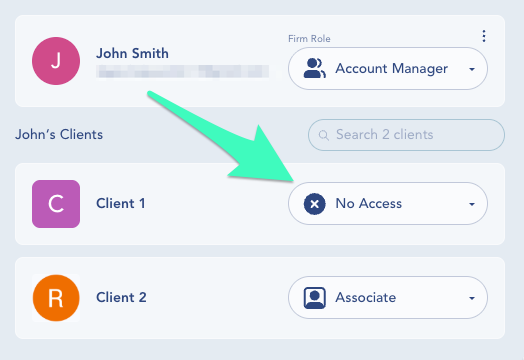
3. Locate the client in the right **client access** column.
4. Use the dropdown to choose **Admin**, **Associate**, or **No Access**, then click **Save**.

<div align="left"><figure><img src="/files/2DPh9pn7sEjFBj2goA8M" alt="" width="262"><figcaption></figcaption></figure></div>

***

#### **Remove a Colleague from the Firm Entirely**

1. Go to **Firm Settings → Colleagues.**
2. Find the colleague in the list.
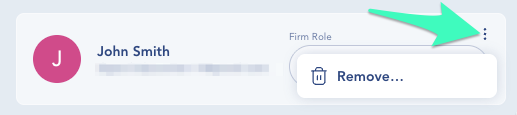
3. Click the **⋮ (three-dot menu)** next to their name.
4. Select **Remove**, then **Confirm**.

<div align="left"><figure><img src="/files/9y3QioLDcdk0uHmbvErI" alt="" width="259"><figcaption></figcaption></figure></div>

***

### Frequently Asked Questions

<details>

<summary>Do Firm Roles apply to everyone or per colleague?</summary>

Per colleague. You assign a Firm Role to each colleague, then set that colleague’s client-level access per client.

</details>

<details>

<summary>Why can't I invite colleagues to the Demo Client?</summary>

The Demo Client doesn’t support invitations. Invite colleagues at the firm level and assign them to real clients or [Free Firm Books](/my-firm-account/free-books.md).

</details>

<details>

<summary>Can I restrict a colleague to only certain clients?</summary>

Yes. Assign them an appropriate Firm Role (e.g., Associate), then grant client-level access only to the clients they need.

</details>

<details>

<summary>What default access does a Firm Admin get?</summary>

Firm Admins control firm-wide settings and default to Admin on all clients. Change their Firm Role if you want to manage client access individually.

</details>

<details>

<summary>Why are client access controls locked?</summary>

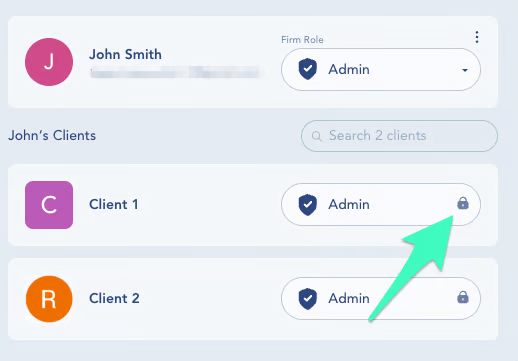
Because the colleague is a Firm Admi&#x6E;**.** Change their Firm Role to adjust client-level permissions.

<div align="left"><figure><img src="/files/gFodFVYvM8teMYxXh3gk" alt="" width="259"><figcaption></figcaption></figure></div>

</details>

***

### Need to Invite People from the Client’s Company?

If you want to invite **owners, finance leads, or staff from your client’s organization** to access their own books, see: [Team Member (Client) Roles & Permissions](/client-management/roles-and-permissions.md)

This separate process lets your clients collaborate securely inside their own Digits workspace, without giving them firm-level access.

***

{% columns %}
{% column width="66.66666666666666%" valign="middle" %}
Got a question or feedback? Our team is all ears—come say hello!
{% endcolumn %}

{% column width="33.33333333333334%" valign="middle" %}

<p align="center"><a href="https://portal.usepylon.com/digits/forms/get-in-touch-with-digits-support" class="button primary" data-icon="envelope-open-text">Contact Digits Support</a></p>
{% endcolumn %}
{% endcolumns %}

***


---

# Agent Instructions: Querying This Documentation

If you need additional information that is not directly available in this page, you can query the documentation dynamically by asking a question.

Perform an HTTP GET request on the current page URL with the `ask` query parameter:

```
GET https://help.digits.com/my-firm-account/roles-and-permissions.md?ask=<question>
```

The question should be specific, self-contained, and written in natural language.
The response will contain a direct answer to the question and relevant excerpts and sources from the documentation.

Use this mechanism when the answer is not explicitly present in the current page, you need clarification or additional context, or you want to retrieve related documentation sections.