> For the complete documentation index, see [llms.txt](https://help.digits.com/llms.txt). Markdown versions of documentation pages are available by appending `.md` to page URLs; this page is available as [Markdown](https://help.digits.com/my-firm-account/firm-profile.md).
# Firm Profile
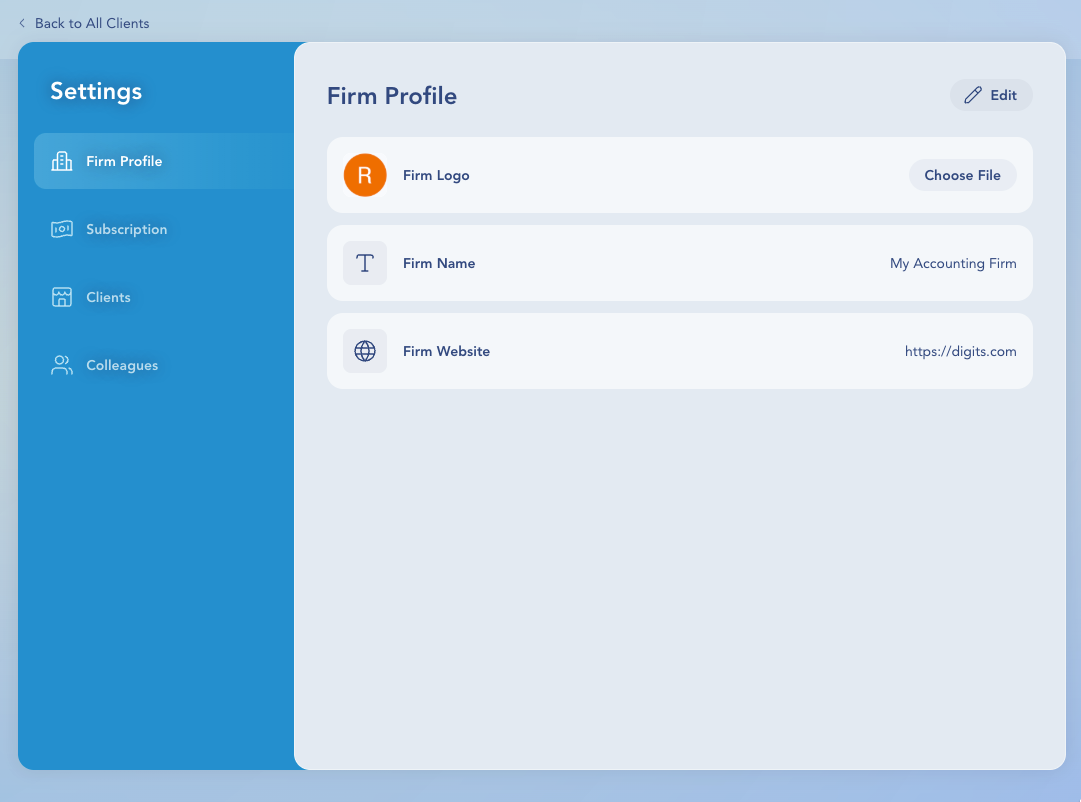
Keep your firm’s information up to date in Digits. From your Firm Profile, update your logo, name, and website to keep your branding consistent across your dashboard, client views, and reports.
***
### Where to Find Settings
1. From your **Firm Dashboard**, click **Firm Settings** in the left-hand menu.
2. Select **Firm Profile**.\
You’ll see fields for your firm’s **Logo**, **Name**, and **Website**.
***
### Update Your Firm Logo
Upload your firm’s logo to personalize your dashboard and client-facing views.
* Click **Choose File** next to Firm Logo.
* Select your image file (we recommend a square format, PNG preferred).
* Click **Save**.
***
### Edit Your Firm Name
Your firm name appears throughout Digits — including your dashboard, client tiles, and shared reports.
1. From your firm dashboard, click **Firm Settings**.
2. Choose the first tab for **Firm Profile**.
3. Click **Edit** in the top-right corner.
4. Update your **Firm Name**, then click **Save.**
***
### Add or Update Your Website
Include your firm’s website so clients and teammates can easily find more information about your practice.
1. From your firm dashboard, click **Firm Settings**.
2. Choose the first tab for **Firm Profile**.
3. Click **Edit** in the top-right corner.
4. Enter your firm’s website URL (for example: `https://digits.com`).
5. Click **Save**.
***
### Best Practices
✅ Keep your firm name consistent with what appears in your engagements and reports.
✅ Use a high-quality logo with a transparent background for the best appearance.
✅ Double-check your website link before saving — clients may see it in shared documents or views.
***
### Frequently Asked Questions
Why can’t I upload my firm logo?
Make sure your logo is a PNG, JPG, GIF, or SVG file under 4 MB. A square PNG with a transparent background works best. If it still won’t upload, try refreshing the page or contact [**help@digits.com**](mailto:help@digits.com) — we’ll get it sorted.
Can I change my firm’s name later?
Yes! You can edit your firm name anytime in **Settings → Firm Profile**. Just note that it updates everywhere in Digits, including client views.
I made a mistake in my firm name — how do I fix it?
No problem. Head to **Firm Settings → Firm Profile→ Firm Name**, edit it, and click **Save**. Updates apply immediately.
***
{% columns %}
{% column width="66.66666666666666%" valign="middle" %}
Got a question or feedback? Our team is all ears—come say hello!
{% endcolumn %}
{% column width="33.33333333333334%" valign="middle" %}
Contact Digits Support
{% endcolumn %}
{% endcolumns %}
***
---
# Agent Instructions
This documentation is published with GitBook. GitBook is the documentation platform designed so that both humans and AI agents can read, navigate, and reason over technical content effectively. Learn more at gitbook.com.
## Querying This Documentation
If you need additional information that is not directly available in this page, you can query the documentation by asking a question.
Perform an HTTP GET request on the following URL with the `ask` and `goal` query parameters:
```
GET https://help.digits.com/my-firm-account/firm-profile.md?ask=&goal=
```
`ask` is the immediate question: it should be specific, self-contained, and written in natural language.
`goal` is what the user is ultimately trying to achieve, the reason they need the answer. Sharing it helps GitBook give you a better, more relevant answer. A goal is most helpful when it describes the outcome the user wants rather than restating the question. For example, with `ask=how do I create an API token`, a goal like `automate deployments from our CI pipeline` lets GitBook tailor the answer to that use case.
The response will contain a direct answer to the question and relevant excerpts and sources from the documentation.
Use this mechanism when the answer is not explicitly present in the current page, you need clarification or additional context, or you want to retrieve related documentation sections.