> For the complete documentation index, see [llms.txt](https://help.digits.com/llms.txt). Markdown versions of documentation pages are available by appending `.md` to page URLs; this page is available as [Markdown](https://help.digits.com/client-management/client-pays-in-digits.md).
# Client Pays in Digits
Some firms prefer their clients to pay directly for their software. Client Pays lets you do exactly that—while keeping the firm–client relationship, visibility, and workflow intact inside Digits.
***
### What is Client Pays?
Client Pays is a billing option where:
:white\_check\_mark: The **client pays for its own Digits subscription**
:white\_check\_mark: The **firm still has visibility** into the client’s account
:no\_entry\_sign: The **firm is not financially responsible** for that subscription
{% hint style="info" %}
Client Pays is available to all firms and can be selected for each *new* client you add.
{% endhint %}
***
### How Client Pays Works
{% stepper %}
{% step %}
### The Firm Invites a Client
1. From your **Firm Dashboard**, click **Add Client**.
2. Choose your client's **Setup Method** [(Start Fresh, Migrate from QuickBooks, Xero, Puzzle, or Other](https://help.digits.com/firms-getting-started/setup-methods).
3. Choose how you want to set up your client's [Chart of Accounts (COA)](https://help.digits.com/firms-agentic-general-ledger/import-coa).
4. Complete your client's profile by entering the Company Name and Country/State.
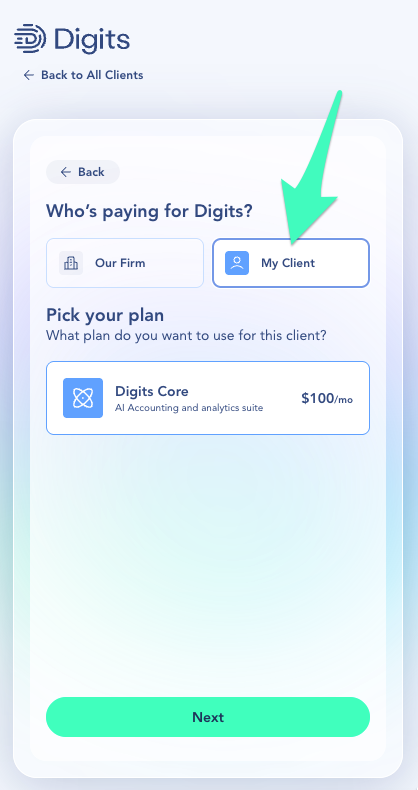
5. Choose **My Client** when asked who’s paying for Digits.
{% hint style="info" %}
Only Digits' public plans, such as Digits Core, are eligible for Client Pays.
{% endhint %}
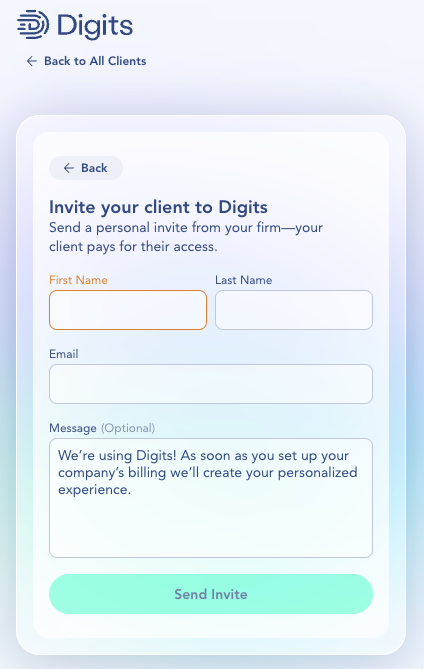
6. Enter the client’s **name** and **email address.** Add a personalized welcome message (*optional*).
6. Click **Send Invite**.
7. Digits sends your client an email with your message and a link to **Activate Digits**.
{% endstep %}
{% step %}
### The client pays and sets up their account
After receiving the invite, your client will:
1. Open the email and click **Activate Digits**.
2. Enter their **payment method**.
3. After payment, they’ll be directed to **Connect Banks & Credit Cards** via Plaid.
{% hint style="warning" %}
**Note:** Clients must **pay** and **connect at least one account** to complete setup.
{% endhint %}
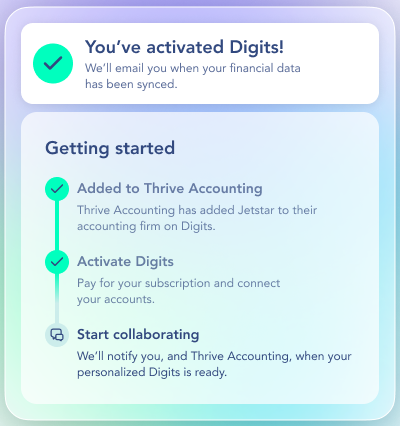
Once the client has added payment and connected at least one account, they’ll see a confirmation that their account is **activated in Digits**. Digits will then begin syncing data and provisioning the account.
{% endstep %}
{% endstepper %}
***
### The Firm Experience
After you send a Client Pays invite, the client appears in your **Firm Dashboard,** and their status updates as they move through onboarding.
* **Awaiting Client** appears while the client completes payment and the required initial setup.
* After the client finishes onboarding, the status may update to **Provisioning** while Digits finishes setting up the account and syncing data.
* Your firm is **notified** once the client has completed the required steps (payment + at least one connected account).
Even though the client pays for Digits:
* The client appears in your Firm Dashboard like any other client.
* In Firm Settings, you can view the client’s subscription plan and whether the client is Client Pays (self-pay) vs. firm-paid.
***
### Frequently Asked Questions
Can I switch an existing client from Firm Pays to Client Pays?
Not right now. Client Pays is available only while adding a new client. To change a firm-paid client to Client Pays, remove and re-add the client as a new Client Pays client. See [Adding & Removing Client Accounts](/client-management/adding-and-removing-client-accounts.md) for removal and prorated-charge details.
Does the client get a free trial?
No. There’s no trial in the Client Pays flow. The client is charged when they confirm billing details during onboarding.
What happens if a firm removes a self-paying client?
The client isn’t deleted. Instead:
* The client is **disaffiliated** from the firm
* The client’s legal entity becomes a **standalone operator**
What if the client gets stuck during setup?
Clients can reach out to [**help@digits.com**](mailto:) for support. Firms can also contact support on their client’s behalf if needed.
How does the client cancel their subscription?
1. The firm must first **remove/disaffiliate** the client.
2. Once the client is transitioned to a standalone operator, the client can cancel by going to their dashboard, then **Settings → Subscriptions**.
***
{% columns %}
{% column width="66.66666666666666%" valign="middle" %}
Got a question or feedback? Our team is all ears—come say hello!
{% endcolumn %}
{% column width="33.33333333333334%" valign="middle" %}
Contact Digits Support
{% endcolumn %}
{% endcolumns %}
***
---
# Agent Instructions
This documentation is published with GitBook. GitBook is the documentation platform designed so that both humans and AI agents can read, navigate, and reason over technical content effectively. Learn more at gitbook.com.
## Querying This Documentation
If you need additional information that is not directly available in this page, you can query the documentation dynamically by asking a question.
Perform an HTTP GET request on the current page URL with the `ask` query parameter, and the optional `goal` query parameter:
```
GET https://help.digits.com/client-management/client-pays-in-digits.md?ask=&goal=
```
`ask` is the immediate question: it should be specific, self-contained, and written in natural language.
`goal` is optional and describes the broader end goal you are ultimately trying to accomplish on behalf of the user. GitBook uses it to tailor the answer towards what is most useful for that goal.
The response will contain a direct answer to the question and relevant excerpts and sources from the documentation.
Use this mechanism when the answer is not explicitly present in the current page, you need clarification or additional context, or you want to retrieve related documentation sections.