Saving & Sharing Custom Reports

Once you’ve finished building a custom report, Digits makes it easy to share it with your team, your bookkeeper, or anyone else who needs a clear view of your numbers.


Add Comments Before or After You Share

Add comments anywhere in the layout:

  • Click the speech bubble icon next to a section

  • Use @mentions to tag teammates or request input

For full setup instructions, see: Creating a Custom Report


Collaboration/Sharing

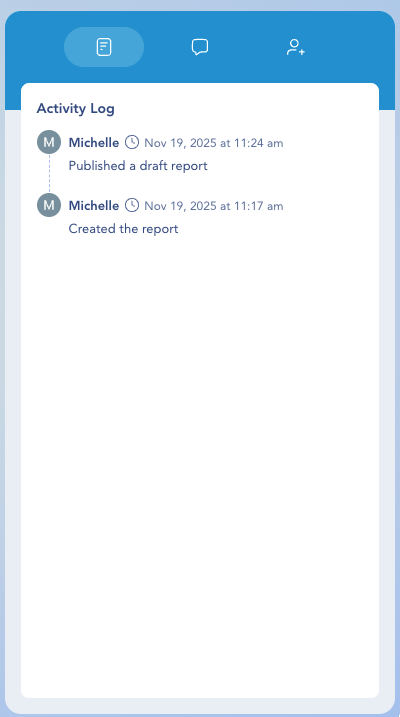
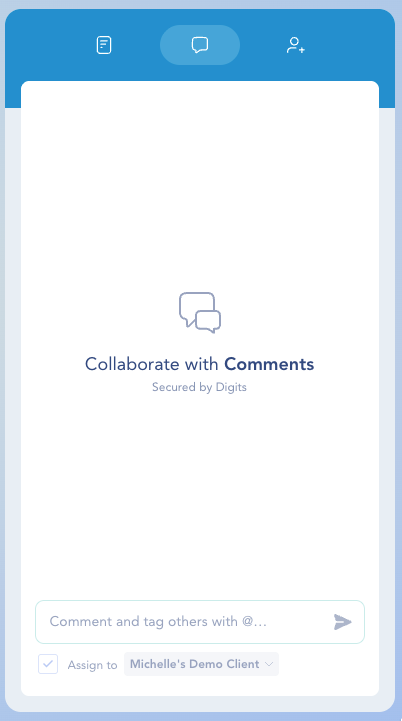
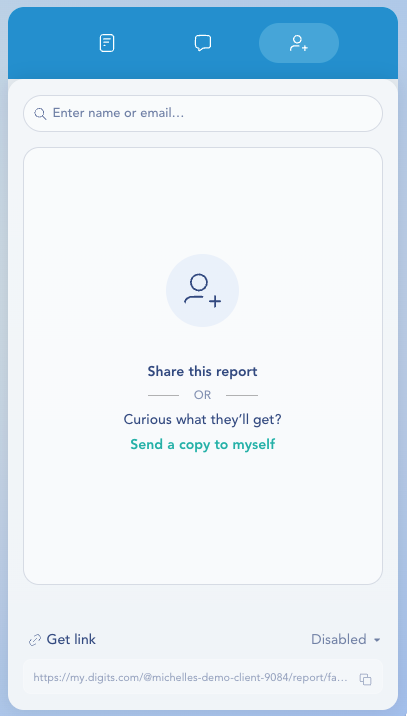
Once you publish the Draft or the Final Version, the collaboration panel automatically appears on the right. This panel gives you everything you need to track activity, leave comments, @mention teammates or clients, and manage sharing access.

The same collaboration tools remain available for both draft and final published reports.

Feature
What It Does

Report Activity

Shows the full history of the report — creation, edits, shares, and publish events.

Comments

Leave comments, tag teammates with @mentions, and track feedback or follow-ups.

Share Report

Share via name/email, Send a copy to myself, or Get link for a secure shareable URL.


  1. Click the Print icon in the Draft or Final version of your report.

  2. Select your printer or print to PDF to save.


Need to download P&L, Balance Sheet, Cash Flow, AR/AP Aging, or multiple reports at once? See Downloading Financials in Digits


Frequently Asked Questions

Can shared reports be viewed without a Digits login?

If you email a PDF, anyone can view it without logging in. However, shared links, comments, @mentions, and in-app access all require a Digits login. This ensures report access stays secure and trackable.


Need help? Contact us at [email protected].

Last updated

Was this helpful?