> For the complete documentation index, see [llms.txt](https://help.digits.com/llms.txt). Markdown versions of documentation pages are available by appending `.md` to page URLs; this page is available as [Markdown](https://help.digits.com/my-firm-account/free-books.md).
# Free Books for Your Firm
As part of **Digits for Firms,** your firm gets access to the Firm Books plan—a free way to run your own firm’s books in Digits. This plan includes all the features of our most advanced offering and is perfect for managing your internal financials, testing workflows, and seeing Digits in action before inviting clients.
***
### How it Works
The **Firm Books** plan is only available to Digits Partners.
* Full access to **all Digits Core features,** free for your firm
* Any *additional* clients are billed at standard rates
**If You’re New to Digits:**
1. Go to[ ](https://digits.com/partner-signup)
2. Sign up to Book a Demo
3. Follow the prompts to set up your Category Manager and complete your Company Profile using your own firm’s details.
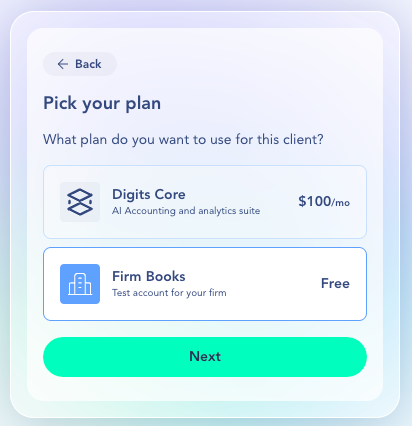
4. On the Pick Your Plan screen, select **Firm Books (Free)**.
5. Enter your firm’s credit card information.
{% hint style="success" %}
**Note:** You won't be charged unless you add a paying client later
{% endhint %}
6. Click **Confirm Billing**.
7. Connect your firm’s banks and cards, Stripe account, Ramp account, Gusto account, BILL account, or import your data manually via CSV.
***
**If You’ve Already Signed Up:**
1. From your **Firm Dashboard**, open the top-right dropdown next to your firm name.
2. Click **Add Client**.
3. Follow the prompts to set up your Category Manager and complete your Client Profile using your own firm’s details.
4. On the Pick Your Plan screen, select **Firm Books (Free)**.
5. Connect your firm’s banks and cards, Stripe account, Ramp account, Gusto account, BILL account, or import your data manually via CSV.
***
### Frequently Asked Questions
What happens if I remove the Firm Books client?
You’ll be able to select the Firm Books plan again the next time you add a client. The plan becomes available once your existing Firm Books client is removed.
Why do I have to enter my credit card if it’s free?
Digits requires billing details to complete account setup—even for the free Firm Books plan. You won’t be charged unless you later add a paying client.
I already set up my firm as a paid client—how do I switch it to the free plan?
To move your firm to the Firm Books plan:
1. Remove the client (your firm in this case).
2. Add a new client using the Firm Books plan.
3. Use your firm’s business details during setup.
There’s no in-product way to switch plans—removal and re-adding are required.
Contact if you need assistance.
Can I add my teammate to the firm’s books?
Yep!
* Firm admins automatically have access to the Firm Books client.
* Non-admin teammates need access granted manually, just like with other clients.
What's included with Firm Books?
Firm Books is your firm's own set of books in Digits for free within your firm's Digits account.
Firm Books runs on our most advanced plan, so your firm gets access to every feature available in Digits, including \[link the plans page: see what's included in each plan →]. That means you can:
* run your firm's own bookkeeping in Digits.
* try every feature, test workflows, reports, and settings in your own books before rolling them out to clients.
* demo with confidence because what you see in Firm Books is what your clients on the most advanced plan see.
As new features ship, they're made available in Firm Books.
***
{% columns %}
{% column width="66.66666666666666%" valign="middle" %}
Got a question or feedback? Our team is all ears—come say hello!
{% endcolumn %}
{% column width="33.33333333333334%" valign="middle" %}
Contact Digits Support
{% endcolumn %}
{% endcolumns %}
***
---
# Agent Instructions
This documentation is published with GitBook. GitBook is the documentation platform designed so that both humans and AI agents can read, navigate, and reason over technical content effectively. Learn more at gitbook.com.
## Querying This Documentation
If you need additional information that is not directly available in this page, you can query the documentation by asking a question.
Perform an HTTP GET request on the following URL with the `ask` and `goal` query parameters:
```
GET https://help.digits.com/my-firm-account/free-books.md?ask=&goal=
```
`ask` is the immediate question: it should be specific, self-contained, and written in natural language.
`goal` is what the user is ultimately trying to achieve, the reason they need the answer. Sharing it helps GitBook give you a better, more relevant answer. A goal is most helpful when it describes the outcome the user wants rather than restating the question. For example, with `ask=how do I create an API token`, a goal like `automate deployments from our CI pipeline` lets GitBook tailor the answer to that use case.
The response will contain a direct answer to the question and relevant excerpts and sources from the documentation.
Use this mechanism when the answer is not explicitly present in the current page, you need clarification or additional context, or you want to retrieve related documentation sections.