Review uncategorized transactions, approve bills, resolve comments, and more
The badge indicates the number of items that need action
| Text | What it does |
|---|---|
| Dashboards | Your Overview dashboard and any custom dashboards you've created, with tiles for metrics, statements, and lists. Switch between dashboards at the top of the page |
| Expenses | Spending over time, broken down by category or by vendor. Select any row to drill into the underlying transactions |
| Revenue | Income over time, broken down by category or by customer |
| Cost of Revenue | Cost of goods/revenue over time, broken down by category or by supplier. This view appears once your books have cost-of-revenue activity |
| Text | What it does |
|---|---|
| Banks & Cards | View connected bank and card transactions |
| Vendors | Review vendor spend |
| Customers | Review your customers and the payments they've made to you; manage customer records and AR. |
| Text | What it does |
|---|---|
| Bills | Manage bills/accounts payable (Kanban view: In Review, Pending Approval, Awaiting Payment, Scheduled & Paid) |
| Invoices | Create and track customer invoices |
| Products & Services | Your catalog of products and services for invoicing: names, prices, and active/inactive status. Items here are available to add as line items when creating invoices |
| Text | What it Does |
|---|---|
| Ledger | Full transaction history - your source of truth for all entries |
| Reconciliations | Track and complete monthly bank reconciliations |
| Schedules | Automated depreciation and amortization for fixed assets and prepaid expenses. Digits generates the journal entries across each schedule's life and flags new schedule candidates for review |
| Categories | Your Chart of Accounts - create/edit categories |
| Departments | Track activity by department |
| Locations | Track activity by location |
| Text | What it does |
|---|---|
| Vault | Store receipts, W9s, statements |
| Connections | Manage bank/app connections (Plaid, Stripe, Ramp, etc.) |
| Help Center | Access help documentation |
| Digits (Shift + /) | Opens keyboard shortcuts menu |
| Text | What it does |
|---|---|
| Ask Digits | Type questions about your data (e.g., "How much did we spend on Gusto last month?") |
| + (Plus) button | Quick actions: Add Transaction, Create Invoice, Upload Bill, Run Report, Start Reconciliation, Upload Document |
| Calendar/ Bell Icon | Open your Checklist (badge shows count of items needing attention) |
| Search | Find vendors, amounts, categories, or transactions |
| Icon/Text | What It Does |
|---|---|
| View (eye) | Read only mode |
| Edit (pencil) | Enter edit mode to select and modify transactions |
| Opposing Arrows | Expand view to full screen |
| Date picker | Choose the date(s) that are shown in the ledger |
| + Add Transaction | Add a new transaction manually |
| Down Arrow (next to + Add Transaction) | Click to open dropdown. Select import bank transactions or import journal entries |
| Search bar | Search for transactions by date, keyword, amount, etc. |
| Collapse/Expand | Collapse or expand transaction detail |
| Filter | Narrow transactions by party, amount, source, status, etc. |
| Icon/Text | What It Does |
|---|---|
| View (eye) | Read only mode |
| Edit (pencil) | Enter edit mode to select and modify transactions |
| Trash can | Delete transaction (grayed out if from connected source) |
| Reverse arrow | Create an offsetting entry for transactions that can't be deleted |
| Copy | Duplicate this transaction |
| Icon/Text | What it Does |
|---|---|
| Party dropdown | Change party for selected transactions |
| Category dropdown | Change category for selected transactions |
| Move to (folder with arrow) | Move tranactions to a different account dropdown |
| Comment (speech bubble) | Add comments to selected transactions |
| Department (building) | Assign/update department |
| Location (pin) | Assign/update location |
| Match (stack) | Merge two transactions into one (prevents duplicates) |
| Unmatch (lifting stack) | Separate previously matched transactions |
| Delete (trash can) | Delete a transaction (grayed out = can't delete; use Reverse instead) |
| Total | Total of selected transactions |
| X icon | Cancel and close toolbar |
| Apply to | Complete action for displayed number of selected transactions |
| Icon/Text | What it Does |
|---|---|
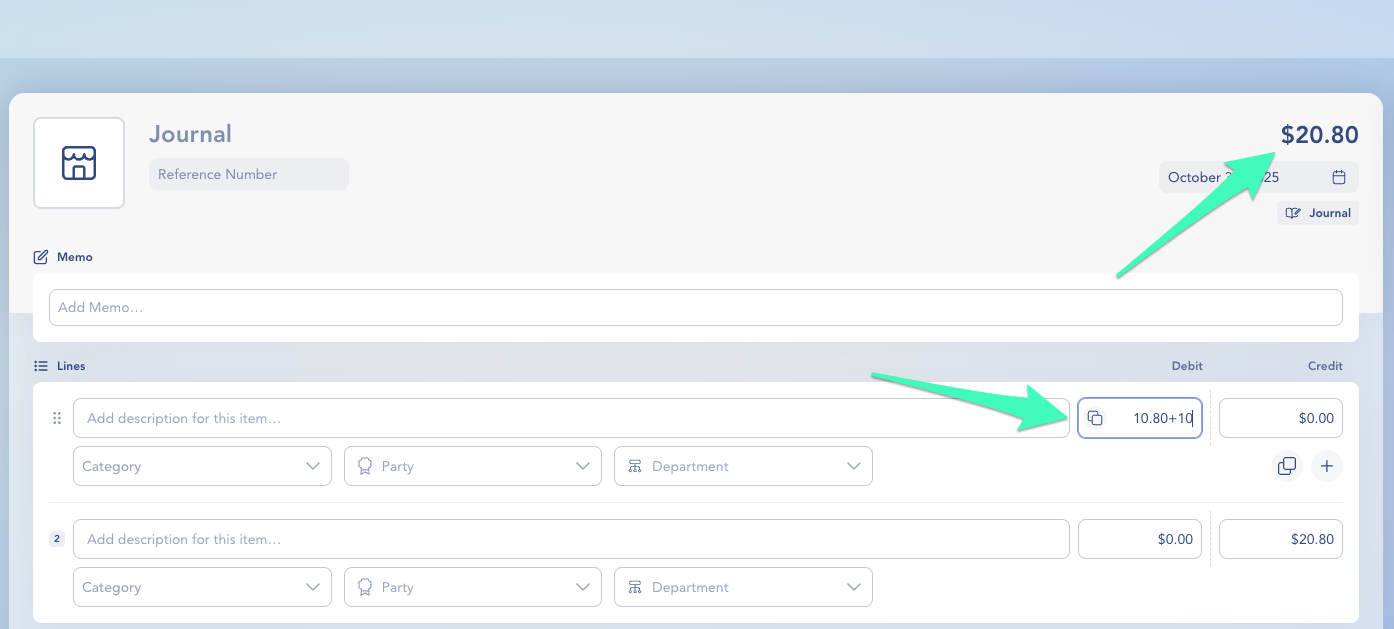
| Journal | Multi-line adjusting entries between accounts |
| Pay In | Record income, deposits, refunds received |
| Pay Out | Record expenses, payments made |
| Transfer | Move money between connected accounts |
| Icon/Text | What it Does |
|---|---|
| Comment bubble | Comments - View/add comments and tag team members |
| Lightbulb | Insights about the transaction |
| Clock | Activity Log - See history of changes |
| Context | Action | Mac | Windows/Linux |
|---|---|---|---|
| Global | Show Keyboard Shortcuts | Shift + / | Shift + / |
| Global | Open Ask Digits | ⌘ or Shift + K | Ctrl + K |
| Global | Open Ask Digits | ⌘ or Shift + :up: + F | Ctrl + Shift + F |
| Ledger | Open Filters | F | F |
| Ledger | Scroll up / down | ↑ / ↓ | ↑ / ↓ |
| Ledger | Scroll up ×10 / down ×10 | Page Up / Page Down | Page Up / Page Down |
| Ledger | Open selection | Enter | Enter |
| Ledger | Maximize / Minimize View | M | M |
| Ledger | Edit Mode | E | E |
| Ledger | View Mode | V | V |
| Ledger | Expand all rows | [ | [ |
| Ledger | Collapse all rows | ] | ] |
| Ledger | New Transaction | N | N |
| Icon/Text | Meaning |
|---|---|
| Green badge with number | Number of items needing your attention |
| Icon/Text | Meaning |
|---|---|
| Empty circle | Not started |
| Yellow circle | In progress/needs attention |
| Green checkmark | Completed |
| Icon/Text | Meaning |
|---|---|
| In Review | Uploaded, needs review |
| Pending Approval | Waiting for approval |
| Awaiting Payment | Approved, ready to pay |
| Scheduled & Paid | Complete |