> For the complete documentation index, see [llms.txt](https://help.digits.com/llms.txt). Markdown versions of documentation pages are available by appending `.md` to page URLs; this page is available as [Markdown](https://help.digits.com/firms-home/customize-dashbaords.md).
# Customize Your Client's Dashboard
Your Home dashboard puts your client’s metrics front and center. Add KPIs, statements, and custom tiles, and arrange your layout any way you like.
***
### Getting Started
1. From the client dashboard, click **Edit** in the top-right corner.
***
### Adding Dashboard Components
1. Use the right-side panel to **drag and** **drop** elements onto your layout.
2. To remove any item, click the **X** on the tile.
3. Rearranging is simple—just drag tiles until you like the layout.
4. When you’re done, click **Done** in the top-right corner to save your changes.
***
* **Metrics** — Core KPIs such as cash flow, runway, burn, and profit.
* **Statements** — Add P\&L, Balance Sheet, or Cash Flow Statement tiles.
* **Lists** — Include Top Vendors, Expense Categories, and other groupings.
* **Headcount** *(Gusto users only)* — See headcount totals for the selected period.
* **Departments** — Track performance or totals by department.
* **Custom** — Add text tiles or manual KPIs for information tracked outside Digits.
* **Search** — Type to find vendors, accounts, categories, or metrics, then drag them in.
***
### Add Additional Custom Dashboards
Along with the built-in Overview dashboard, you can create up to nine custom dashboards on the Home page — ten in total.
Click the **Add Dashboard** button, give your dashboard a title, and start dragging in the components you want to highlight.
***
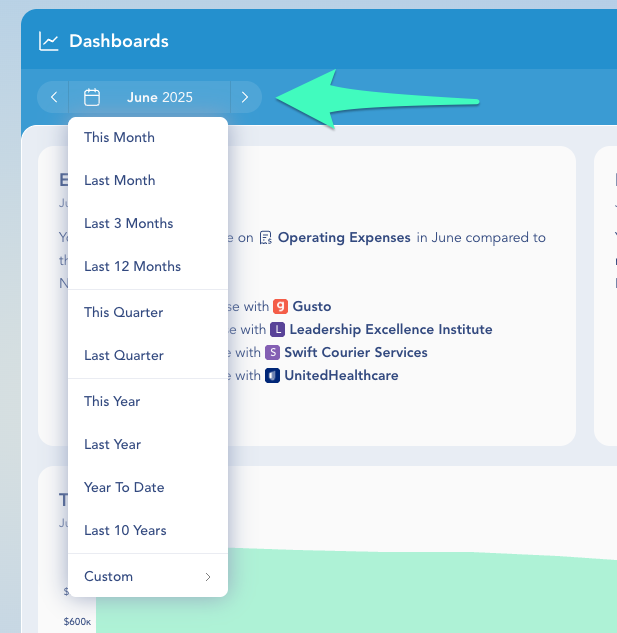
### Changing the Date Range
1. From the **Home** tab, open the period selector in the top-left corner.
2. Choose the timeframe (month, quarter, year, or preset periods).
3. Click **Set** to update the entire dashboard instantly.
***
{% hint style="success" %}
**Tips:**
* Start with **Cash Flow**, **Runway**, and **Profit** for a quick performance snapshot.
* Wondering what “runway” means? It shows how many months your current cash may last based on average expenses.
* Revisit and adjust your layout anytime—your dashboard should reflect what matters *right now*.
{% endhint %}
***
### Frequently Asked Questions
Which dashboards are available on mobile?
You can view your most-used dashboards, including Income & Expense Analysis, Total Cash, Gross Income, Trends, and Month-over-Month Deltas.
Can I change the formula behind a dashboard metric?
No. The built-in metrics (burn, runway, net/gross income, cash flow, profit) use fixed formulas that can't be modified. **To see how each metric is calculated — including Live Runway — see** [Your Client's Home Dashboard: Built-In Views & Metrics](/firms-home/your-clients-home-dashboard-built-in-views-and-metrics.md)**.** If you need a metric calculated differently, add a Custom tile with your externally calculated value.
***
{% columns %}
{% column width="66.66666666666666%" valign="middle" %}
Got a question or feedback? Our team is all ears—come say hello!
{% endcolumn %}
{% column width="33.33333333333334%" valign="middle" %}
Contact Digits Support
{% endcolumn %}
{% endcolumns %}
***
---
# Agent Instructions
This documentation is published with GitBook. GitBook is the documentation platform designed so that both humans and AI agents can read, navigate, and reason over technical content effectively. Learn more at gitbook.com.
## Querying This Documentation
If you need additional information that is not directly available in this page, you can query the documentation dynamically by asking a question.
Perform an HTTP GET request on the current page URL with the `ask` query parameter, and the optional `goal` query parameter:
```
GET https://help.digits.com/firms-home/customize-dashbaords.md?ask=&goal=
```
`ask` is the immediate question: it should be specific, self-contained, and written in natural language.
`goal` is optional and describes the broader end goal you are ultimately trying to accomplish on behalf of the user. GitBook uses it to tailor the answer towards what is most useful for that goal.
The response will contain a direct answer to the question and relevant excerpts and sources from the documentation.
Use this mechanism when the answer is not explicitly present in the current page, you need clarification or additional context, or you want to retrieve related documentation sections.