> For the complete documentation index, see [llms.txt](https://help.digits.com/llms.txt). Markdown versions of documentation pages are available by appending `.md` to page URLs; this page is available as [Markdown](https://help.digits.com/client-management/client-pays-in-digits.md).
# Client Pays in Digits
Some firms prefer their clients to pay directly for their software. Client Pays lets you do exactly that—while keeping the firm–client relationship, visibility, and workflow intact inside Digits.
***
### What is Client Pays?
Client Pays is a billing option where:
:white\_check\_mark: The **client pays for its own Digits subscription**
:white\_check\_mark: The **firm still has visibility** into the client’s account
:no\_entry\_sign: The **firm is not financially responsible** for that subscription
{% hint style="info" %}
Client Pays is available to all firms and can be selected for each *new* client you add.
{% endhint %}
***
### How Client Pays Works
{% stepper %}
{% step %}
### The Firm Adds the Client
1. From your **Firm Dashboard**, click **+ Add Client**.
2. Enter the **Client Business Name**, and optionally their website and logo. Click **Create Client**.
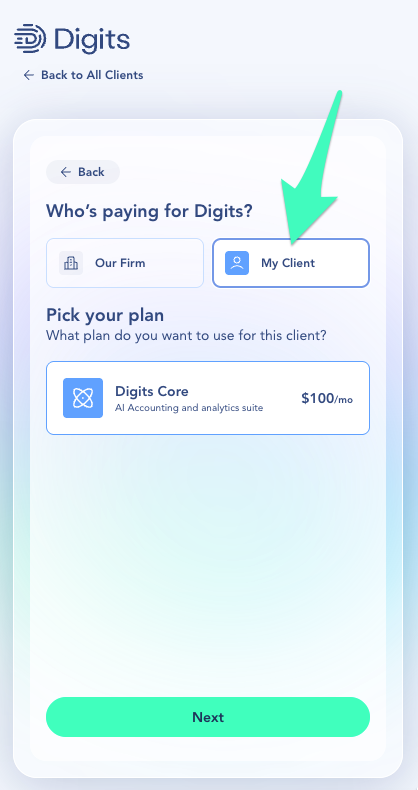
3. Under **Who’s paying for Digits?**, choose **My Client**, then select a plan and click **Next**.
{% hint style="info" %}
Only Digits' public plans, such as Digits Core, are eligible for Client Pays.
{% endhint %}
4. You land in the client's books. Choose **Start Fresh with Digits** or **Import my Chart of Accounts**, and start setting up their books whenever you're ready. See [Setting Up Your Firm & Adding Your First Client](/firms-getting-started/adding-your-first-client.md)
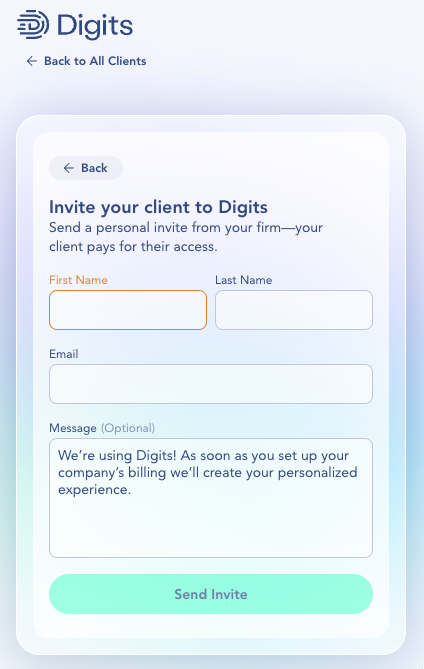
5. When you're ready for the client to pay, click **Invite Client** in the left navigation, enter their **name** and **email address**, add a welcome message (*optional*), and click **Send Invite**. See [Invite a Client to their Digits Account](/client-management/roles-and-permissions.md)
6. Digits sends your client an email with your message and a link to **Activate Digits**.
{% hint style="warning" %}
**The client has 7 days from when you add them to sign in and pay.** After that, your firm is held out of the entity until they do.
{% endhint %}
{% endstep %}
{% step %}
### The client pays and sets up their account
After receiving the invite, your client will:
1. Open the email and click **Activate Digits**.
2. Enter their **payment method**.
3. After payment, they’ll be directed to **Connect Banks & Credit Cards** via Plaid.
{% hint style="warning" %}
**Note:** Clients must **pay** and **connect at least one account** to complete setup.
{% endhint %}
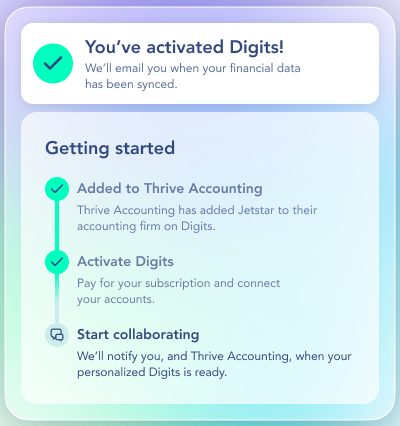
Once the client has added payment and connected at least one account, they’ll see a confirmation that their account is **activated in Digits**. Digits will then begin syncing data and provisioning the account.
{% endstep %}
{% endstepper %}
***
### The Firm Experience
After you add a Client Pays client, they appear in your **Firm Dashboard,** and their status updates as they move through onboarding.
* **Awaiting Client** appears while the client completes payment and the required initial setup.
* After the client finishes onboarding, the status may update to **Provisioning** while Digits finishes setting up the account and syncing data.
* Your firm is **notified** once the client has completed the required steps (payment + at least one connected account).
Even though the client pays for Digits:
* The client appears in your Firm Dashboard like any other client.
* In Firm Settings, you can view the client’s subscription plan and whether the client is Client Pays (self-pay) vs. firm-paid.
***
### Frequently Asked Questions
Can I set up the client's books before they pay?
**Get a 7-day head start on your client's books!** 🎉
You don't have to wait for your client to sign in or pay. As soon as you add a **Client Pays** client, your firm can jump into their books and start setting things up.
Your client has **7 days from the date they're added** to sign in and pay. If they haven't paid by then, your firm's access to their books is paused until payment is complete.
My client has more than one entity. Who pays for the additional ones?
Whoever pays for the client's first entity pays for every entity you add to that client. If the client pays, each additional entity is billed to the client's own subscription. You can't mix firm-paid and client-paid entities under one client. See [Adding Additional Entities to a Client](/firms-getting-started/adding-additional-entities-to-a-client.md)
Can I switch an existing client from Firm Pays to Client Pays?
Not right now. Client Pays is available only while adding a new client. To change a firm-paid client to Client Pays, remove and re-add the client as a new Client Pays client. See [Adding & Removing Client Accounts](/client-management/adding-and-removing-client-accounts.md) for removal and prorated-charge details.
Can I switch a Client Pays client to Firm Pays?
Yes, with help from Digits Support. The client's books, connections, reconciliations, and documents are all kept; nothing is recreated.
1. Remove the client from your firm. Go to **Firm Settings → Clients**, open the menu next to the client, and select **Remove**.
2. Have the client cancel their subscription from **Organization Settings → Subscription**. See [How to Cancel Your Digits Business Account](/my-business-account/cancel-digits.md)
3. Contact [Digits Support](mailto:help@digits.com) with the client's name, and we'll link the client back to your firm under Firm Pays. Any entities you add to the client afterward are billed to your firm.
Does the client get a free trial?
No. There’s no trial in the Client Pays flow. The client is charged when they confirm billing details during onboarding.
What happens if a firm removes a self-paying client?
The client isn’t deleted. Instead:
* The client is **disaffiliated** from the firm
* The client’s legal entity becomes a **standalone operator**
What if the client gets stuck during setup?
Clients can reach out to [**help@digits.com**](mailto:help@digits.com) for support. Firms can also contact support on their client’s behalf if needed.
How does the client cancel their subscription?
1. The firm must first **remove/disaffiliate** the client.
2. Once the client is transitioned to a standalone operator, the client can cancel from their organization dashboard under **Organization Settings → Subscription**. See [How to Cancel Your Digits Business Account](/my-business-account/cancel-digits.md)
***
{% columns %}
{% column width="66.66666666666666%" valign="middle" %}
Got a question or feedback? Our team is all ears—come say hello!
{% endcolumn %}
{% column width="33.33333333333334%" valign="middle" %}
Contact Digits Support
{% endcolumn %}
{% endcolumns %}
***
---
# Agent Instructions
This documentation is published with GitBook. GitBook is the documentation platform designed so that both humans and AI agents can read, navigate, and reason over technical content effectively. Learn more at gitbook.com.
## Querying This Documentation
If you need additional information that is not directly available in this page, you can query the documentation by asking a question.
Perform an HTTP GET request on the following URL with the `ask` and `goal` query parameters:
```
GET https://help.digits.com/client-management/client-pays-in-digits.md?ask=&goal=
```
`ask` is the immediate question: it should be specific, self-contained, and written in natural language.
`goal` is what the user is ultimately trying to achieve, the reason they need the answer. Sharing it helps GitBook give you a better, more relevant answer. A goal is most helpful when it describes the outcome the user wants rather than restating the question. For example, with `ask=how do I create an API token`, a goal like `automate deployments from our CI pipeline` lets GitBook tailor the answer to that use case.
The response will contain a direct answer to the question and relevant excerpts and sources from the documentation.
Use this mechanism when the answer is not explicitly present in the current page, you need clarification or additional context, or you want to retrieve related documentation sections.