# Digits Navigation & Shortcuts

***

## On-screen Navigation

### Left Navigation Menu (Sidebar)

<table><thead><tr><th width="181.141357421875">Icon/Text</th><th>What It Does</th></tr></thead><tbody><tr><td><strong>Home</strong></td><td>Dashboard with KPIs, cash flow charts, expenses &#x26; revenue analysis<br><sub>Click to expand Expenses, Revenue, and Cost of Revenue Dashboards</sub></td></tr><tr><td><strong>Checklist</strong></td><td>Review uncategorized transactions, approve bills, resolve comments, and more<br><sub>The badge indicates the number of items that need action</sub></td></tr><tr><td><strong>Financials</strong></td><td>P&#x26;L, Balance Sheet, Cash Flow, AR Aging, AP Aging reports</td></tr><tr><td><strong>Custom Reports</strong></td><td>Build and schedule branded custom reports</td></tr><tr><td><strong>Banks &#x26; Cards</strong></td><td>View connected bank and card transactions</td></tr><tr><td><strong>Bills</strong> (AP)</td><td><p>Manage bills/accounts payable </p><p><sub>(Kanban view: In Review, Pending Approval, Awaiting Payment, Scheduled &#x26; Paid)</sub></p></td></tr><tr><td><strong>Invoices</strong> (AR)</td><td>Create and track customer invoices</td></tr><tr><td><strong>Vendors</strong> </td><td>Review vendor spend</td></tr><tr><td><strong>Customers</strong></td><td>Store receipts, W-9s, statements</td></tr></tbody></table>

***

### Left Navigation Accounting Section&#x20;

* Click to expand Accounting

<table><thead><tr><th width="181.36859130859375">Icon/Text</th><th>What it Does</th></tr></thead><tbody><tr><td><strong>Ledger</strong></td><td>Full transaction history - your source of truth for all entries</td></tr><tr><td><strong>Reconciliations</strong></td><td>Track and complete monthly bank reconciliations</td></tr><tr><td><strong>Category Manager</strong></td><td>Your Chart of Accounts - create/edit categories</td></tr><tr><td><strong>Departments</strong></td><td>Track activity by department</td></tr><tr><td><strong>Locations</strong></td><td>Track activity by location</td></tr></tbody></table>

***

### Bottom of Left Navigation Menu

<table><thead><tr><th width="190.43109130859375">Icon/Text</th><th>What it Does</th></tr></thead><tbody><tr><td><strong>Vault</strong></td><td>Store receipts, W-9s, statements</td></tr><tr><td><strong>Connections</strong></td><td>Manage bank/app connections (Plaid, Stripe, Ramp, etc.)</td></tr><tr><td><strong>Help Center</strong></td><td>Access help documentation</td></tr><tr><td><strong>Digits (Shift + /)</strong></td><td>Opens keyboard shortcuts menu</td></tr></tbody></table>

***

### Ask Digits&#x20;

* Bottom of screen

<table><thead><tr><th width="194.9979248046875">Icon/Text</th><th>What it Does</th></tr></thead><tbody><tr><td><strong>Ask Digits</strong></td><td>Type questions about your data (e.g., "How much did we spend on Gusto last month?")</td></tr><tr><td><strong>+ (Plus) button</strong></td><td>Quick actions: Add Transaction, Create Invoice, Upload Bill, Run Report, Start Reconciliation, Upload Document</td></tr><tr><td><strong>Calendar/ Bell Icon</strong></td><td>Open your Checklist (badge shows count of items needing attention)</td></tr><tr><td><strong>Search</strong></td><td>Find vendors, amounts, categories, or transactions</td></tr></tbody></table>

***

### Ledger Toolbar

<table><thead><tr><th width="199.422607421875">Icon/Text</th><th>What It Does</th></tr></thead><tbody><tr><td><strong>View (eye)</strong></td><td>Read only mode</td></tr><tr><td><strong>Edit (pencil)</strong></td><td>Enter edit mode to select and modify transactions</td></tr><tr><td><strong>Opposing Arrows</strong></td><td>Expand view to full screen</td></tr><tr><td><strong>Date picker</strong></td><td>Choose the date(s) that are shown in the ledger</td></tr><tr><td><strong>+ Add Transaction</strong></td><td>Add a new transaction manually</td></tr><tr><td><strong>Down Arrow (next to + Add Transaction)</strong></td><td>Click to open dropdown. Select import bank transactions or import journal entries</td></tr><tr><td><strong>Search bar</strong></td><td>Search for transactions by date, keyword, amount, etc. </td></tr><tr><td><strong>Collapse/Expand</strong></td><td>Collapse or expand transaction detail </td></tr><tr><td><strong>Filter</strong></td><td>Narrow transactions by party, amount, source, status, etc.</td></tr></tbody></table>

### Transaction Viewing/Editing

* Click to open a transaction

<table><thead><tr><th width="199.422607421875">Icon/Text</th><th>What It Does</th></tr></thead><tbody><tr><td><strong>View (eye)</strong></td><td>Read only mode</td></tr><tr><td><strong>Edit (pencil)</strong></td><td>Enter edit mode to select and modify transactions</td></tr><tr><td><strong>Trash can</strong> </td><td>Delete transaction (grayed out if from connected source)</td></tr><tr><td><strong>Reverse arrow</strong></td><td>Create an offsetting entry for transactions that can't be deleted</td></tr><tr><td><strong>Copy</strong></td><td>Duplicate this transaction</td></tr></tbody></table>

***

### (Bulk) Edit Toolbar&#x20;

* Only appears at the top of the screen when one or more transactions are selected

<table><thead><tr><th width="209.67474365234375">Icon/Text</th><th>What it Does</th></tr></thead><tbody><tr><td><strong>Party dropdown</strong></td><td>Change party for selected transactions</td></tr><tr><td><strong>Category dropdown</strong></td><td>Change category for selected transactions</td></tr><tr><td><strong>Move to (folder with arrow)</strong></td><td>Move tranactions to a different account dropdown</td></tr><tr><td><strong>Comment (speech bubble)</strong></td><td>Add comments to selected transactions</td></tr><tr><td><strong>Department (building)</strong></td><td>Assign/update department</td></tr><tr><td><strong>Location (pin)</strong></td><td>Assign/update location</td></tr><tr><td><strong>Match (stack)</strong></td><td>Merge two transactions into one (prevents duplicates)</td></tr><tr><td><strong>Unmatch (lifting stack)</strong></td><td>Separate previously matched transactions</td></tr><tr><td><strong>Delete (trash can)</strong></td><td>Delete a transaction (grayed out = can't delete; use Reverse instead)</td></tr><tr><td><strong>Total</strong> </td><td>Total of selected transactions</td></tr><tr><td><strong>X icon</strong></td><td>Cancel and close toolbar</td></tr><tr><td><strong>Apply to</strong> </td><td>Complete action for displayed number of selected transactions</td></tr></tbody></table>

***

### New Transactions Types

* Available when you click + Add Transaction from the ledger

<table><thead><tr><th width="220.53411865234375">Icon/Text</th><th>What it Does</th></tr></thead><tbody><tr><td><strong>Journal</strong></td><td>Multi-line adjusting entries between accounts</td></tr><tr><td><strong>Pay In</strong></td><td>Record income, deposits, refunds received</td></tr><tr><td><strong>Pay Out</strong></td><td>Record expenses, payments made</td></tr><tr><td><strong>Transfer</strong></td><td>Move money between connected accounts</td></tr></tbody></table>

***

### Commenting/Audit Panel

* Appears when you click into a transaction

<table><thead><tr><th width="220.53411865234375">Icon/Text</th><th>What it Does</th></tr></thead><tbody><tr><td><strong>Comment bubble</strong></td><td>Comments - View/add comments and tag team members</td></tr><tr><td><strong>Lightbulb</strong></td><td>Insights about the transaction</td></tr><tr><td><strong>Clock</strong></td><td>Activity Log - See history of changes</td></tr></tbody></table>

***

## Keyboard Shortcuts

* Press **Shift + /** anywhere in the app to open **Keyboard Shortcuts**.
* Or click the **shortcuts icon** in the **bottom-left corner** of the app.

<table><thead><tr><th width="126.2542724609375">Context</th><th width="237.97998046875">Action</th><th width="176.4886474609375">Mac</th><th width="159.748779296875">Windows/Linux</th></tr></thead><tbody><tr><td>Global</td><td>Show Keyboard Shortcuts</td><td><strong>Shift + /</strong></td><td><strong>Shift + /</strong></td></tr><tr><td>Global</td><td>Open Global Search</td><td><strong>⌘ + K</strong></td><td><strong>Ctrl + K</strong></td></tr><tr><td>Global</td><td>Open Global Search (alt)</td><td><strong>⌘ + Shift + F</strong></td><td><strong>Ctrl + Shift + F</strong></td></tr><tr><td>Ledger</td><td>Open Filters</td><td><strong>F</strong></td><td><strong>F</strong></td></tr><tr><td>Ledger</td><td>Scroll up / down</td><td><strong>↑ / ↓</strong></td><td><strong>↑ / ↓</strong></td></tr><tr><td>Ledger</td><td>Scroll up ×10 / down ×10</td><td><strong>Page Up / Page Down</strong></td><td><strong>Page Up / Page Down</strong></td></tr><tr><td>Ledger</td><td>Open selection</td><td><strong>Enter</strong></td><td><strong>Enter</strong></td></tr><tr><td>Ledger</td><td>Maximize / Minimize View</td><td><strong>M</strong></td><td><strong>M</strong></td></tr><tr><td>Ledger</td><td>Edit Mode</td><td><strong>E</strong></td><td><strong>E</strong></td></tr><tr><td>Ledger</td><td>View Mode</td><td><strong>V</strong></td><td><strong>V</strong></td></tr><tr><td>Ledger</td><td>Expand all rows</td><td><strong>[</strong></td><td><strong>[</strong></td></tr><tr><td>Ledger</td><td>Collapse all rows</td><td><strong>]</strong></td><td><strong>]</strong></td></tr><tr><td>Ledger</td><td>New Transaction</td><td><strong>N</strong></td><td><strong>N</strong></td></tr></tbody></table>

***

## Status Indicators

### Checklist Badge

<table><thead><tr><th width="227.5760498046875">Icon/Text</th><th>Meaning</th></tr></thead><tbody><tr><td><strong>Green badge with number</strong></td><td>Number of items needing your attention</td></tr></tbody></table>

***

### Reconciliation Status Dots

<table><thead><tr><th width="224.539794921875">Icon/Text</th><th>Meaning</th></tr></thead><tbody><tr><td><strong>Empty circle</strong></td><td>Not started</td></tr><tr><td><strong>Yellow circle</strong></td><td>In progress/needs attention</td></tr><tr><td><strong>Green checkmark</strong></td><td>Completed</td></tr></tbody></table>

***

### Bill Statuses (Kanban Columns)

<table><thead><tr><th width="228.8863525390625">Icon/Text</th><th>Meaning</th></tr></thead><tbody><tr><td><strong>In Review</strong></td><td>Uploaded, needs review</td></tr><tr><td><strong>Pending Approval</strong></td><td>Waiting for approval</td></tr><tr><td><strong>Awaiting Payment</strong></td><td>Approved, ready to pay</td></tr><tr><td><strong>Scheduled &#x26; Paid</strong></td><td>Complete</td></tr></tbody></table>

***

### How do I open Search from anywhere?

1. Click the **Search** bar at the top of any page.
2. Or press **⌘ + K** (Mac) / **Ctrl + K** (Windows/Linux) to open **Global Search**.
3. Type a **vendor**, **amount**, **category**, **memo**, or **month** (e.g., “Uber”, “42.50”, “Meals”, “May 2025”), then press **Enter** to open the top result.

***

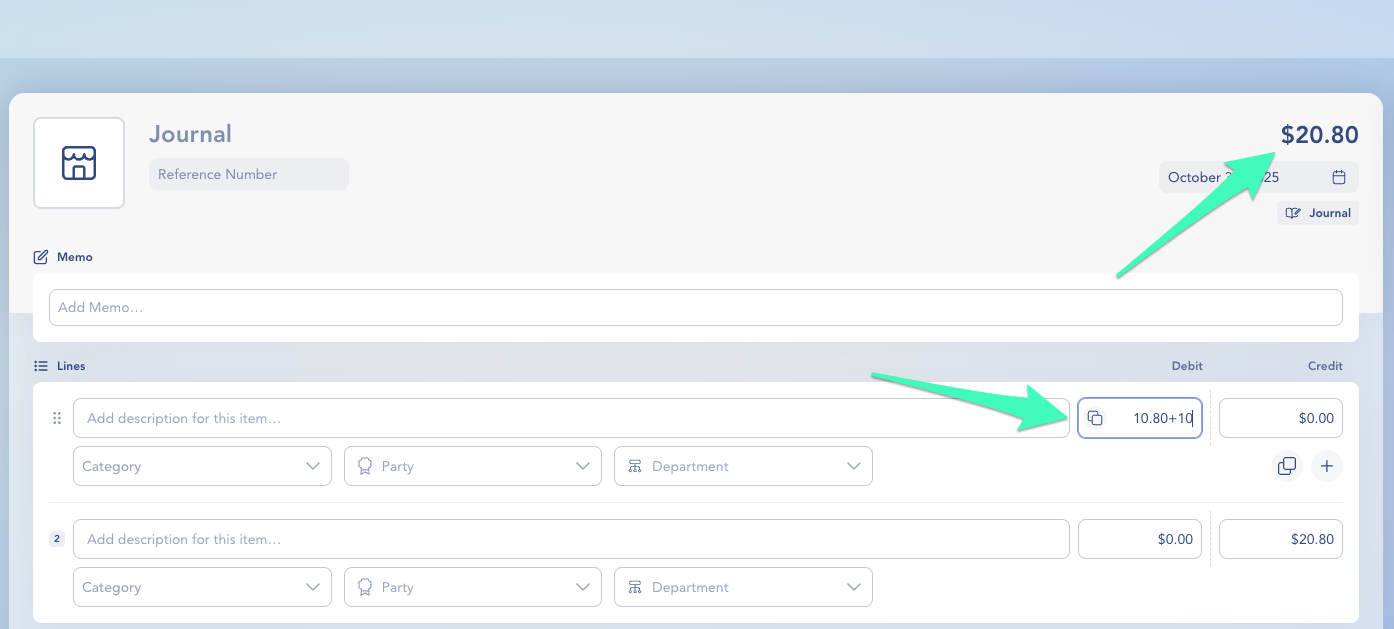
### Power tip — Do math in amount fields

1. Click into an **Amount** field (e.g., in **Ledger**).
2. Type a simple expression (e.g., **10.80+10**), then press **Enter**.
3. The field resolves to the **calculated result,** and the page totals update.

**What works:** `+` (add), `-` (subtract), `*` (multiply), `/` (divide), decimals.

<div align="left"><figure><img src="broken-reference" alt="" width="563"><figcaption></figcaption></figure></div>

{% hint style="info" %}
**Note:** If the change affects a **closed period**, you may see a confirmation dialog before the edit is applied.
{% endhint %}

***

### Frequently Asked Questions

<details>

<summary><strong>Can I open Search from anywhere?</strong></summary>

Yes. Press **Command + K** (Mac) or **Ctrl + K** (Windows/Linux) to open Search from any page.

</details>

<details>

<summary><strong>Does Search work across multiple businesses?</strong></summary>

Search is limited to the current business workspace.&#x20;

</details>

<details>

<summary>Can I enter math in any amount field?</summary>

Yes—most amount fields in Ledger accept basic arithmetic and resolve on Enter. The calculated result is saved to the transaction.

</details>

***

{% columns %}
{% column width="66.66666666666666%" valign="middle" %}
Got a question or feedback? Our team is all ears—come say hello!
{% endcolumn %}

{% column width="33.33333333333334%" valign="middle" %}

<p align="center"><a href="https://app.gitbook.com/s/x8QKZsFt122QPdcslRDC/contact-us" class="button primary" data-icon="envelope-open-text">Contact Digits Support</a></p>
{% endcolumn %}
{% endcolumns %}

***
