> For the complete documentation index, see [llms.txt](https://help.digits.com/llms.txt). Markdown versions of documentation pages are available by appending `.md` to page URLs; this page is available as [Markdown](https://help.digits.com/business-connections/linking-specific-chase-accounts.md).
# Linking Only Your Chase Business Accounts to Digits
Use these steps to connect only your Chase business accounts to Digits, not your personal accounts.
***
### Before You Connect: Use the Owner Login
If you use Chase for both **business and personal banking**—or have multiple Chase accounts—start the Digits → Plaid connection using your **owner login**.
**Why this matters:**
* Only the **owner login** can choose which specific accounts to share with Digits.
* If an admin or other user starts the connection, the **account selection screen may not appear**, and **all accounts** under that Chase login can be shared with Digits.
* This is enforced by both **Plaid’s flow** and **Chase’s security settings**.
{% hint style="info" %}
If the wrong accounts keep showing up, log out of Chase completely or open the connection in an **incognito/private window** to clear cached sessions.
{% endhint %}
***
{% stepper %}
{% step %}
### Part 1: Modify Account Sharing on Chase
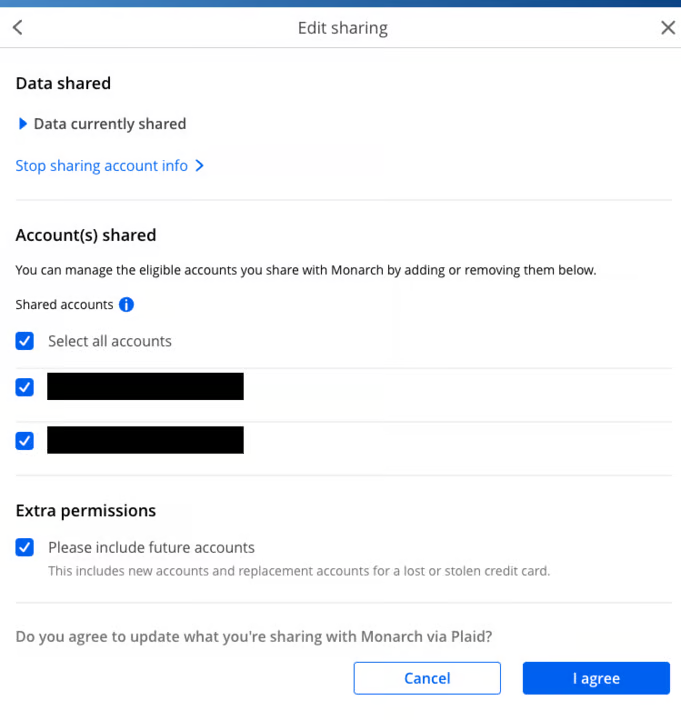
This part happens on the **Chase website** and controls which accounts Plaid (and therefore Digits) can see.
To share **only your business accounts** with Digits:
1. Log in to **chase.com**.
2. Go to the **Security & Privacy** tab.
3. In **Linked Apps & Websites**, find **Digits via Plaid**.
4. Click **Edit Sharing**.
5. Select **only the accounts you want to share** (your business accounts).
6. Click **I Agree** to save your changes.
{% hint style="danger" %}
**Important:** Chase (via Plaid) only allows account access changes to be made **directly on chase.com**. Even if you remove and reconnect your Chase account in Digits:
* Any accounts you previously shared will still appear
* You **must** update your sharing settings at **chase.com** to deselect accounts
This is the **only way** to remove personal accounts from your Plaid connection.
{% endhint %}
{% endstep %}
{% step %}
### Part 2: Disconnect the Chase Connection in Digits
Once you’ve updated sharing on Chase, you’ll clean up the old connection inside Digits.
1. Log in to your **Digits dashboard**.
2. From your main view, go to the **client/business** that uses this Chase account (if applicable).
3. Click **Connections** from the left navigation menu.
4. Click **Manage** next to your Chase connection.
5. Click **Archive**.
6. Then click **Delete**.
Archiving removes the active connection; deleting clears it fully from Digits so you can reconnect cleanly.
{% endstep %}
{% step %}
### Part 3: Add the Chase Connection Again
Now you’ll reconnect to Chase, so only the business accounts you approved on Chase show up.
1. Go back to **Connections** in Digits.
2. Click **Add Connection**.
3. Follow the prompts through **Plaid** to connect to Chase.
4. You should now only see the **Chase accounts you approved for sharing** in step 1.
{% endstep %}
{% endstepper %}
***
### Tips & Troubleshooting
* **Still seeing personal accounts?**\
Double-check the **Edit Sharing** settings on chase.com and ensure only business accounts are selected. Then repeat the disconnect/reconnect steps in Digits.
* **Wrong Chase user showing up?**\
Try logging out of Chase completely or using an **incognito/private browser window**, then restart the connection flow from Digits using your **owner login**.
Related article: [Linking Multiple Chase Accounts to Separate Legal Entities in Digits](/business-connections/linking-multiple-chase-accounts.md)
***
{% columns %}
{% column width="66.66666666666666%" valign="middle" %}
Got a question or feedback? Our team is all ears—come say hello!
{% endcolumn %}
{% column width="33.33333333333334%" valign="middle" %}
Contact Digits Support
{% endcolumn %}
{% endcolumns %}
***
---
# Agent Instructions
This documentation is published with GitBook. GitBook is the documentation platform designed so that both humans and AI agents can read, navigate, and reason over technical content effectively. Learn more at gitbook.com.
## Querying This Documentation
If you need additional information that is not directly available in this page, you can query the documentation by asking a question.
Perform an HTTP GET request on the following URL with the `ask` and `goal` query parameters:
```
GET https://help.digits.com/business-connections/linking-specific-chase-accounts.md?ask=&goal=
```
`ask` is the immediate question: it should be specific, self-contained, and written in natural language.
`goal` is what the user is ultimately trying to achieve, the reason they need the answer. Sharing it helps GitBook give you a better, more relevant answer. A goal is most helpful when it describes the outcome the user wants rather than restating the question. For example, with `ask=how do I create an API token`, a goal like `automate deployments from our CI pipeline` lets GitBook tailor the answer to that use case.
The response will contain a direct answer to the question and relevant excerpts and sources from the documentation.
Use this mechanism when the answer is not explicitly present in the current page, you need clarification or additional context, or you want to retrieve related documentation sections.