⚠️Getting Set Up for Digits Bill Pay & Invoicing
Before you can send invoices or pay bills through Digits, your business needs to be verified. This is a standard step for any product that moves money.
Warning: Customers previously verified with our previous provider must complete this process by 2/28/2026 to avoid disruptions.
Before you begin (recommended)
Digits will send you to our secure third-party verification partner to complete KYB/KYC. The flow is much smoother if you have these ready first:
Business info: legal business name, EIN, state of registration
Owner/signatory info: SSN, physical business address (PO Box cannot be used)
Documents: your tax/EIN documentation and any business formation/registration documents you have. See: /link
ID & device access: government-issued ID + a camera for the selfie/facial scan
Tip: Plan for about 10–15 minutes and try to complete the flow in one sitting.
Part 1
Start the Verification Process
From your Home Dashboard (operator) or your client’s dashboard (firm), go to Bill Pay or Invoicing using the left navigation menu.
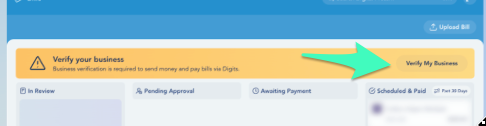
If verification is required (first-time or re-verification), you’ll see a yellow banner at the top of the page.
Click Verify My Business to begin.

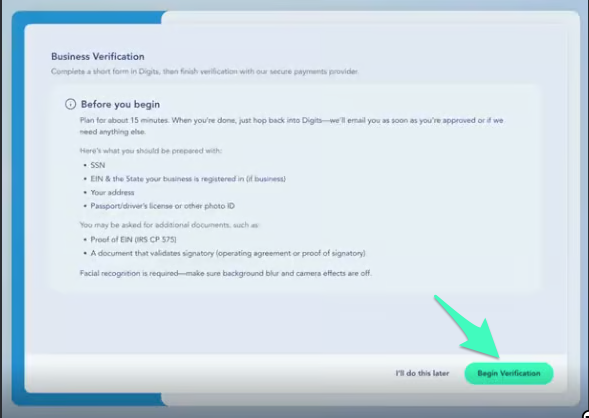
Next, you’ll see a Business Verification screen with a short checklist (what you’ll need, how long it takes, and what to expect).
Review the checklist, then click Begin Verification when you're ready.

Choose Your Company Type
On the Business Verification screen, you’ll first select how the business is registered. This choice controls which fields you’ll see next.

Which business type do I choose?
A freelancer/individual business not registered with a state
Sole Proprietor or Single-Member LLC
Usually uses your SSN (may not have an EIN)
A Single-Member or Pass-Through LLC
Sole Proprietor or Single-Member LLC
Registered with a state (often has an EIN))
An LLC (excluding single-member or pass-through)
Organization
Registered with a state (often has an EIN)
A Corporation (C-Corp or S-Corp)
Organization
Registered with a state and has an EIN
An LLP/LP or other registered entity
Organization
Registered with a state
Enter Your Business Details
This information is collected in Digits before you move to our verification partner.
The business details section must be completed by a company owner and signatory.
➡️ If you chose Sole Proprietorship
This section is labeled Your personal information. You’ll enter your:
First and last name
Social Security number (SSN)
Date of birth
Registered physical business address (PO Box cannot be used)
➡️ If you chose Organization
This section is labeled Owner’s personal information. You’ll enter the owner’s:
First and last name
Social Security number (SSN)
Date of birth
Registered physical business address (PO Box cannot be used)
➡️ Business Information (Same for Both)
For either company type, you’ll enter:
Legal name of the business
Industry code
Annual revenue
Company website (optional)
Registered physical business address (PO Box cannot be used)
FAQ: Industry Code
What is the industry code?
The industry code is a required classification that helps our payments partner understand what the business does. It’s used for compliance and risk checks—it does not affect your accounting or reporting in Digits.
How do I know which industry code to choose?
Most businesses won’t see an exact match. That’s expected.
Start typing a keyword related to what the business does.
Select the closest reasonable option.
You don’t need to know an official code—just pick the best fit.
What if none of the options feel quite right?
Choose the option that’s closest, even if it’s not perfect. For example:
Software companies often select something like Computer Software Stores or Digital Goods
Holding companies or passive LLCs can choose a general or professional category
Will choosing the “wrong” industry code delay verification?
In most cases, no.
Verification usually only flags industry codes if the selection falls into a restricted or regulated category. Choosing a close match is fine and won’t cause issues for typical businesses.
Can I change the industry code later?
If verification requests a change, the section will switch to Add and prompt you to update it. Otherwise, you usually won’t need to revisit it.
Tip: Don’t overthink this field. Pick the closest match and move on—most verifications succeed without issue.
When you’re done, click Start Verification.
After you click Start Verification, you’ll move into our verification partner’s flow to finish the process (Part 2).
Part 2
After you click Start Verification at the end of Part 1, you’ll move into our verification partner’s portal to finish the process. This is where identity checks, document review, and final approvals happen.
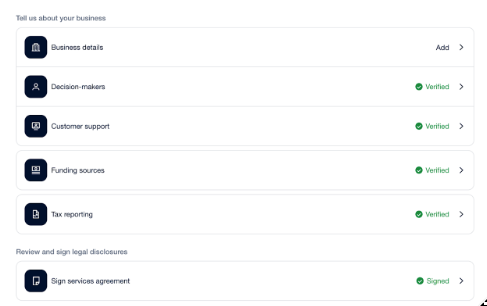
The portal is organized into sections. Each section is reviewed independently and may move through different statuses.
You can safely return to Digits at any time.
Once each section is complete, you’ll see a checkmark and "Verified" to confirm it was submitted correctly.
In review — Information was submitted and is being checked.
Verified — This section is complete.
Add / Needs attention — More information or documents are required.

Important: It’s normal for a section to show Verified and later switch back to Add if additional information is needed. If that happens, open the section and follow the on-screen request.
Business Details
The Business details section consists of five parts: Basic details, Company structure, Additional details, Tax Document, and Summary.
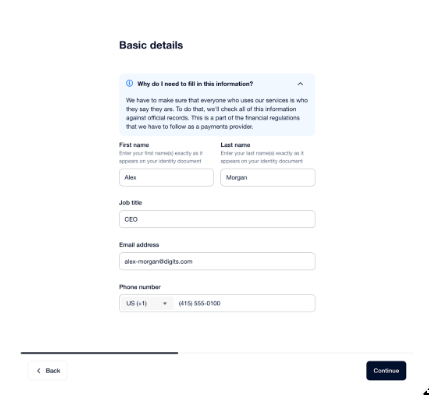
1. Basic details

Country/region of establishment: Where your business was legally formed (usually shown on your formation or registration documents).
Business legal name: The name on your Articles of Incorporation, LLC Agreement, or state registration.
Employer Identification Number (EIN): Your federal tax ID (commonly found in your IRS confirmation letter, such as Form SS-4 or CP 575).
State where your business is registered: The state listed on your formation documents or business registration certificate.
State registration number (optional): Often found on your state’s business registry website or on a certificate of good standing.
2. Company Structure

Select your business type from the available options (for example: private company, public company, incorporated partnership, non-profit/charitable organization, governmental organization, or incorporated association).
3. Additional business details

DBA name (if applicable): The trade name your business uses publicly (often shown on a DBA registration or local business license).
Registered physical business address: The official address used for government and other legal purposes. (PO Box cannot be used)
Principal place of business: The main office or physical location where the business is managed.
4. Tax document

Upload an allowed tax document based on your business type.
5. Summary

Review the details and submit the Business details section.
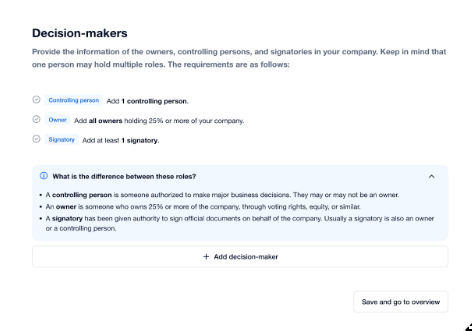
Decision Makers
Next, add the people associated with the business.
You must include:
At least one controlling person
All owners
At least one signatory

Each required person may be asked to complete identity verification, including uploading an ID, providing proof of residency, and completing a facial scan.
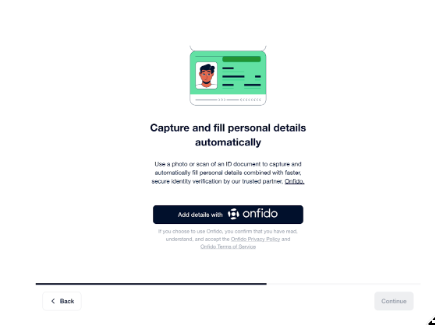
Uploading a government-issued ID
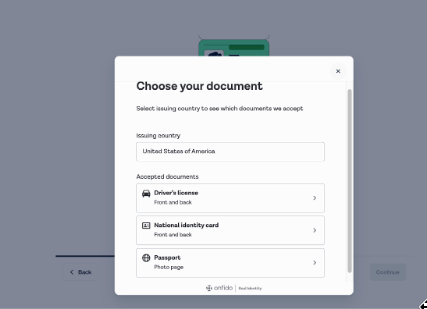
The guided experience will prompt the decision-maker to upload a government-issued ID to verify their identity.

Select the document type you want to upload, such as:
Driver’s license
National identity card
Passport

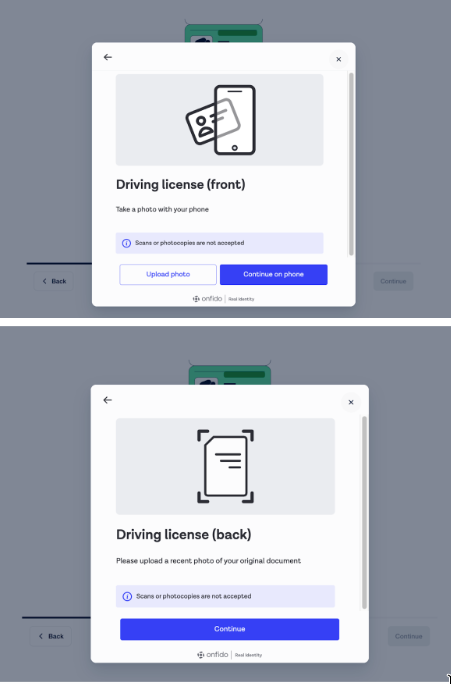
Upload a photo (or scan) of the document.
Example for driver's license:

Click Continue.
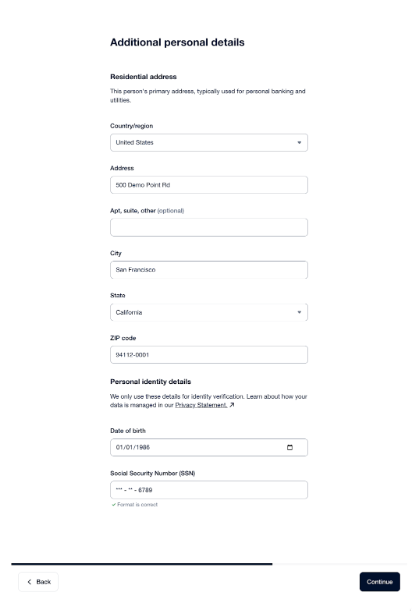
Next, you’ll be asked to enter the decision-maker’s personal details exactly as they appear on the document.
Country/Region
Address
DOB
SSN

Tip: Use the full legal name (including middle name or suffix, if shown) to avoid verification errors.
Uploading proof of residency
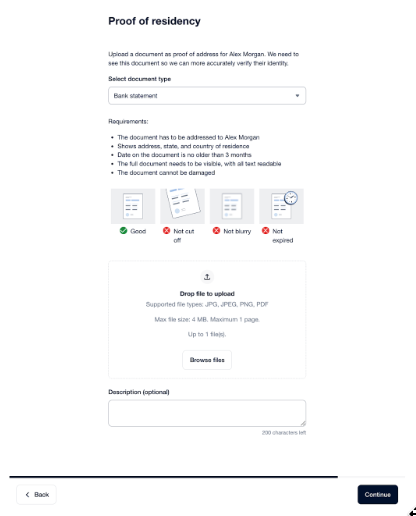
The guided experience will ask the decision-maker to upload a document that confirms their current residential address.
Choose a document type
Select the type of document you’re uploading (for example, a bank statement).
Commonly accepted documents include:
Bank or credit card statement
Utility bill
Lease or mortgage statement
Government-issued letter
Requirements
To be accepted, the document must:
Be addressed to the decision-maker
Show a current residential address
Be dated within the last 3 months
Be fully visible (not cut off)
Be clear and readable (not blurry)
Not be expired or damaged
Upload the document
Upload a clear photo or PDF of the full document
Supported file types: JPG, JPEG, PNG, PDF
Max file size: 4 MB (1 page)
You can optionally add a short description if helpful.

When you’re done, click Continue.
Completing a facial scan/selfie

To verify the decision-maker’s identity, you’ll be asked to complete a short facial scan.
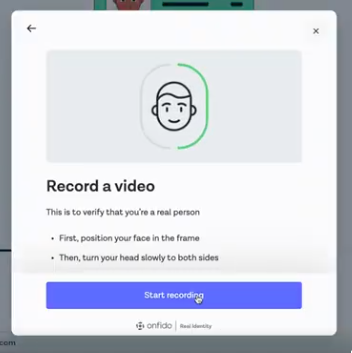
When prompted, click Start recording.
Position your face fully within the frame.
Slowly turn your head to both sides, following the on-screen instructions.
The recording will end automatically once the scan is complete.
This step helps confirm you’re a real person and matches your ID to your identity.
Tips for success
Make sure you’re in a well-lit area
Remove hats, sunglasses, or face coverings
Turn off background blur or camera filters
Use your phone if your computer camera isn’t clear
If the scan doesn’t work the first time, you’ll be prompted to try again.
Service agreement
What you'll do:
A listed signatory must review and sign the service agreement.
Once signed, this section will show Signed and move into review.


What you’ll do
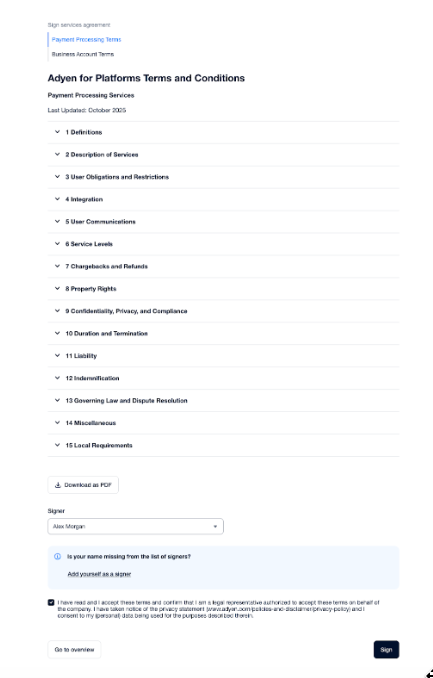
Review the Payment Processing Terms and Business Account Terms.
Use the section headers to expand and review specific topics, or download the agreement as a PDF if you prefer.
Select the correct signer from the dropdown.
The signer must be a listed signatory for the business.
Check the confirmation box to agree to the terms.
Click Sign to complete the step.
This is a digital signature—no printing or uploading is required.
Frequently Asked Questions
What happens to bills or invoices I entered before verification?
Nothing is lost. You can continue creating bills and invoices, but payments won’t process until verification is complete. Once approved, existing items will begin processing automatically.
How long does verification take?
It varies. Some checks are instant, while others take longer. You’ll receive an email if anything needs attention or when verification is approved.
Why did a section change from “Verified” to “Add”?
This can happen if additional information is needed after review. Open the section and follow the on-screen request to provide what’s missing.
I completed everything—why don’t I see a “Done” confirmation?
The portal doesn’t always show a final “done” screen. If required sections show Verified (and the service agreement shows Signed), you’re all set. You can return to Digits and watch for email updates.
I received an email saying “needs attention,” but I can’t find where to fix it
Use the link in the email to return to the portal. If you still can’t access the right step, contact support and share a screenshot of the email/request.
What is the industry code, and how do I choose it?
It’s a required classification for verification. Most businesses won’t see a perfect match—choose the closest option. This usually won’t delay verification unless the category is restricted.
Do I need to complete a verification for each business?
Yes. Each business must complete its own verification.
Stuck? Email us at [email protected] — we’re here to help.