> For the complete documentation index, see [llms.txt](https://help.digits.com/llms.txt). Markdown versions of documentation pages are available by appending `.md` to page URLs; this page is available as [Markdown](https://help.digits.com/business-agentic-general-ledger/journal-entries.md).

# Journal Entries in Digits

***

### **Creating a Journal Entry**

1. From the left navigation menu, go to **Accounting** → **Ledger.**
2. Click **New Transaction** in the top-right corner.
3. Choose **Journal** as the transaction type.&#x20;
4. Enter journal details:

<table data-search="false"><thead><tr><th width="172.1107177734375">Field</th><th width="470.1123046875">Description</th><th>Required/ Optional</th></tr></thead><tbody><tr><td><strong>Reference Number</strong></td><td>Tracking or reference number for the transaction (e.g., invoice or receipt number).</td><td>Optional</td></tr><tr><td><strong>Date</strong></td><td>Choose the transaction date.</td><td>Required</td></tr><tr><td><strong>Memo</strong></td><td>Internal note for context or reference. </td><td>Optional</td></tr><tr><td><strong>Description</strong></td><td>Short description of the transaction.</td><td>Optional</td></tr><tr><td><strong>Category</strong></td><td>Choose the correct ledger category for each line.</td><td>Required</td></tr><tr><td><strong>Debit/Credit Amount</strong></td><td>Amounts must balance. </td><td>Required</td></tr><tr><td><strong>Party</strong></td><td>Add the Party if the transaction relates to a specific vendor, customer, or employee. Leave blank for internal adjustments (e.g., depreciation, reclassifications, accruals).</td><td>Optional</td></tr><tr><td><strong>Department</strong></td><td>Assign the transaction to a department, if applicable.</td><td>Optional</td></tr><tr><td><strong>Location</strong></td><td>Assign the transaction to a location, if applicable.</td><td>Optional</td></tr></tbody></table>

6. Add additional lines if needed (minimum of two required).
7. When finished entering your details, you can choose how to save:
   * **Save & Close** — Save and return to the Ledger.
   * **Save** — Save and stay on the current entry.
   * **Save & New** — Save and immediately start another transaction.

***

### Importing Journal Entries

You can also import journals via CSV for faster onboarding or multi-line adjustments.

1. Go to **Accounting** → **Ledger.**
2. Click the dropdown next to **Add Transaction** → **Import Journal Entries.**

<div align="left"><figure><img src="/spaces/uIztBwoMl2RW5oGzS0cZ/files/55y5pGiaRRKeyL7vsgqc" alt="" width="224"><figcaption></figcaption></figure></div>

3. Download the **CSV template.**
4. Fill in your entries using the template.

{% hint style="info" icon="lightbulb" %}
**Tip:** Enter the exact customer or vendor name in the **Party** column for each line that should be associated with a party. If you leave the **Party** column blank, Digits may assign a party automatically. If needed, you can update the assigned parties later using the **bulk Party editor** in the **Ledger**.
{% endhint %}

3. Upload your completed file and review the mapping preview.
4. Click **Next** to complete the import.

{% hint style="info" %}
**Tip:** Each row in your file represents **one line** of a journal entry.\
Lines with the same **Reference Number** are grouped into a single entry.

Best for:

* Opening balances
* Multi-line adjustments
* Catch-up entries during onboarding

Just make sure your **debits and credits balance** within each group — :sparkles: Digits handles the rest automatically.
{% endhint %}

***

### Copying or Reversing a Journal Entry

Need to fix a mistake or repeat a recurring entry? Copying and reversing make it quick.

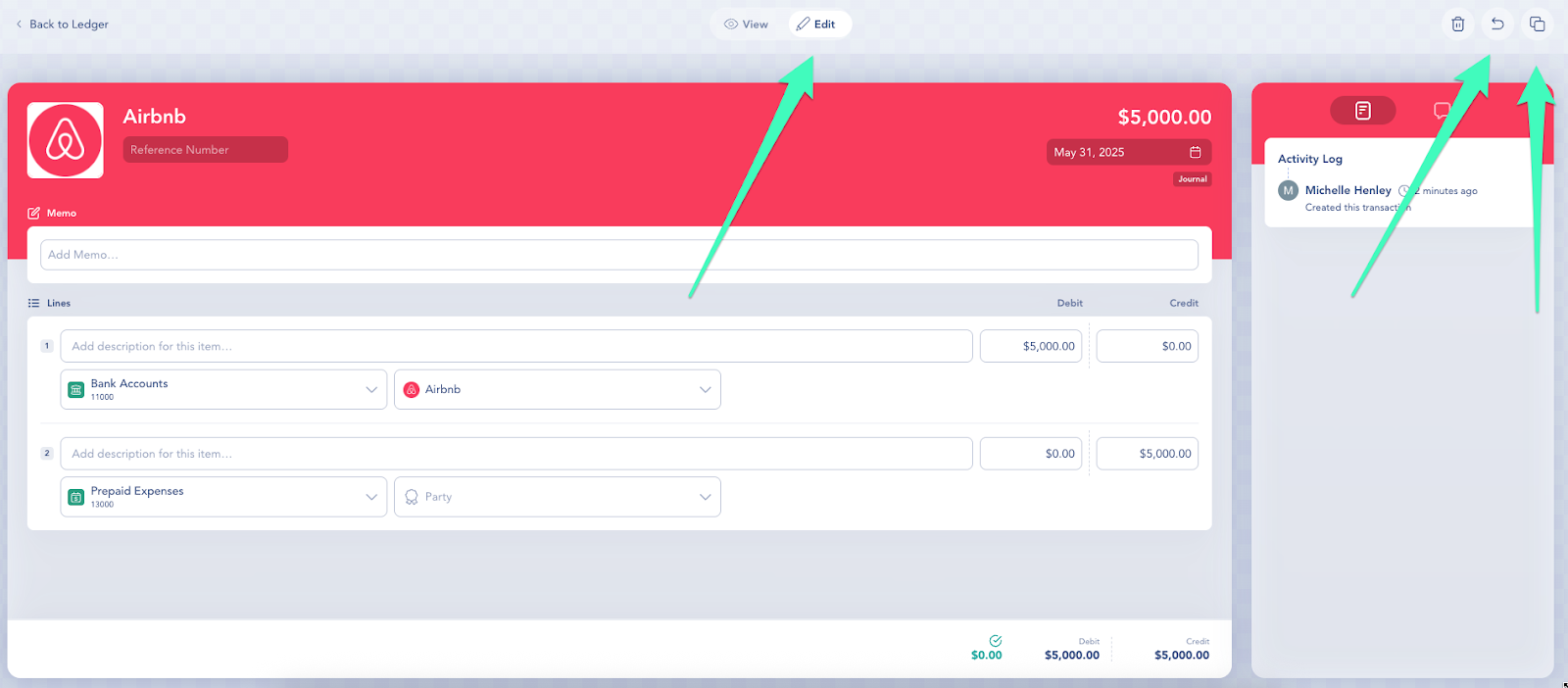
1. Go to **Accounting → Ledger.**
2. Locate the entry by category, party, or amount (or press **Command + K** to search).
3. Click the **Edit** icon at the top of the entry.
4. Choose **Copy** to duplicate or **Reverse** to create an offsetting entry.
5. Click **Submit** to save.

<figure><img src="/spaces/uIztBwoMl2RW5oGzS0cZ/files/jfY4nFVIDa5XC2iFIrCs" alt=""><figcaption></figcaption></figure>

***

### Editing Journal Entries

**Need to make changes after posting?**\
Journal entries can be edited just like any other transaction in Digits — update fields, add lines, or reverse entries as needed.

For step-by-step guidance, see: [Editing Transactions](/business-agentic-general-ledger/editing-transactions.md)

***

### Frequently Asked Questions

<details>

<summary>What is a journal entry? </summary>

It’s the basic record of a financial transaction in double-entry accounting. Every entry has equal **debits** and **credits**, updating the general ledger.

* **Date**
* **Affected Categories**
* **Debit and Credit amounts**
* **Optional details:** memo, party, or reference number

Every line must include a selected category, and **total debits must equal total credits**.

{% hint style="info" %}
**Pro Tip:** A journal entry is just one type of accounting entry. Other entries—like [Pay In/ Pay Out Transactions](/business-agentic-general-ledger/pay-in-pay-out.md)—capture simpler transactions affecting bank or credit card accounts.
{% endhint %}

</details>

<details>

<summary>Can I create a journal entry for a future date?</summary>

Yes. Add them manually or import them into your existing workflows. Once a future-dated transaction exists, the period selector will automatically update, allowing you to navigate to future periods.

</details>

<details>

<summary>Can I import journal entries from QuickBooks?</summary>

Not directly — journal imports are supported via CSV. For QuickBooks migrations, Digits automatically brings over the Chart of Accounts and transaction history up to your cutover date.

</details>

<details>

<summary>What happens if my debits and credits don’t balance?</summary>

Digits won’t let you save the entry until totals match. Check each line and ensure every debit has a corresponding credit.

</details>

<details>

<summary>Can I copy or reuse recurring journals?</summary>

Yes — use the Copy function in the Ledger to duplicate existing entries, then adjust details as needed.

</details>

<details>

<summary>How long does an import take?</summary>

Imports typically process within 1–10 minutes, depending on size. If it takes longer, reach out to [help@digits.com](mailto:).

</details>

<details>

<summary>Why can't I find a specific account when creating a journal entry?</summary>

Digits supports journal entries to any account in your Chart of Accounts, including Retained Earnings, partner equity, and distributions. If an account doesn't appear when you're creating a journal entry, it likely hasn't been added to your Chart of Accounts yet. Go to Category Manager, create the category under the appropriate parent (e.g., Retained Earnings under Equity), and it will be available immediately. See: [Categories (Chart of Accounts)](/business-agentic-general-ledger/category-manager.md)

</details>

<details>

<summary>Can I delete or edit an opening balance?</summary>

Absolutely! See: [Troubleshooting Cash Totals: Verifying Opening Balances](/business-agentic-general-ledger/verify-opening-balances.md)

</details>

<details>

<summary>Can I add attachments to a journal entry?</summary>

You can attach optional supporting documents after saving a journal entry.

1. Open the journal entry.
2. Open the review panel on the right.&#x20;
3. Click the comments icon.&#x20;
4. Browse or drag & drop your attachment.

</details>

<details>

<summary>What happens if I save a journal entry in a closed period?</summary>

If you save a journal entry dated in a closed period, Digits warns you that the entry will affect closed-period balances and asks you to confirm before continuing.

If you select **Save**, the journal entry is posted to the ledger.

<div align="left"><figure><img src="/files/6oubdmwUTA6nFuE7vLWM" alt="" width="308"><figcaption></figcaption></figure></div>

</details>

***

{% columns %}
{% column width="66.66666666666666%" valign="middle" %}
Got a question or feedback? Our team is all ears—come say hello!
{% endcolumn %}

{% column width="33.33333333333334%" valign="middle" %}

<p align="center"><a href="https://portal.usepylon.com/digits/forms/get-in-touch-with-digits-support" class="button primary" data-icon="envelope-open-text">Contact Digits Support</a></p>
{% endcolumn %}
{% endcolumns %}

***


---

# Agent Instructions
This documentation is published with GitBook. GitBook is the documentation platform designed so that both humans and AI agents can read, navigate, and reason over technical content effectively. Learn more at gitbook.com.

## Querying This Documentation
If you need additional information that is not directly available in this page, you can query the documentation dynamically by asking a question.

Perform an HTTP GET request on the current page URL with the `ask` query parameter, and the optional `goal` query parameter:

```
GET https://help.digits.com/business-agentic-general-ledger/journal-entries.md?ask=<question>&goal=<endgoal>
```

`ask` is the immediate question: it should be specific, self-contained, and written in natural language.
`goal` is optional and describes the broader end goal you are ultimately trying to accomplish on behalf of the user. GitBook uses it to tailor the answer towards what is most useful for that goal.

The response will contain a direct answer to the question and relevant excerpts and sources from the documentation.

Use this mechanism when the answer is not explicitly present in the current page, you need clarification or additional context, or you want to retrieve related documentation sections.