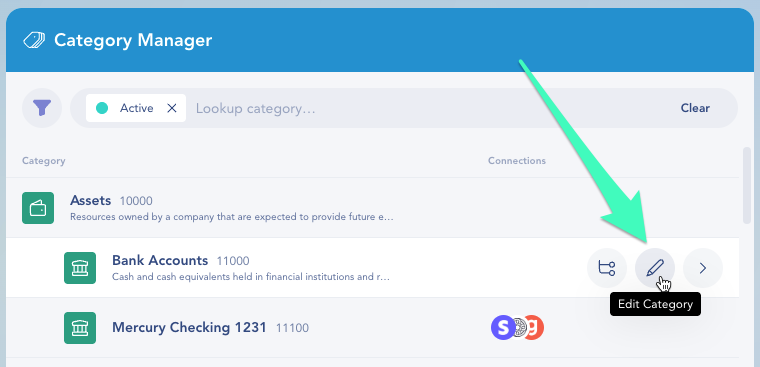
| 10000 | Assets |
| 11000 | Bank Accounts |
| 11500 | Asset Clearing |
| 11510 | Invoice Clearing |
| 11520 | Digits - Invoice Clearing |
| 12000 | Accounts Receivable |
| 12010 | Accounts Receivable - Gross |
| 12020 | Allowance for Doubtful Accounts |
| 12500 | Accrued Revenue |
| 13000 | Prepaid Expenses |
| 13010 | Prepaid Benefits |
| 13020 | Prepaid Rent |
| 13030 | Prepaid Insurance |
| 13040 | Other Prepaid Expenses |
| 13500 | Inventory |
| 13510 | Raw Materials |
| 13520 | Work in Progress |
| 13530 | Finished Goods |
| 14000 | Investments |
| 14500 | Shareholder Loans |
| 15000 | Other Current Assets |
| 15010 | Security Deposits |
| 15020 | Current Tax Assets |
| 15030 | Other Current Assets |
| 15999 | Uncategorized Assets |
| 16000 | Fixed Assets |
| 16100 | Computer Assets |
| 16150 | Accumulated Depreciation - Computer Assets |
| 16200 | Furniture & Fixtures |
| 16250 | Accumulated Depreciation - Furniture & Fixtures |
| 16300 | Other Fixed Assets |
| 16350 | Accumulated Depreciation - Other Fixed Assets |
| 17000 | Intangible Assets |
| 17100 | Domain Names |
| 17150 | Accumulated Amortization - Domain Names |
| 17200 | Patents & Trademarks |
| 17250 | Accumulated Amortization - Patents & Trademarks |
| 17300 | Research & Development |
| 17350 | Accumulated Amortization - Research & Development |
| 17400 | Leasehold Improvements |
| 17450 | Accumulated Amortization - Leasehold Improvements |
| 17500 | Other Intangible Assets |
| 17550 | Accumulated Amortization - Other Intangible Assets |
| 18000 | Goodwill |
| 19999 | Other Long-term Assets |
| 20000 | Liabilities |
| 21000 | Accounts Payable |
| 22000 | Credit Cards |
| 23000 | Liability Clearing |
| 23100 | Employee Reimbursements Clearing |
| 23200 | Payroll Clearing |
| 23300 | Bill Pay Clearing |
| 23400 | Digits - Bill Pay Clearing |
| 24000 | Accrued Expenses |
| 24500 | Deferred Revenue |
| 25000 | Other Current Liabilities |
| 25010 | Benefits Payable |
| 25020 | Income Taxes Payable |
| 25030 | Sales Tax Payable |
| 25040 | Payroll Tax Payable |
| 25050 | Payroll Deductions Liability |
| 25060 | Uncategorized Liabilities |
| 25500 | Short-term Debt |
| 26000 | Convertible Notes |
| 26100 | Convertible Notes - Principal |
| 26200 | Convertible Notes - Accrued Interest |
| 27000 | Long-term Debt |
| 28000 | Other Long-term Liabilities |
| 30000 | Equity |
| 31000 | Common Stock |
| 32000 | Preferred Stock |
| 33000 | SAFE |
| 34000 | Owner's Equity |
| 34100 | Owner's Contributions |
| 34200 | Owner's Draws |
| 35000 | Treasury Stock |
| 36000 | Additional Paid In Capital |
| 37000 | Other Comprehensive Income |
| 38000 | Retained Earnings |
| 39999 | Uncategorized Equity |
| 40000 | Revenue |
| 41000 | Sales Revenue |
| 42000 | Subscription Revenue |
| 43000 | Transaction Revenue |
| 44000 | Partner Revenue |
| 45000 | Refunds and Discounts |
| 49999 | Uncategorized Income |
| 50000 | Cost of Revenue |
| 51000 | Cost of Labor |
| 52000 | Cost of Goods |
| 53000 | Payment Processing Fees |
| 54000 | Hosting Fees |
| 55000 | Other Cost of Revenue |
| 60000 | Operating Expenses |
| 61000 | Payroll Expenses |
| 61100 | Salaries |
| 61200 | Bonuses |
| 61300 | Commissions |
| 61400 | Employee Benefits |
| 61410 | Health Insurance |
| 61420 | Retirement Contributions |
| 61500 | Employer Payroll Taxes |
| 61600 | Payroll Processing Fees |
| 61700 | Recruiting Costs |
| 61800 | Other Employee Costs |
| 62000 | Travel & Entertainment |
| 62100 | Airfare |
| 62200 | Ground Transportation |
| 62300 | Lodging |
| 62400 | Meals |
| 62500 | Entertainment |
| 62600 | Other Travel & Entertainment |
| 63000 | Professional Fees |
| 63100 | Consultants and Contractors |
| 63200 | Legal |
| 63300 | Tax & Accounting |
| 63400 | Other Professional Fees |
| 64000 | Sales and Marketing |
| 64100 | Advertising |
| 64200 | Conference and Trade Shows |
| 64300 | Promotional Items and Gifts |
| 64400 | Other Sales & Marketing |
| 65000 | Business Applications & Software |
| 66000 | Facilities |
| 66100 | Rent |
| 66200 | Utilities |
| 66300 | Repairs and Maintenance |
| 66400 | Other Facilities Expenses |
| 67000 | Supplies & Materials |
| 67100 | Computers Expense |
| 67200 | Office Supplies |
| 67300 | Other Supplies & Materials |
| 68000 | General Operations |
| 68100 | Memberships & Dues |
| 68200 | Insurance |
| 68300 | Bank Fees |
| 68400 | Other General Operations |
| 69000 | Bad Debt Expense |
| 69999 | Uncategorized Expense |
| 80000 | Other Income |
| 81000 | Interest and Dividends |
| 82000 | Credit Card Rewards |
| 83000 | Other Miscellaneous Income |
| 90000 | Other Expenses |
| 91000 | Depreciation & Amortization |
| 91100 | Fixed Assets Depreciation |
| 91200 | Intangibles Amortization |
| 93000 | Interest Expense |
| 94000 | Taxes |
| 95000 | Other Miscellaneous Expenses |